

A CyberPowerPC mouse can stop working without warning, even when the computer itself starts normally. You may notice that the cursor does not move, clicks are ignored, the mouse repeatedly connects and disconnects, or Windows does not detect it at all. These symptoms do not always mean the mouse is damaged. USB controller problems, power-saving settings, corrupted device records, outdated chipset drivers, or recent Windows changes can all interrupt communication between the mouse and the PC. This guide walks through several practical checks to identify the source of the problem and get your CyberPowerPC mouse working again.
Common Causes of CyberPowerPC Mouse Not Detected
Understanding the underlying cause helps you choose the right fix.
Outdated or corrupted mouse drivers
Faulty USB ports or cables
Power management disabling USB devices
Windows updates causing driver conflicts
Third-party mouse software conflicts
Method 1: Check USB Port and Mouse Hardware
Hardware connection issues should be ruled out first.
Unplug the mouse and reconnect it to a different USB port.
Avoid using front-panel USB ports temporarily.
Test the mouse on another computer.
Try a different USB mouse on your CyberPowerPC.
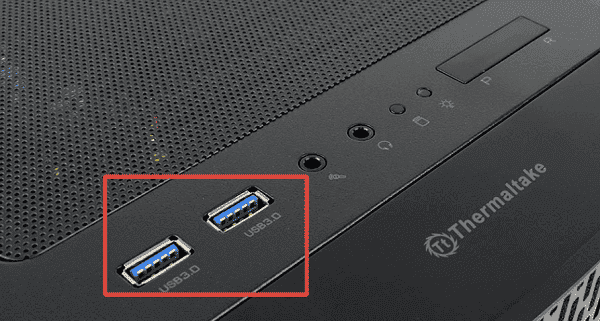
If the mouse works elsewhere, the issue is likely software-related.
Method 2: Check Mouse Drivers
Reinstalling mouse drivers may fix detection errors.
Press Windows + X and open Device Manager.
Expand "Mice and other pointing devices", right-click HID-compliant mouse and select "Uninstall device".
Check "Delete the driver software for this device" if available.
Restart the computer.
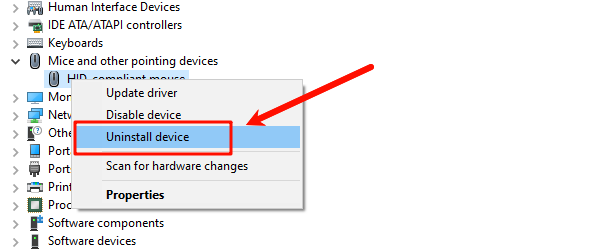
Windows will reinstall the default mouse driver automatically.
Method 3: Update USB and Chipset Drivers
USB controller and chipset drivers affect device detection.
Recommended Steps:
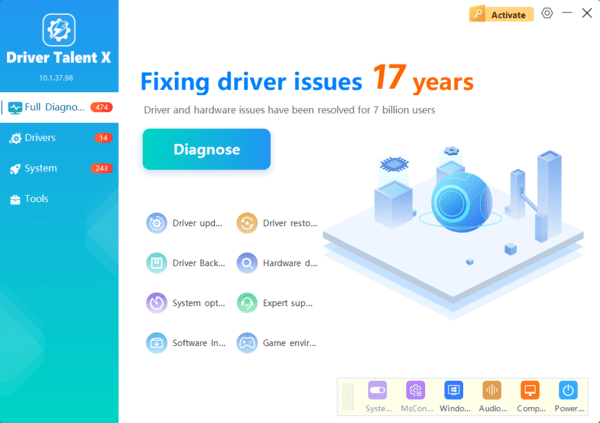
Use Driver Talent X to update USB and chipset drivers.
Alternatively, update them via Device Manager or the motherboard manufacturer's website.
Driver Talent X automatically identifies your mouse and installs the correct driver version for your system.
Method 4: Disable USB Power Management
Power-saving features may disable USB devices.
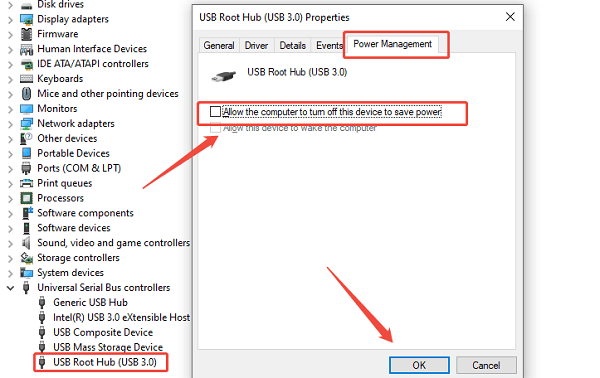
Open Device Manager.
Expand "Universal Serial Bus controllers", right-click USB Root Hub and select "Properties".
Go to the "Power Management" tab, uncheck "Allow the computer to turn off this device to save power".
Click OK and restart the system.
Method 5: Check Windows Mouse and Input Settings
Incorrect settings can cause detection issues.
Open Settings.
Go to Devices.
Select Mouse.
Ensure mouse input is enabled.
Remove and re-add the mouse if it is a wireless model.
Frequently Asked Questions
How can I troubleshoot the mouse if I cannot move the cursor?
Use Tab and the arrow keys to navigate, Enter to select, and Win + X to open a menu that includes Device Manager. A spare mouse can also help you check settings while the original mouse is disconnected.
Why does the mouse keep disconnecting and reconnecting?
An intermittent USB connection, damaged cable, low wireless battery, or receiver interference may be responsible. Try a rear USB port, avoid a USB hub, and test the mouse on another PC before changing drivers.
Is there a Windows setting that turns all mouse input on or off?
The Mouse settings page controls options such as button behavior and pointer speed; it does not normally contain a general "enable mouse input" switch. If the mouse is absent from Windows, focus on its connection and Device Manager status.
Conclusion
A CyberPowerPC mouse not detected on Windows is most often caused by driver-related issues or USB configuration problems. Updating drivers using Driver Talent X should be the first step, as it automatically installs compatible mouse, USB, and chipset drivers. If the issue persists, checking hardware connections, reinstalling drivers, adjusting power settings, and updating Windows will help restore normal mouse functionality.
