

Restore wireless connectivity on a Logitech G Pro X Superlight 2 that is unresponsive or missing from G HUB. Follow practical checks for charging, USB receiver placement, LIGHTSPEED pairing, Windows device recognition, firmware conflicts, wireless interference, and possible receiver or mouse failure.
Check Battery
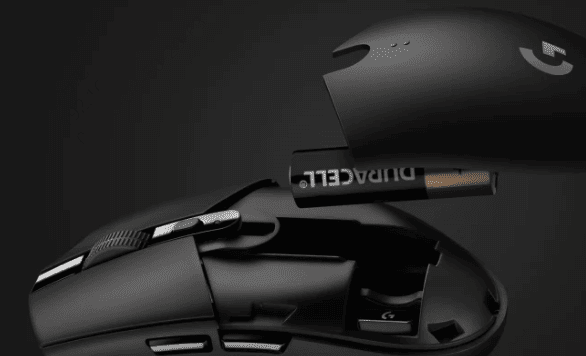
Make sure the mouse has enough battery power. If the battery is too low, the wireless connection may fail or become unstable before the mouse fully stops working. Connect the charging cable and let the mouse charge for a while. Then test whether it works in wired mode
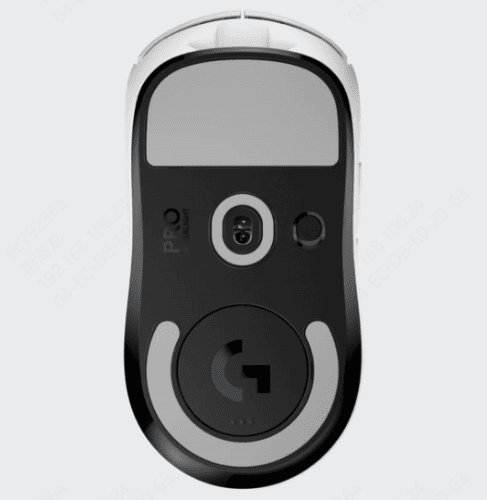
Confirm that the power switch on the bottom of the mouse is turned on. If the mouse works normally with the cable connected but does not work wirelessly, the issue is probably not total hardware failure. It is more likely related to the receiver, pairing, interference, or Windows driver detection
Reconnect the USB Receiver
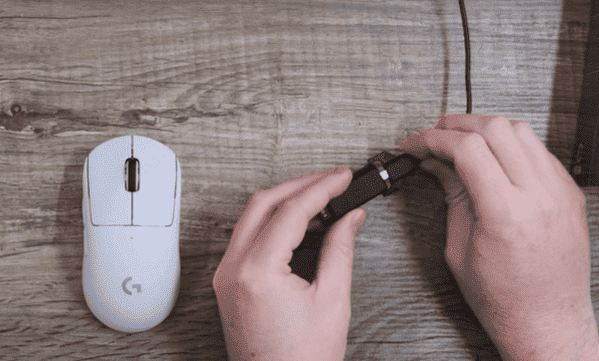
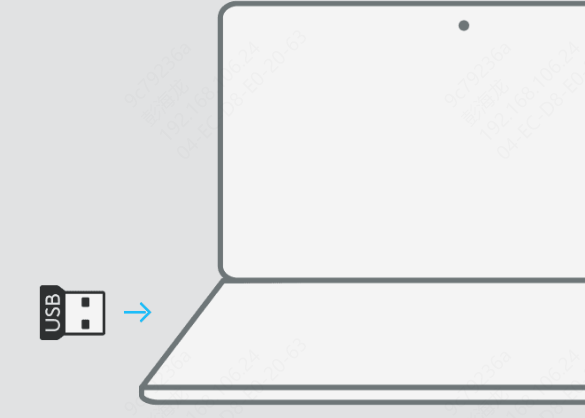
Unplug the Logitech receiver and reconnect it. Try a different USB port, especially a direct USB port on the motherboard instead of a front panel or hub. Some ports do not deliver consistent power or do not initialize wireless receivers correctly after sleep or restart.
If you have the original Logitech extension adapter and cable, use them during testing. This brings the receiver closer to the mouse and often improves signal stability. A receiver placed too far away, behind a desktop case, or near other wireless devices can cause connection problems that look like driver failure.
Restart the Mouse
Turn the mouse off, wait a few seconds, and turn it back on again. This simple reset can help if the wireless link is stuck. Then open Logitech G HUB and check whether the mouse appears there
If G HUB can see the receiver but not the mouse correctly, pairing may have failed. In some cases, receiver pairing can break after firmware changes, device conflicts, or interrupted updates. Use the pairing or device recovery function inside Logitech software if it is available for your setup, then follow the prompts to reconnect the mouse to the original receiver
Test Whether the Problem Is Wireless Only
Connect the mouse with the USB cable and use it for a few minutes. If the mouse works normally in wired mode, you have already narrowed the problem down. That means the sensor, buttons, and basic device detection are working. The remaining issue is likely one of these: receiver connection, pairing failure, wireless interference, or a driver problem affecting the receiver
If the mouse does not work even in wired mode, the problem may be deeper. In that case, Windows may not be loading the correct HID or USB driver, Logitech G HUB may be malfunctioning, or the mouse may have a more serious hardware issue
Restart Logitech G HUB
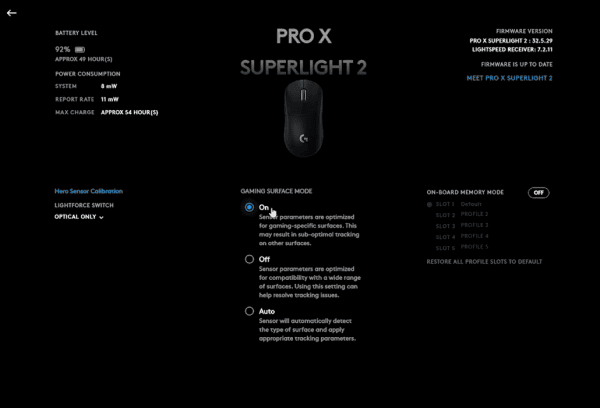
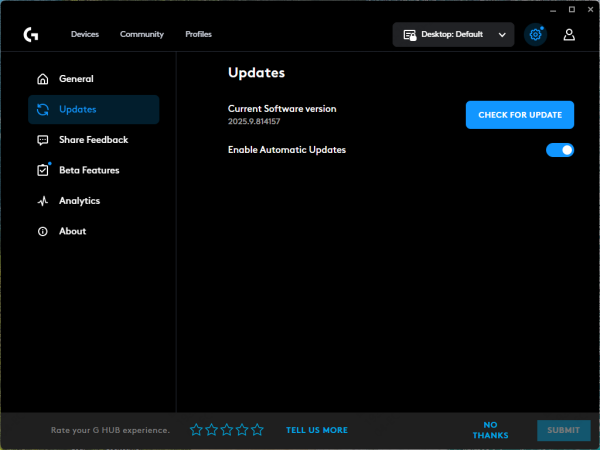
If G HUB keeps loading without showing the mouse, or if the device appears and disappears, the software may be outdated or corrupted. Reinstalling or updating G HUB often helps, especially after a major Windows update. A mismatched G HUB version can prevent correct detection of newer Logitech gaming devices and their receivers
If the mouse works in Windows but G HUB does not detect it, the problem is usually software-side. If neither Windows nor G HUB detects it correctly, move to Device Manager and inspect the drivers
Update Mouse and USB Drivers
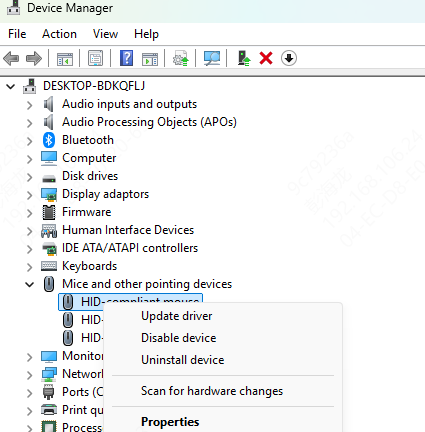
Device Manager
Open Device Manager and check three areas: Mice and other pointing devices, Human Interface Devices, and Universal Serial Bus controllers. Look for warning icons, unknown devices, or entries that appear and disappear when you reconnect the receiver.
Repair Drivers with Driver Talent X
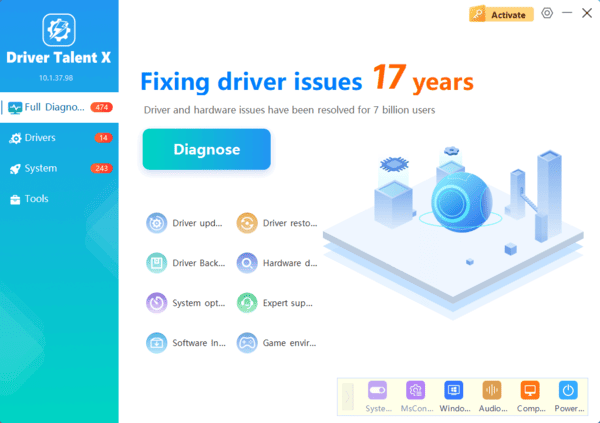
Open Driver Talent X, go to the Drivers tab, and click Diagnose
After the scan finishes, look for Logitech mouse entries, USB receiver items, HID-related drivers, and chipset or USB controller drivers. Click Full Repair, restart the PC, and test the mouse again
This approach is especially useful when Windows no longer recognizes the receiver correctly after an update, or when manual troubleshooting is taking too long because several device drivers may be involved at once
Check for Firmware or Software Conflicts
If the mouse connects only sometimes, firmware or software conflict may be involved. When G HUB detects the mouse intermittently, check for available firmware updates and apply them carefully. Do not disconnect the receiver or cable during the update process
You should also close unnecessary background tools that manage input devices, RGB devices, or gaming peripherals. Conflicts between device management software can interfere with Logitech G HUB and prevent stable detection
Test on Another PC
If the problem continues, test the mouse and receiver on another computer. This step is important because it separates a Windows problem from a hardware problem
If the mouse works normally on a second PC, your original system likely has a driver, software, or USB configuration issue. If the mouse fails on multiple systems, the problem is more likely related to the receiver or the mouse hardware itself
When the Logitech G Pro X Superlight 2 is not connecting, the cause is usually battery, receiver placement, pairing, G HUB detection, or USB and mouse driver problems rather than permanent hardware damage. The best fix order is simple: check battery and wired mode first, reconnect the receiver, restart and re-pair the mouse, inspect Logitech G HUB, and then repair or reinstall the related drivers.
