

Fix a CyberPowerPC mouse that is unresponsive, disconnecting, or missing from Windows. This guide covers USB connection checks, Device Manager repairs, power-saving settings, Windows updates, gaming mouse software, driver problems, and hardware tests to restore reliable mouse control.
Common Causes of CyberPowerPC Mouse Not Working
Outdated or corrupted mouse drivers
Faulty USB ports or loose connections
Power management disabling USB devices
Windows update conflicts
Mouse software conflicts or incorrect settings
Hardware failure of the mouse itself
Fix 1: Check Mouse Connection and USB Port
1. Unplug the mouse from the USB port.
2. Plug it into a different USB port on your CyberPowerPC.
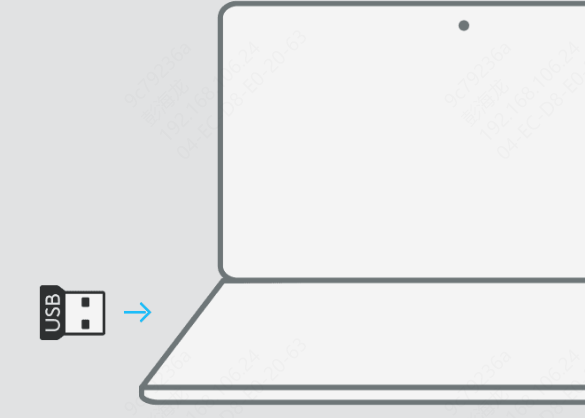
3. Avoid using USB hubs; connect directly to the motherboard ports.
4. If using a wireless mouse:
Replace or recharge the batteries.
Reconnect the USB receiver.
Ensure Bluetooth is enabled if applicable.
If the mouse works in another port, the original USB port may be faulty.
Fix 2: Enable Mouse in Device Manager
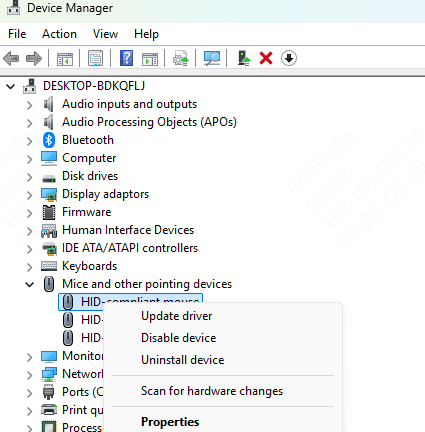
1. Press Windows + X and select Device Manager.
2. Expand "Mice and other pointing devices", if your mouse is disabled, right-click it and select "Enable device".
3. If you see a warning icon:
Right-click the mouse device.
Select "Uninstall device".
Restart Windows and let it reinstall automatically.
Fix 3: Disable USB Power Saving Settings
Windows may turn off USB devices to save power, causing mouse disconnections.
Open Device Manager.
Expand "Universal Serial Bus controllers", right-click each USB Root Hub and choose "Properties".
Go to the "Power Management" tab.
Uncheck "Allow the computer to turn off this device to save power".
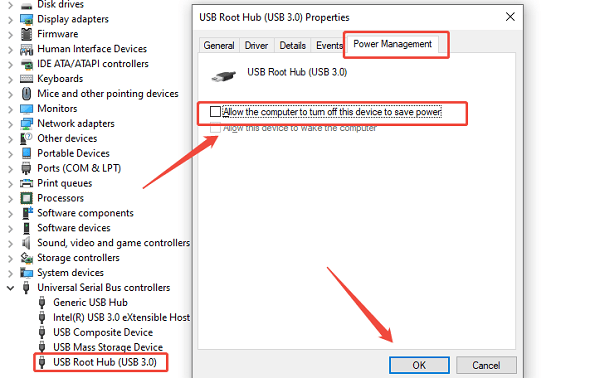
Click OK and restart your PC.
Fix 4: Check Windows Mouse Settings
Open Settings > Devices > Mouse.
Confirm the mouse is detected by Windows.
Increase pointer speed and disable unnecessary enhancements.
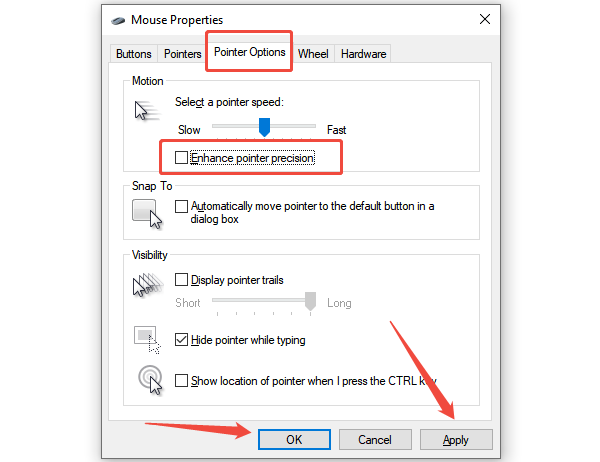
If using gaming mouse software, ensure profiles are correctly configured.
Incorrect settings can make the mouse appear unresponsive even when drivers are installed.
Fix 5: Update Windows and Roll Back Updates
1. Go to Settings > Update & Security > Windows Update.
2. Click "Check for updates", install all pending updates.
3. If the mouse stopped working after a recent update:
Go to View update history > Uninstall updates.
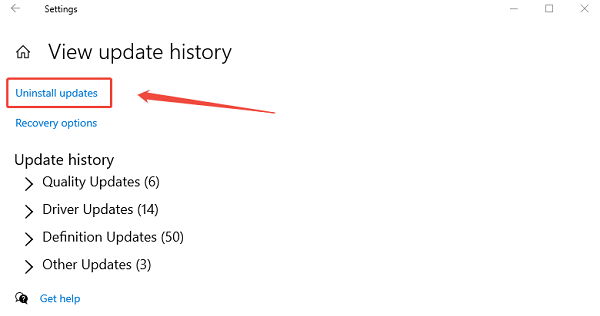
Remove the most recent update and restart.
Some Windows updates may temporarily conflict with mouse drivers.
Fix 6: Test the Mouse on Another Computer
To rule out hardware failure:
Connect the mouse to a different PC or laptop.
If it does not work there either, the mouse may be defective.
If it works fine, the issue is specific to your CyberPowerPC system.
Fix 7: Reinstall Gaming Mouse Software
If you are using a branded gaming mouse:
Uninstall the mouse software from "Apps & Features".
Restart your PC.
Reinstall the latest version from the manufacturer's website.
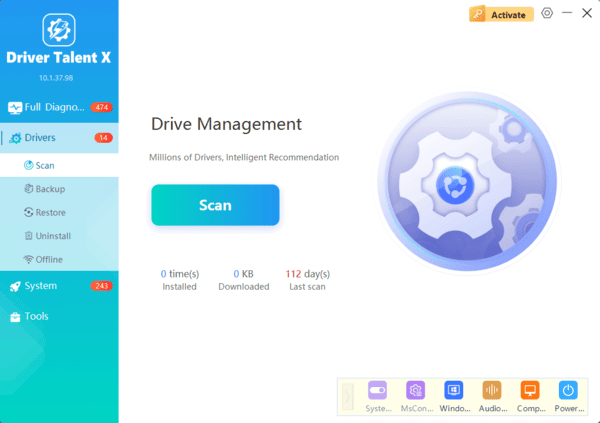
Update Drivers With Driver Talent X
Driver-related problems are the most common reason a CyberPowerPC mouse stops working. Updating drivers early can save time and resolve the issue immediately.

Conclusion
A CyberPowerPC mouse not working is usually caused by driver errors, USB power settings, or Windows conflicts. Updating drivers with Driver Talent X should be your first step, followed by checking hardware connections, adjusting power settings, and reviewing Windows updates. With the solutions above, most mouse problems can be fixed quickly and permanently.
