

If your Dell touchpad suddenly disappears, stops responding, or loses gestures and scrolling, the problem is often related to a missing, damaged, or incompatible touchpad driver rather than hardware failure. Windows updates, system resets, BIOS settings, hidden devices, or corrupted system files can all interfere with normal touchpad operation. This guide explains several practical ways to restore a missing Dell touchpad driver, including checking Windows and BIOS settings, enabling hidden devices in Device Manager, repairing system files, running troubleshooting tools, and using Driver Talent X to detect and install the correct Synaptics, ELAN, HID, or Precision Touchpad driver for your Dell laptop.
Why the Dell Touchpad Driver Goes Missing
A Dell touchpad driver can disappear for several common reasons. Windows may replace the original Dell driver with a generic one that does not fully support the device
A failed driver update can also break the touchpad configuration. In some cases, system restore or reset removes device-specific drivers altogether. BIOS settings may also disable the touchpad, making it look as if the device no longer exists. Corrupted Windows system files can create the same result
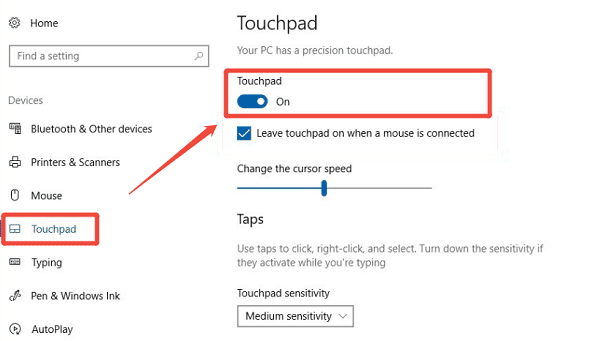
Fix 1: Enable Touchpad in Windows Settings
Open Settings
Go to Devices
Select "Touchpad"
Make sure the touchpad toggle is turned On
Adjust sensitivity and gesture settings if needed
Fix 2: Check for Disabled or Hidden Devices
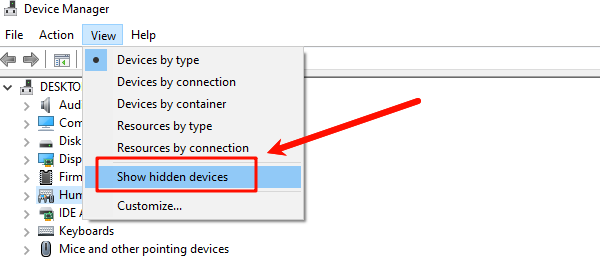
Press Windows + X and select Device Manager
Expand Mice and other pointing devices and Human Interface Devices
Look for Synaptics, ELAN, HID-compliant touchpad, or I2C HID Device
Right-click the device and select "Enable device" if available
If the device does not appear, click View and select "Show hidden devices"
Fix 3: Check BIOS Touchpad Settings
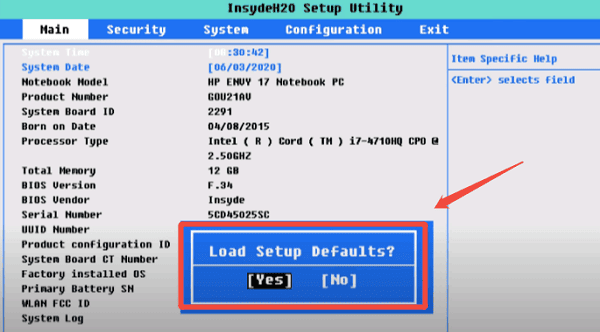
Restart your computer
Press F2 repeatedly to enter BIOS
Navigate to System Configuration or Advanced Settings
Locate "Touchpad" or "Internal Pointing Device", make sure it is set to "Enabled"
Save changes and exit BIOS
Fix 4: Run Windows Troubleshooter
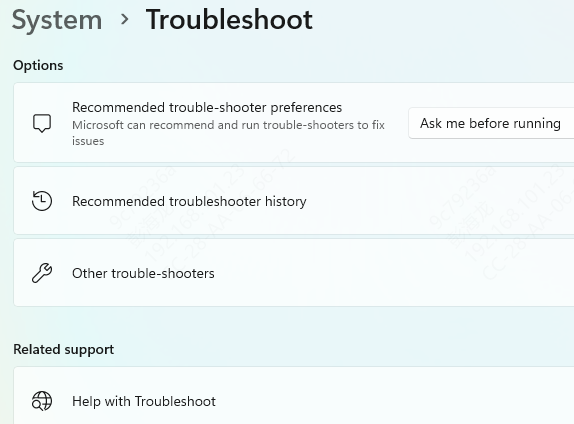
Open Settings > Update & Security
Go to Troubleshoot
Click Additional troubleshooters.
Find Hardware and Devices, click "Run the troubleshooter"
Follow on-screen instructions.
Fix 6: Check for System File Corruption
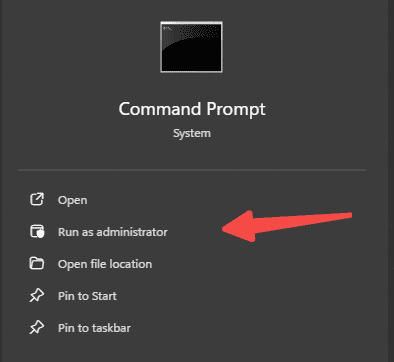
Open Command Prompt as Administrator (Win + R > type "cmd" > right-click and choose "Run as administrator")
Type the following command and press Enter: sfc /scannow
Wait for the scan to complete
Restart your computer
Fix 7: Update Drivers
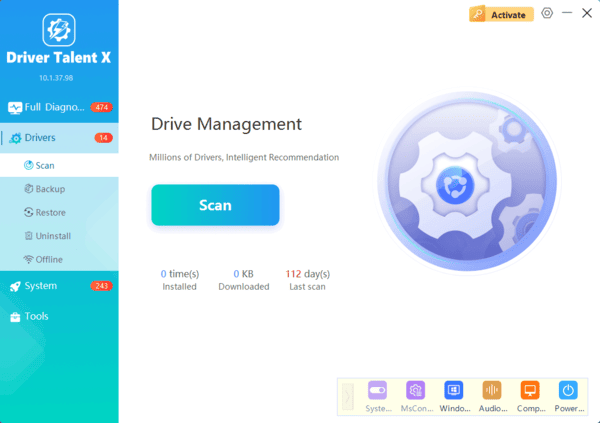
If the touchpad driver is completely missing, Driver Talent X is often the fastest way to restore it.
The software can scan the system, detect missing or damaged drivers, and identify the correct Dell touchpad driver for your model and Windows version
After the scan, install the suggested touchpad driver and restart the laptop. In many cases, this restores normal touchpad movement and gestures immediately. This approach also reduces the risk of downloading the wrong Synaptics, ELAN, or Precision Touchpad package
Frequently Asked Questions
Why is there no Touchpad option in Windows Settings?
Windows may not be detecting the touchpad correctly. Check Device Manager → Human Interface Devices for an I2C HID device, then install the chipset, Serial IO, and touchpad drivers for your Dell model.
Why does the touchpad work in BIOS but not in Windows?
This usually indicates a Windows setting or driver problem rather than failed hardware. Reinstall the I2C, touchpad, and chipset drivers, then restart the laptop.
What should I do if the touchpad stopped working after an update?
Open Device Manager and try Roll Back Driver under the touchpad device's properties. You can also uninstall the recent Windows update or restore the system to an earlier restore point.
Conclusion
A missing Dell touchpad driver is usually a software issue, not a hardware failure. In most cases, the problem is caused by a Windows update, damaged driver installation, disabled settings, BIOS configuration, or corrupted system files. The most effective fixes are restoring the correct driver with Driver Talent X, checking whether the touchpad is disabled, showing hidden devices in Device Manager, reinstalling the driver, and verifying BIOS settings.
