

If a game fails to launch with a DirectX error, crashes immediately, or opens to a black screen, the problem may not be DirectX alone. Outdated or corrupted graphics drivers, missing Visual C++ runtimes, damaged game files, Windows system corruption, or conflicts from overlays and mods can all trigger similar startup failures. This guide explains a practical troubleshooting order for fixing DirectX launch errors, including repairing graphics drivers with Driver Talent X, verifying game files, reinstalling required runtime components, checking Windows system files, and disabling conflicting background software.
Graphics Driver Problems
Graphics drivers are one of the biggest causes of DirectX launch errors. If the GPU driver is outdated, corrupted, partially installed, or replaced by a problematic version, games may fail during startup even though Windows still appears to work normally.
This is especially common after Windows updates, manual driver changes, GPU tuning software changes, or game-ready driver installations that did not complete cleanly. A damaged graphics driver can break DirectX communication before the game even renders its first frame.
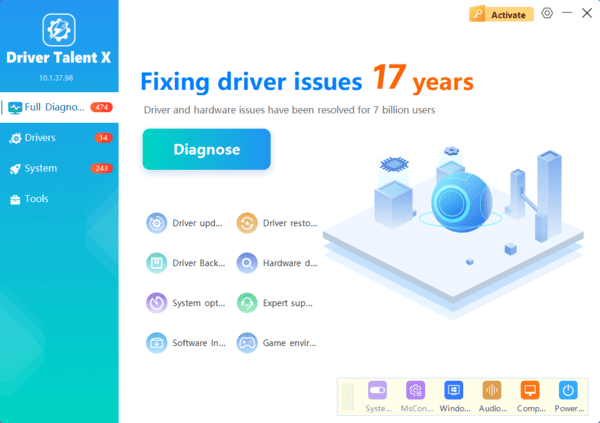
If you are not sure whether the graphics driver is damaged, outdated, or conflicting with other system drivers, Driver Talent X can help speed up the process. Download and install Driver Talent X from the official Driver Talent X. Click Full Repair to repair the affected drivers. Once the repair is complete, restart the computer and test the game again.
Game File Corruption
Sometimes DirectX errors are triggered by broken game files rather than system components. If a game file that loads shaders, graphics assets, or startup libraries is damaged, the game may fail with what looks like a DirectX problem
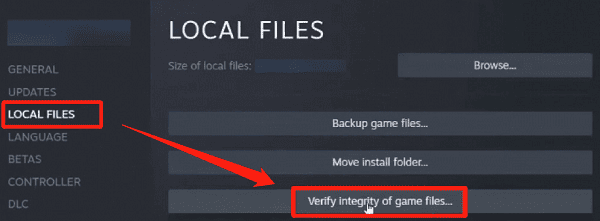
Use your game launcher's file verification feature if it has one. This can check the installation for missing or damaged files and restore the correct versions automatically. It is one of the most effective fixes when only one game is affected and the rest of your games run normally
Visual C++ and Related Runtime Issues
Not every DirectX launch error is truly caused by DirectX. Some games depend on Microsoft Visual C++ runtime packages, and when those components are missing or corrupted, the game may fail before launch and display an error that appears graphics-related
Repairing or reinstalling the required Visual C++ redistributables can solve launch failures that look like DirectX issues but are really runtime dependency problems

Windows System File Problems
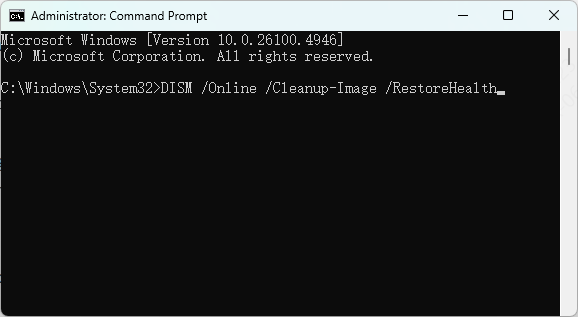
If several games are failing and driver repairs do not help, Windows system corruption becomes more likely. Damaged system files can interfere with DirectX libraries, graphics services, and core runtime behavior
Repairing Windows system files is an important step when the issue affects multiple games or keeps returning after normal fixes
Overlays, Mods, and Background Conflicts
Game overlays and third-party tools can also trigger DirectX launch errors. Programs such as launcher overlays, chat overlays, recording tools, FPS counters, reshade injectors, and mod loaders all interact with the game at startup
If the error started after installing a mod, enabling an overlay, or changing capture software, disable those extras and test again. This is a useful step because software conflicts can look exactly like missing DirectX components even when the real issue is injection failure at launch
Frequently Asked Questions
Should I reinstall DirectX when only one game fails to launch?
Not necessarily. First verify the affected game's files and disable its mods or overlays. If multiple games show similar errors, repair DirectX components and the graphics driver.
How can I tell whether the error is caused by the graphics driver?
Driver problems are more likely if several games crash, the screen flickers, Device Manager reports a GPU error, or the issue began after a driver or Windows update. Try a clean driver reinstall.
Can overlays and mods cause DirectX errors?
Yes. Overlays, recording utilities, ReShade, monitoring tools, and mod loaders can interfere with graphics initialization. Disable them temporarily and launch the unmodified game to test.
Conclusion
Most DirectX launch errors in games are caused by a small group of common issues: broken graphics drivers, missing runtime components, corrupted game files, damaged Windows files, or software conflicts running in the background. The best fix order is simple. Start with a restart, then repair or reinstall the graphics driver, reinstall the required DirectX runtime components, verify the game files, and check for Windows corruption or overlay conflicts.
