

This article explains what kernelbase.dll is, why kernelbase.dll errors occur on Windows, and provides 6 effective fixes, including restarting Windows in Safe Mode, updating system drivers with Driver Talent X, repairing corrupted files with SFC and DISM commands, restoring the system to a previous point, installing Windows updates, and scanning for malware that may damage system components.
1. What Is kernelbase.dll?
kernelbase.dll is a core dynamic link library (DLL) file in the Windows operating system. It plays a key role in managing communication and API calls between the system kernel and user applications. If this file becomes corrupted or encounters errors, it can disrupt the proper functioning of many programs and services.
2. Common Symptoms of kernelbase.dll Errors
Error message when launching a program: "kernelbase.dll caused an exception"
Application crashes with a prompt mentioning "kernelbase.dll"
Frequent kernelbase.dll error logs in Windows Event Viewer
Unexpected termination of games, office software, or other programs
3. Common Causes of kernelbase.dll Errors
Incompatible or outdated drivers
Corrupted or missing system files
Failed Windows updates or patch conflicts
Malware or viruses modifying system components
Registry errors or abnormal system configurations
4. How to Fix kernelbase.dll Errors
Method 1: Restart the PC in Safe Mode
Temporary system conflicts can sometimes be resolved by a simple restart.
If you cannot boot normally, press F8 during startup to enter Safe Mode and troubleshoot.
Method 2: Check for Driver Updates
Outdated or faulty drivers that are incompatible with your system can trigger kernelbase.dll errors. It's recommend to use Driver Talent X for safe and efficient driver updates.

Method 3: Run System File Check Tools
Use SFC (System File Checker):
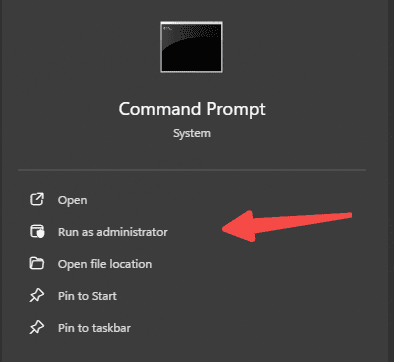
Press Win + S, search for "CMD".
Right-click Command Prompt and select "Run as administrator".
Enter the command: sfc /scannow
Use DISM (Deployment Image Servicing and Management):
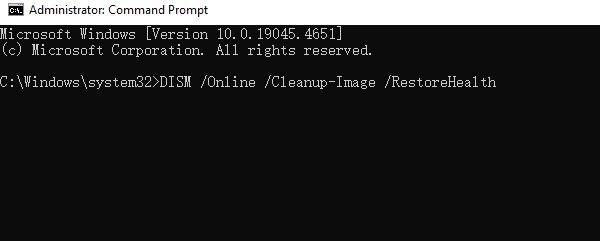
If SFC doesn't fix the problem, run the following command: DISM /Online /Cleanup-Image /RestoreHealth
Method 4: Use System Restore
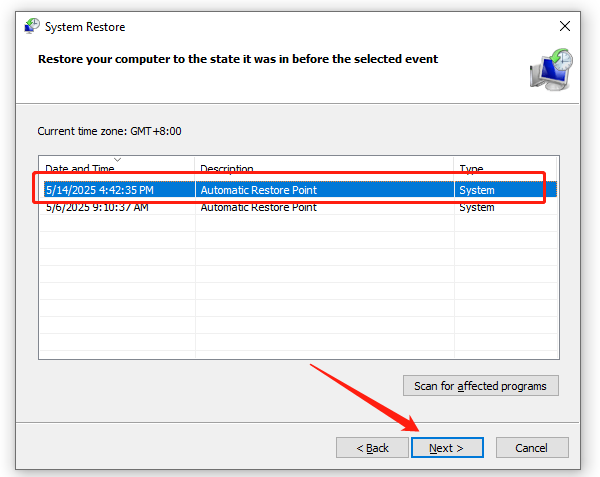
Type "Create a restore point" in the search bar and open it.
Click on "System Restore".
Select a restore point dated before the error occurred.
Method 5: Check for Windows Updates
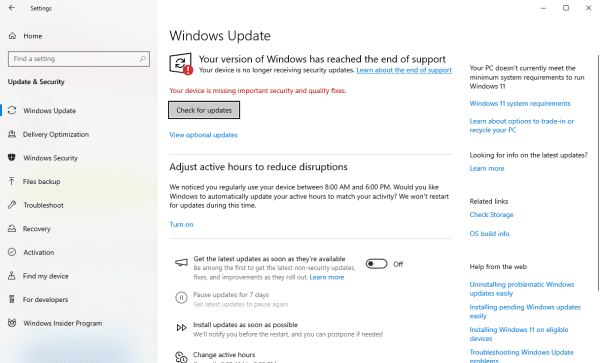
Press Win + I to open Settings.
Go to "Update & Security" > "Windows Update".
Click "Check for updates". If available, download and install them.
Method 6: Scan for Malware or Viruses
Use Windows Defender or reputable third-party antivirus software to perform a full system scan and remove potential threats that might have modified or corrupted kernelbase.dll.
5. Additional Tips
Avoid manually downloading kernelbase.dll from unknown sources — these files may contain malware. Always use system tools for repairs.
Regularly back up your system by creating restore points to make recovery easier.
Use stable versions of software — beta or test versions may be incompatible and trigger DLL errors.
While kernelbase.dll errors are common, most can be resolved by following the step-by-step solutions above. If none of the fixes work, consider reinstalling Windows or contacting a professional technician.
