

A Lenovo ThinkPad that refuses to start does not always mean the laptop has suffered a major hardware failure. The problem may come from a drained power circuit, defective charger or battery, incorrect BIOS settings, loose memory, SSD failure, display issues, or damaged system drivers. This guide walks through a logical troubleshooting process for a ThinkPad that will not turn on, covering hard resets, power checks, BIOS recovery, RAM and SSD inspection, external display testing, Lenovo diagnostics, and Driver Talent X checks for chipset, ACPI, power management, and graphics drivers when Windows is still accessible.
Start With the Charger and Power Source
The first step is to check the charger itself. Make sure you are using the correct Lenovo charger or a fully compatible replacement with the proper power rating
Next, test the wall outlet. Plug another device into it and confirm it works normally. If you are using a power strip or extension, try connecting the charger directly to a wall outlet
Check the Charging Port
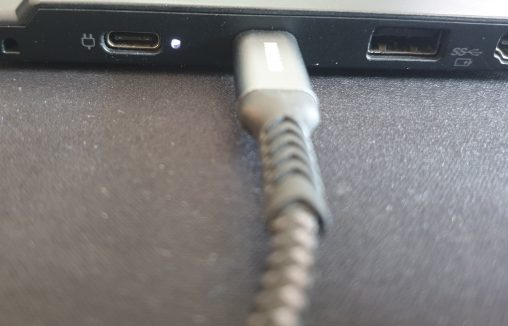
If the charger seems fine, inspect the charging port on the laptop. Dust, debris, or slight physical damage can interrupt the connection. If the charger feels loose or charging works only at certain angles, the port or connector may be worn
If the charging light behaves inconsistently while you move the connector slightly, that is a strong sign of connection wear rather than a Windows-only issue
Do a Full Power Reset
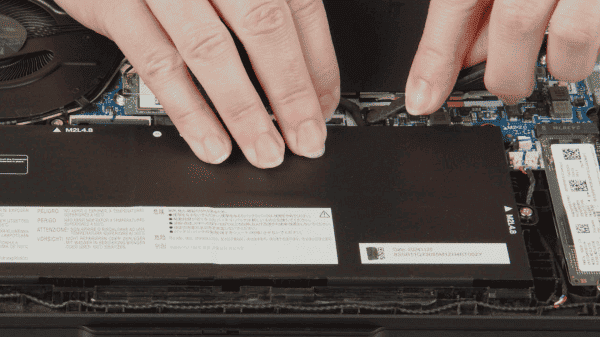
Temporary power-state glitches can also affect battery charging. Shut down the Lenovo IdeaPad Flex 5 completely, disconnect the charger, and perform a full power reset if appropriate for the model. After that, reconnect the charger and start the laptop again
If the battery begins charging normally after a full reset, the issue may have been a temporary power management conflict rather than a permanent hardware fault
Check Lenovo Battery Settings
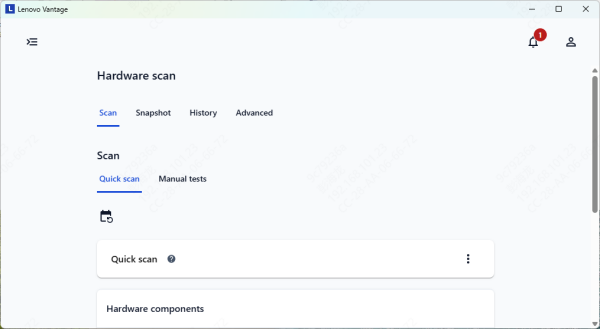
Lenovo laptops often include battery management features designed to protect battery health. In Lenovo Vantage or the related Lenovo utility, there may be a conservation mode or charge threshold setting that stops the battery from charging to 100 percent by design
Open Lenovo Vantage and check whether battery conservation or threshold charging is active. If you want the battery to charge fully, adjust that setting and test again
Reinstall Battery and AC Adapter Drivers
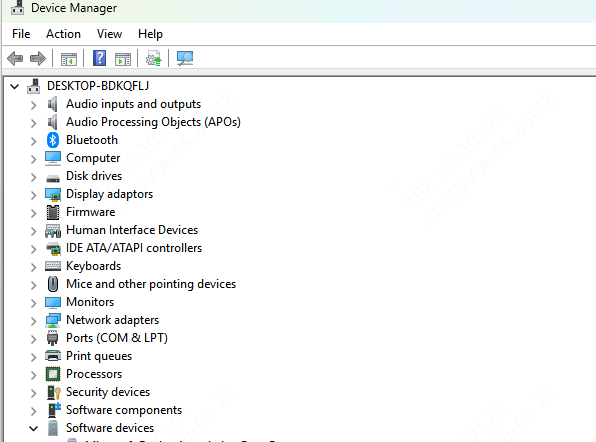
Charging problems can also be caused by corrupted battery or power management drivers. In Device Manager, uninstall the battery-related entries and the Microsoft AC Adapter entry, then restart the laptop so Windows can reinstall them automatically
It is a common fix on Windows laptops because the battery itself may be fine even when the battery driver layer is not
Repair Related Drivers With Driver Talent X
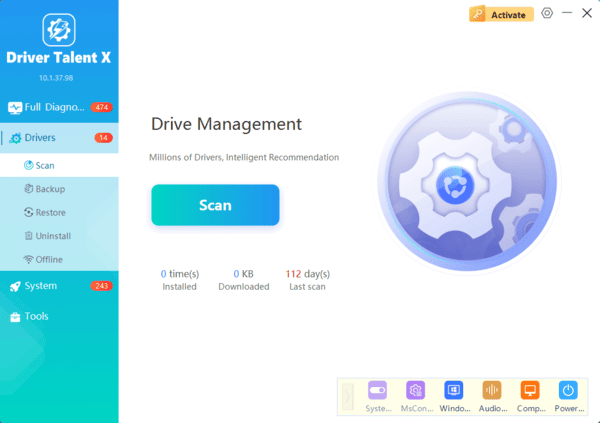
Sometimes the charging issue is not caused only by the battery entry in Device Manager. Power management, chipset, and system communication drivers may also play a role. If those supporting drivers are damaged, Windows may not handle charging status correctly. In that case, Driver Talent X can help.
Download and install Driver Talent X from the official Driver Talent X. Open the software, go to the Drivers tab, and click Diagnose to scan the system
Click Full Repair to repair the affected drivers, then restart the Lenovo IdeaPad Flex 5 and test charging again
This is especially useful when the problem started after a Windows update, when several power-related functions changed at the same time, or when the laptop shows inconsistent battery reporting.
Check BIOS and Firmware
Charging behavior on Lenovo laptops can also be influenced by BIOS or firmware. If Lenovo has released a BIOS update that specifically improves battery compatibility or charging stability, that update may help. However, BIOS updates should only be done carefully and only from official Lenovo sources
If the problem began right after a BIOS update, the timing matters. In that case, the firmware change may be involved. If the issue existed before and Lenovo has a known fix for the model, updating BIOS may be worth considering

Test Charging While Powered Off
A very useful test is to shut the laptop down completely and then connect the charger. If charging works normally while the laptop is off, the battery and adapter may still be physically fine
If the laptop still does not charge while powered off, then the problem is more likely related to the charger, charging port, battery, or internal charging hardware
Check Battery Health
If the laptop is older, battery wear becomes more likely. A worn battery may charge slowly, stop at unusual percentages, drop suddenly, or refuse to hold power even when the system seems to detect it
If battery life has become very short and charging behavior is getting worse over time, the battery itself may be nearing the end of its usable life. Software fixes can help only so much in that situation
Conclusion
Most Lenovo IdeaPad Flex 5 charging issues are caused by a few common problems: a faulty or underpowered charger, a worn charging port, battery conservation settings, damaged battery or power drivers, or battery wear. The best troubleshooting order is simple. Start with the charger, wall outlet, and charging port. Then check Lenovo battery settings, reinstall battery drivers, and repair related power management drivers if needed.
