

Mouse issues on Windows, such as freezing, lagging, random movement, or frequent disconnections, can seriously affect productivity and gaming experiences. While many users assume the mouse itself is damaged, the actual cause is often related to software problems, including corrupted mouse drivers, outdated USB or chipset drivers, incorrect power management settings, or Windows update conflicts. This guide explains how to reset and fix mouse drivers on Windows 10 and Windows 11 using safe and effective methods. You will learn how to reinstall mouse drivers, update related USB and chipset drivers, adjust power settings, troubleshoot wireless mouse problems, and restore stable cursor performance without unnecessary hardware replacement.
Why Mouse Drivers Break on Windows
A laptop power-saving setting may turn off the USB port too aggressively. A damaged USB controller driver may cause intermittent disconnections. In other cases, a corrupt driver install or leftover device configuration causes the cursor to behave unpredictably.
Turn Off USB Power Saving
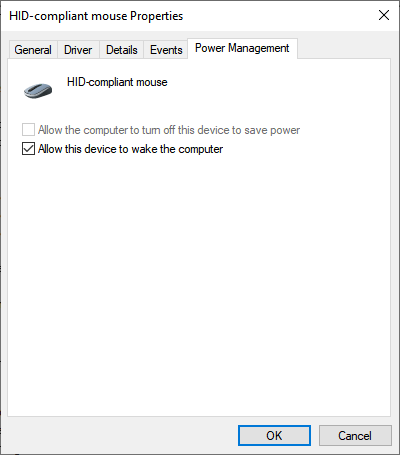
Open Device Manager and expand Universal Serial Bus controllers. Open the Properties window for each USB Root Hub and look for the Power Management tab. If you see an option that allows the computer to turn off the device to save power, uncheck it.
Check Mouse Settings in Windows
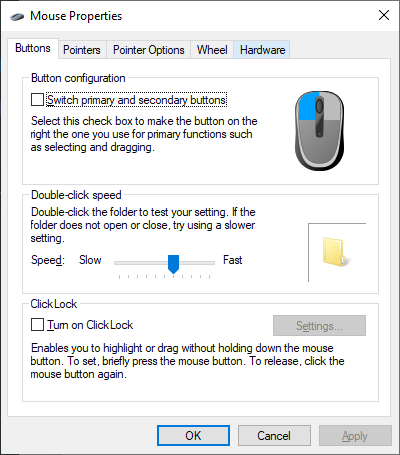
Open the mouse settings in Windows and review the pointer options. Set pointer speed to a moderate level and try disabling Enhance pointer precision to see whether tracking improves.
Update USB and Chipset Drivers
A mouse does not operate in isolation. If the USB controller or chipset driver is outdated, the system may not handle the mouse properly even when the mouse driver itself is current. This is especially common after Windows feature updates or on older systems with neglected driver maintenance.
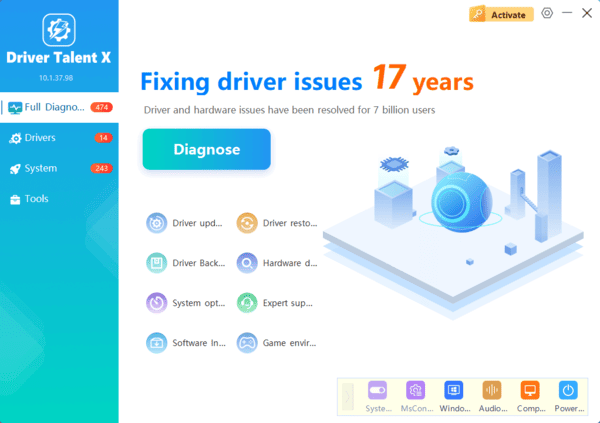
That is why it is important to check for updates beyond the mouse device itself. If you use Driver Talent X, run another scan and pay attention to USB controller, HID, and chipset-related results. Updating these supporting drivers can solve mouse lag, freezing, and random disconnects that survive a normal device reinstall.
Install Windows Updates
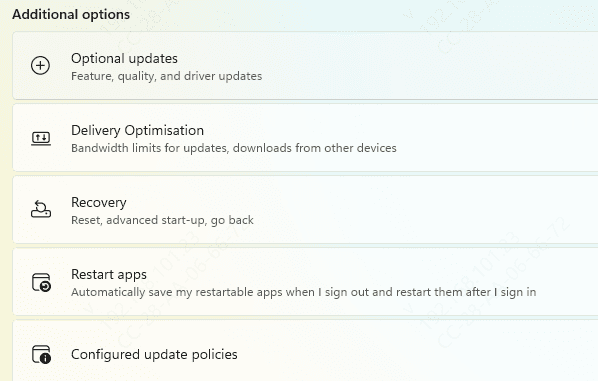
Windows updates sometimes cause input device problems, but they can also fix them. If your system is behind on updates, install the latest available patches and restart the PC. Microsoft often releases fixes that affect USB behavior, hardware compatibility, and device stability.
Watch for Wireless Mouse Factors
Try replacing the battery, moving the receiver to another port, and reducing interference from nearby adapters or hubs. If the wireless mouse works correctly after that, the issue was probably not the mouse driver at all
Still, wireless mice also depend on USB and HID stability, so the driver checks in this guide are still relevant if the problem continues
