

Find the best Logitech G Pro DPI settings for FPS, battle royale, MOBA, RTS, RPG, and casual games. Learn how to balance DPI with in-game sensitivity, create useful presets, improve aiming consistency, and fix Logitech G HUB settings that reset or fail to save.
DPI for FPS Games
For FPS games, a lower to mid DPI range is usually best. Around 400 to 800 DPI is the most common choice for tactical shooters and competitive aiming games. This range gives better control for tracking, recoil management, and small aim corrections
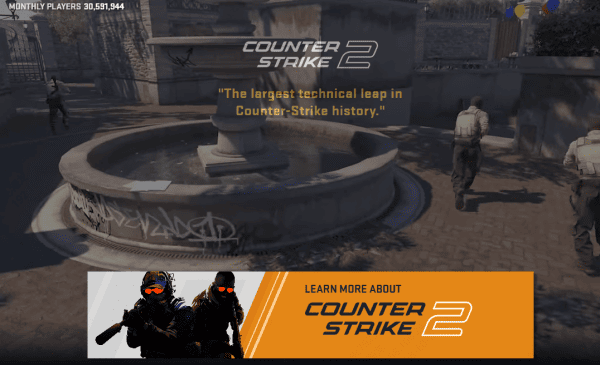
Games like CS2, Valorant, Rainbow Six Siege, and even slower-paced Call of Duty playstyles usually benefit from lower DPI because aiming accuracy matters more than rapid screen traversal. A lower DPI also helps maintain steadier crosshair movement when clearing angles or adjusting during a gunfight
DPI for Battle Royale Games
Battle royale games usually require more screen movement than tactical shooters. You need to loot quickly, turn around often, scan wide environments, and still aim accurately in fights. Because of that, a moderate DPI range around 800 to 1200 often works well
Games like Apex Legends, Fortnite, and PUBG involve both fast movement and precision shooting. A setting that is too low may feel slow when looting or rotating the camera, while a setting that is too high can make long-range aiming harder. For many players, 800 or 1000 DPI is a good balance
DPI for MOBA and RTS Games
MOBA and RTS games usually need quicker cursor travel across the screen. In games like League of Legends, Dota 2, and StarCraft, you are constantly selecting units, moving around the map, and reacting quickly to multiple on-screen events. For this style of play, a higher DPI range such as 1200 to 2000 is often more comfortable
Higher DPI makes it easier to move from one side of the screen to the other without large physical mouse movements. This is especially helpful if you use a large monitor or play at high resolution. Still, going too high can hurt click precision, so there is no need to push the DPI to extremes. A range around 1400 to 1600 is often enough for fast control without making the cursor feel unstable

DPI for RPG and Open-World Games
RPG and open-world games usually do not demand the same level of aim precision as competitive shooters. Comfort matters more. A mid-range DPI setting around 800 to 1600 works well for most players
Games like Elden Ring, Diablo IV, Baldur's Gate 3, and other action RPG or adventure titles often include combat, camera movement, menus, and inventory management. That means the ideal DPI should feel smooth in both action and interface navigation. If the game is combat-heavy, stay closer to 800 or 1000. If it is more menu-heavy or exploration-focused, 1200 to 1600 may feel better
DPI for Mixed or Casual Gaming
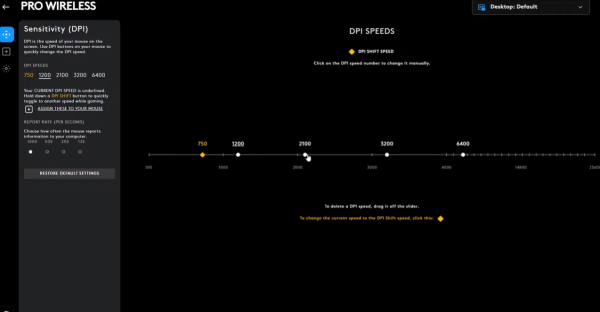
If you play several genres, do not chase one perfect universal setting. Instead, create two or three practical DPI presets. For example, 800 DPI can be your FPS profile, 1200 DPI can be your mixed-game profile, and 1600 DPI can be for MOBA or general desktop use
This is usually better than enabling many DPI stages. Too many options create confusion and increase the chance of hitting the DPI switch accidentally in the middle of a match. Keep only the levels you actually use

How to Match DPI with In-Game Sensitivity
DPI alone does not determine your final feel. In-game sensitivity is equally important. If your aim feels off, change one setting at a time. Do not adjust both DPI and game sensitivity together, or you will not know which change helped
A good method is to choose a sensible DPI first based on the game type, then fine-tune in-game sensitivity in small steps. Spend time in a practice range, aim trainer, or private match before deciding. Real improvement comes from consistency, not constant adjustment
What to Do If Logitech G Pro DPI Settings Are Not Saving
If your Logitech G Pro DPI settings keep resetting or do not save, restart G HUB first and reconnect the mouse. Then check whether the profile is saved in onboard memory or only inside software mode. In some cases, Windows input or USB driver problems stop the mouse settings from applying properly.
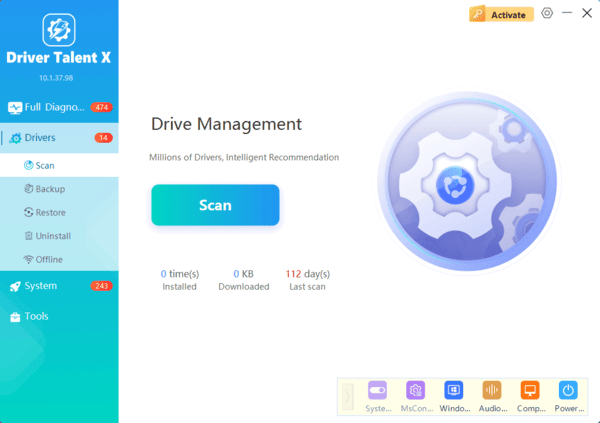
If the problem continues, you can repair related drivers automatically. Download and install Driver Talent X. Open the software, go to the Drivers tab, and click Diagnose. Find Logitech mouse, USB, or HID-related entries in the results, then click Full Repair. Restart the PC and test the DPI settings again. This is useful when G HUB settings fail because of driver conflicts rather than the mouse itself.
Conclusion
The best Logitech G Pro DPI depends on the game type, your play style, and your setup. Lower DPI works better for FPS games that require precision. Moderate DPI is a strong choice for battle royale and RPG titles. Higher DPI is usually better for MOBA and RTS games that require fast cursor movement across the screen.
