

The Logitech M510 wireless mouse is known for its comfortable design and reliable performance, but connection problems can still occur on Windows computers. Issues such as a frozen cursor, random disconnections, an unrecognized USB receiver, or a mouse that suddenly stops responding are often caused by simple factors like weak batteries, receiver problems, USB port errors, wireless interference, or outdated drivers. In most cases, the mouse itself is not damaged and can be restored with a few troubleshooting steps. This guide explains how to fix Logitech M510 not connecting or not working issues on Windows using practical solutions. You will learn how to check the battery and receiver, troubleshoot USB connection problems, adjust Windows power settings, repair related drivers, and improve wireless stability.
Start With Batteries and Power
The first thing to check is battery power. Even if the current AA batteries seem partially charged, replace them with fresh ones. Weak battery power is one of the most common reasons a wireless mouse fails to connect or becomes unstable.
Reconnect the USB Receiver
If the mouse still does not work, unplug the Logitech USB receiver and reconnect it. Give Windows a few seconds to detect it again. A receiver that is not seated properly can make the mouse appear completely dead.
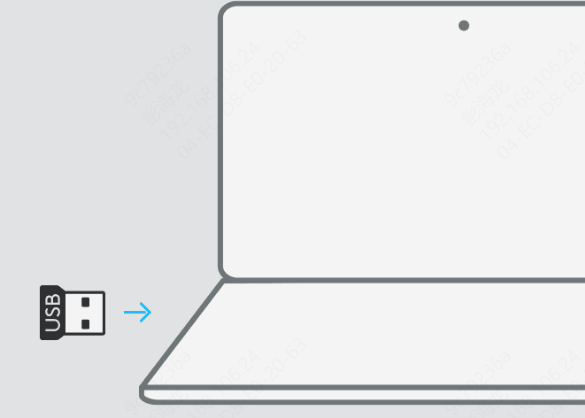
Try Another USB Port
If reconnecting the receiver does not help, move it to another USB port. Some ports may be unstable, worn, or less reliable for wireless receivers. This is especially true with older front-panel ports, loose laptop ports, or crowded hubs.
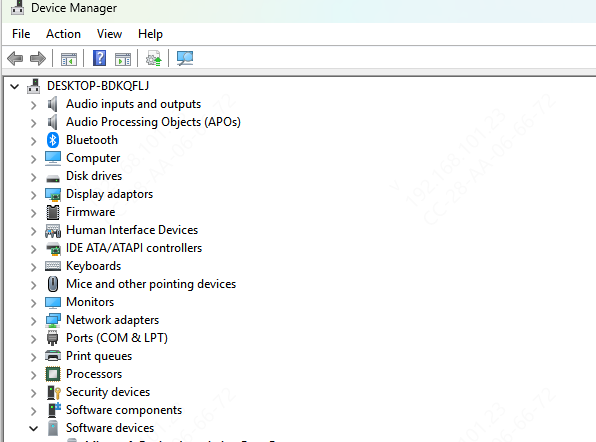
Check Device Manager
If the mouse still does not connect, open Device Manager and look for unusual behavior under mouse devices or USB-related sections. Sometimes the Logitech receiver may not appear clearly as a mouse problem. Instead, it may show up as an unknown USB device or another device with a warning icon.
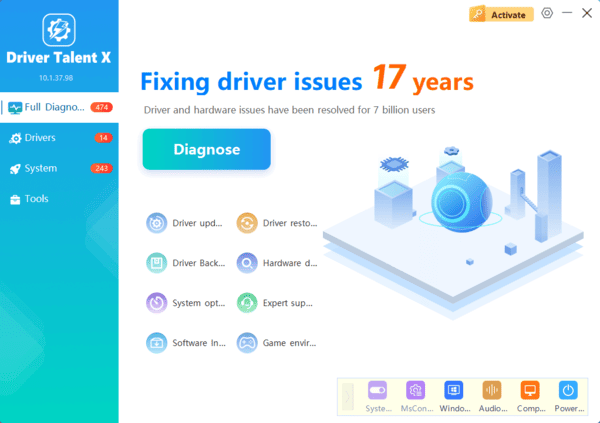
If you want a faster way to repair the related drivers that may be causing the Logitech M510 connection problem, Driver Talent X can help. Download and install Driver Talent X from the official Driver Talent X website. Open the software, go to the Drivers tab, and click Diagnose to scan the system.
Check Logitech Software and Receiver Compatibility
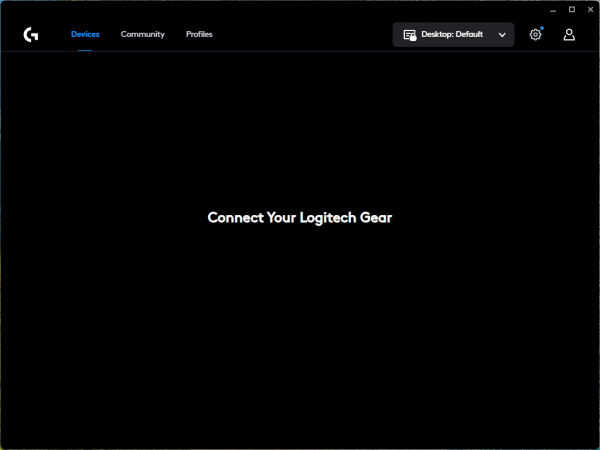
Some Logitech wireless devices depend on proper Logitech software support. If the receiver is not the correct type for the device or if the software environment is incomplete, connection problems can appear.
Disable USB Power Saving
Windows power-saving features can also break wireless mouse behavior. Open Device Manager and check the power settings for USB root hubs. Disable the option that allows Windows to turn off USB devices to save power
If the mouse becomes stable after disabling USB power saving, then the problem was more about Windows power management than about the mouse itself
Reduce Wireless Interference
Wireless interference can also affect the Logitech M510. If the receiver is hidden behind the PC, crowded among other USB devices, or near strong sources of 2.4GHz interference, connection quality may suffer
Try moving the receiver closer to the mouse if possible. Keep it away from metal surfaces and crowded USB areas. Nearby wireless devices, hubs, and even USB 3.0 noise can affect signal quality
Conclusion
Most Logitech M510 wireless mouse connection problems on Windows are caused by a few common issues: weak batteries, loose receiver connection, unstable USB ports, power-saving settings, or damaged USB and chipset drivers. The best troubleshooting order is simple. Start with power, batteries, and the receiver. Then try another USB port, restart the system, and repair the related drivers if needed.
