

When a PS4 controller stops working on a PC, Windows may fail to detect it, Bluetooth pairing may break, or games may ignore its inputs. These issues are often caused by connection faults, driver problems, incorrect Steam settings, or limited game compatibility. This guide covers six effective solutions for restoring your DualShock 4 controller on Windows.
Common Causes: Why Your PS4 Controller Is Not Working on PC
Before we dive into solutions, let's identify the common reasons for the PS4 controller on PC not working:
Driver conflicts or missing drivers
Issues with Bluetooth pairing
Game-specific compatibility errors (especially with Fortnite)
Corrupted or misconfigured controller settings in Steam
Outdated Windows OS or system components
Fix 1: Connect Your PS4 Controller
A wired connection is the most direct and reliable way to connect your PS4 controller to a PC, especially when diagnosing issues. If your controller isn't responding at all, starting with a USB cable is essential to determine whether the controller itself is working or if the problem lies in your wireless configuration.
1. Use a High-Quality USB Cable
Connect your DualShock 4 controller to the PC using an official or certified data-capable USB cable.
2. Allow Windows to Detect the Device
When connected, Windows should recognize the controller as “Wireless Controller.”
3. Test the Input
Open Game Controllers Settings: Press Win + R, type joy.cpl, and hit Enter.
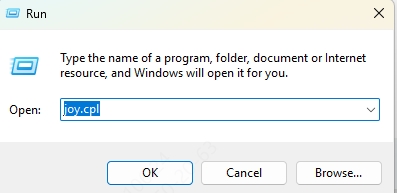
Select the Wireless Controller and click Properties to verify input responses
Fix 2: Update or Reinstall the PS4 Controller Driver
If your PS4 controller on PC is not working, especially after a recent update or hardware change, chances are high that a driver issue is to blame. Incorrect, missing, or corrupted drivers are among the most common causes of controller recognition failure.
We recommend using Driver Talent, a professional-grade driver management tool that automatically detects outdated, missing, or faulty drivers and installs the correct versions with a single click. Driver Talent saves you the hassle of manually searching for compatible drivers and reduces the risk of conflicts or system instability.
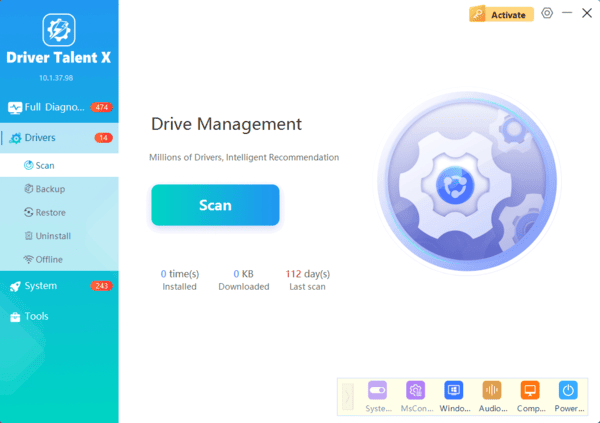
Manual Method (If Preferred)
Open Device Manager (Win + X > Device Manager)
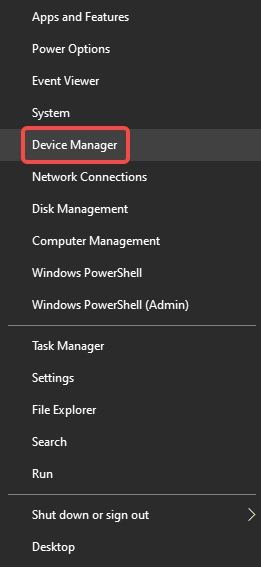
Locate the controller under Human Interface Devices or Bluetooth
Right-click > Update driver > Search automatically for drivers
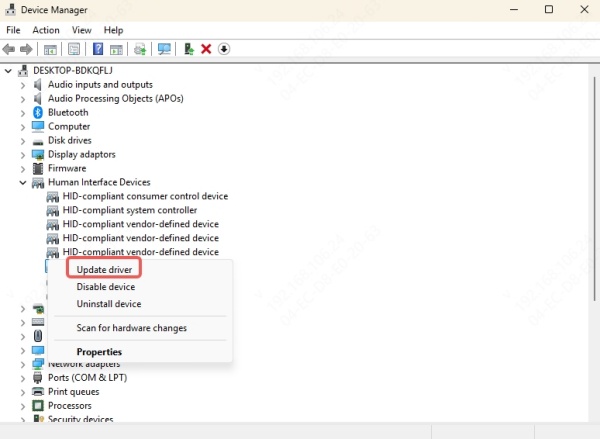
Or uninstall and reconnect to force a reinstallation
Fix 3: Troubleshoot Bluetooth PS4 Controller Not Working on PC
Go to Settings > Bluetooth & devices > Devices
Remove Wireless Controller
Press PS + Share on the controller until the light bar flashes
Reconnect via Add Bluetooth device
Use the Correct Bluetooth Adapter
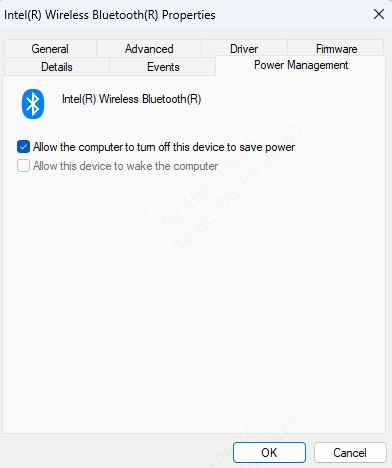
Disable Power Saving for Bluetooth
In Device Manager, expand Bluetooth
Right-click your adapter > Properties > Power Management
Uncheck Allow the computer to turn off this device to save power
Fix 4: PS4 Controller Not Working on Fortnite PC
1. Launch Fortnite Through Steam (Even the Epic Games Version)
Fortnite has better controller support when run via Steam.
Add Fortnite as a non-Steam game:
Open Steam > Games > Add a Non-Steam Game to My Library
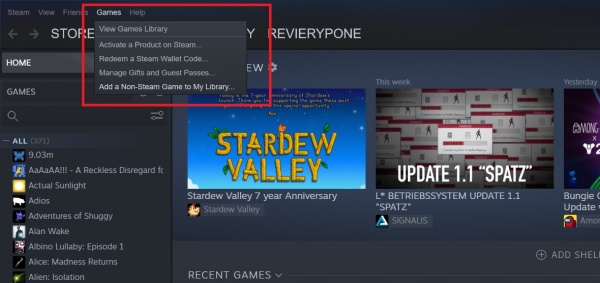
Browse to Fortnite's .exe in Epic Games folder
Launch Fortnite from within Steam
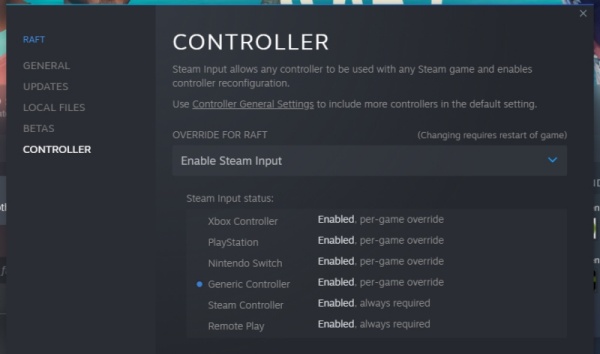
2. Enable Steam Input for Fortnite
In Steam Library > Right-click Fortnite > Properties
Go to Controller > Select Enable Steam Input
3. Check Fortnite In-Game Settings
Go to Settings > Controller Options
Ensure Use Controller is set to On
Switch input method to Controller Only if needed
Fix 5: Configure Steam Properly for PS4 Controller
If you're trying to play games through Steam and your PS4 controller is not working, incorrect configuration within Steam itself could be the issue. Steam offers advanced input configuration, but misconfigured settings often block proper controller recognition or lead to erratic behavior. This fix ensures Steam detects and uses your controller properly.
1. Open Steam Settings
Go to Steam > Settings > Controller > General Controller Settings
2. Enable PlayStation Configuration Support
Check PlayStation Configuration Support and Generic Gamepad Configuration Support
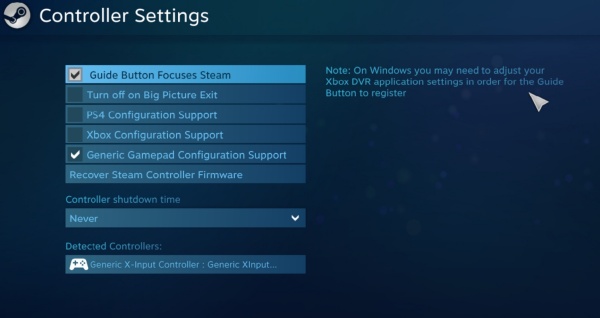
3. Identify and Calibrate the Controller
Click Identify to ensure Steam detects the correct device
Choose Calibrate to fine-tune responsiveness
4. Check Game-Specific Overrides
In your game's Steam library entry, go to Properties > Controller
Try setting it to Use default settings or Enable Steam Input
Fix 6: Use DS4Windows for Compatibility
Games and applications that don't natively support the DualShock 4 may refuse to work even when the controller is connected. DS4Windows solves this by emulating an Xbox controller, offering broad compatibility and deeper customization. If your PS4 controller is still not working on PC, especially in older or non-Steam games, this is a game-changing fix.
Download DS4Windows from the official site: https://ds4-windows.com
Run the setup and install the ViGEmBus Driver
Connect the controller via Bluetooth or USB
Configure mappings or set up profiles as needed
Conclusion
If your PS4 controller is not working on PC, whether over Bluetooth, USB, or within Fortnite, the issue is likely solvable through one or more of the methods above. From updating drivers using Driver Talent, to optimizing Steam settings and running Fortnite through the right platform, these solutions are designed to eliminate all known causes of controller failure.
