

If your mouse is freezing, lagging, disconnecting, or failing to register clicks in Windows 11, the problem may not be caused by the mouse itself. USB controller issues, Bluetooth drivers, chipset conflicts, power-saving settings, or incompatible mouse software can all affect normal operation. This guide explains several practical ways to fix Windows 11 mouse problems.
Start With Basic Checks First
If the mouse is wired or uses a USB receiver, reconnect it and test another USB port. If it is a Bluetooth mouse, remove it from the system and pair it again. If it is a wireless mouse with batteries, replace or recharge them
It is also useful to test another mouse on the same PC. If both mice have similar problems, the issue is much more likely to be in Windows or the related drivers
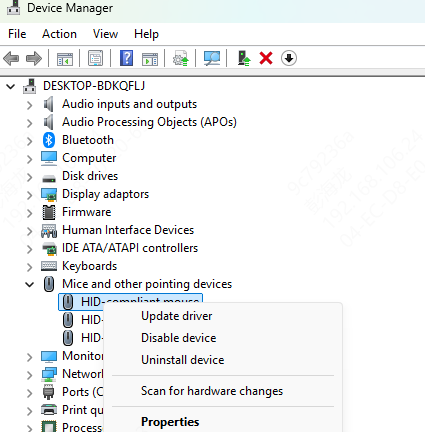
Reinstall the Mouse Device
This can fix damaged device registration and clear simple corruption in the mouse driver layer. It is particularly useful when the mouse was working before and then suddenly became unstable after a Windows 11 update or power event
However, if reinstalling the mouse does not fix the issue, the problem may lie deeper in the supporting drivers rather than in the mouse device entry itself
Check USB, Bluetooth, and Chipset Drivers
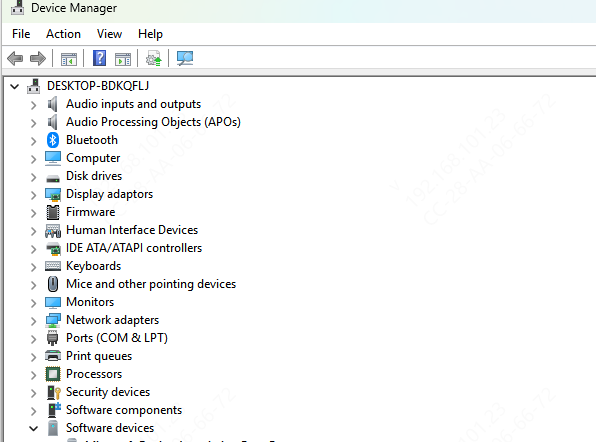
This is where many users miss the real problem. A mouse issue is often caused by the drivers underneath the mouse rather than the mouse driver alone. A USB mouse depends on USB controller drivers and chipset communication
A Bluetooth mouse depends on Bluetooth adapter drivers and related system support. Both can also be affected by chipset and motherboard communication drivers
Use Driver Talent X
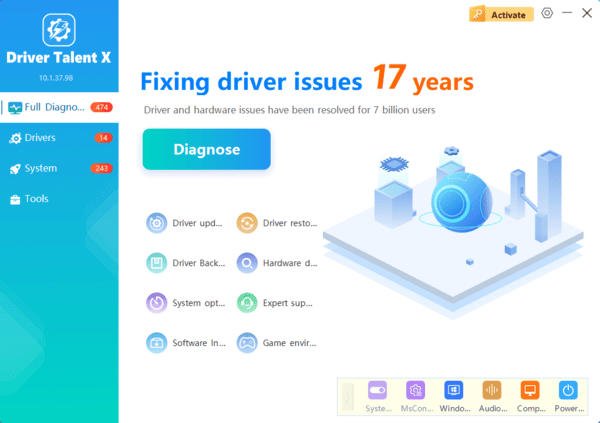
If you want a faster way to repair the drivers most likely to affect mouse stability, Driver Talent X can repair all drivers with one click.
Download and install Driver Talent X from the official Driver Talent X website
Open the software, go to the Drivers tab, and click Diagnose to scan the system
When the scan is complete, review the results for mouse-related drivers, USB drivers, Bluetooth drivers, and chipset drivers
Click Full Repair to repair the affected drivers, then restart the PC and test the mouse again
Adjust Power Management Settings
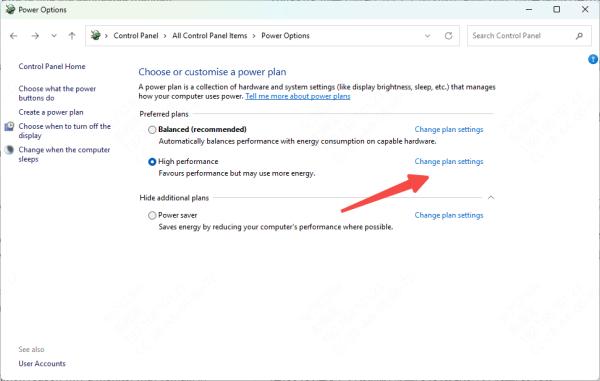
Open Device Manager and look at the power management settings for USB root hubs or the Bluetooth adapter. Disable the option that allows Windows to turn off the device to save power. Then restart the system and test the mouse again
This often helps with random disconnects, post-sleep failures, and mice that stop responding only after the PC has been idle
Check Vendor Mouse Software
Gaming mice and advanced productivity mice often use their own software for DPI settings, button mapping, macros, and lighting control. Sometimes that software conflicts with Windows 11 or breaks after an update
If your mouse uses a vendor utility, check whether it needs an update. If the issue started recently, uninstalling or disabling the mouse software temporarily can help confirm whether it is part of the problem
Frequently Asked Questions
Why does my mouse stop working after Windows 11 wakes from sleep?
Windows may be turning off the USB hub or Bluetooth adapter to save power. Disable the relevant power-management option in Device Manager and restart the PC.
Why does the cursor move, but mouse clicks do not work?
A background app, damaged mouse software, incorrect button mapping, or a failing switch may be responsible. Close vendor utilities, check the primary-button setting, and test the mouse on another computer.
Why is my Bluetooth mouse disconnecting repeatedly?
Low battery power, wireless interference, corrupted pairing data, or an unstable Bluetooth driver can cause repeated disconnections. Replace the batteries, remove and re-pair the mouse, and update the Bluetooth adapter driver.
Conclusion
Most Windows 11 mouse problems are caused by more than just the mouse itself. In many cases, the real cause is damaged or outdated USB, Bluetooth, chipset, or system communication drivers. That is why a proper fix often starts with the basics, then moves beyond the mouse entry alone. If the driver path seems unclear, Driver Talent X can help by scanning and repairing the broader set of drivers that affect mouse stability.
If the issue still continues after all of these steps and the mouse also fails on other systems, then hardware failure becomes the more likely cause.
