

Restore an HP webcam that has disappeared, frozen, or stopped displaying video in Windows 11. This guide explains how to review privacy permissions, unlock HP camera controls, close competing video apps, correct update-related conflicts, and repair the drivers responsible for webcam detection.
Common Signs of an HP Camera Problem
The most common symptom is that the webcam does not open in the Camera app. You may also see an all-black image, a message saying the camera cannot be found, or a frozen preview. In video meetings, the webcam may disconnect randomly, show heavy lag, or display poor image quality even in decent lighting
Another common sign is that the webcam works in one app but not another. For example, it may work in the Camera app but fail in Microsoft Teams or Zoom. That usually points to a permission or app-level issue rather than a hardware failure
First Check Camera Permissions
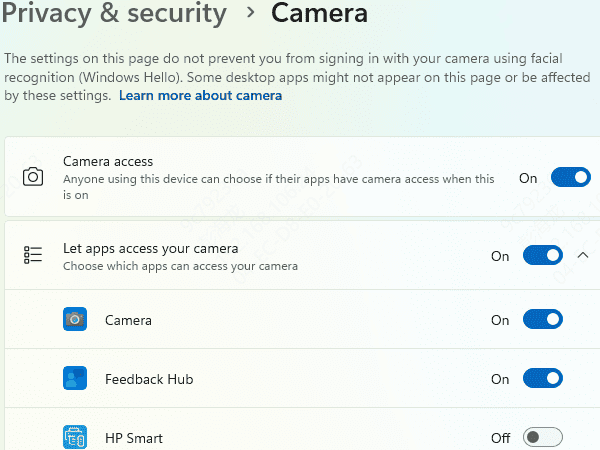
Check whether Windows is allowing apps to use the webcam. Open Settings, go to Privacy and Security, then Camera. Make sure camera access is enabled for the device and also for the apps you actually use. If Windows camera access is turned off, no app will be able to use the webcam even if the driver is installed correctly
This is one of the most overlooked causes of webcam failure on Windows 11. It is especially common after privacy settings are changed during an update or after a user disables camera access temporarily and forgets to turn it back on again
Check HP Privacy Features
Many HP laptops include physical or software privacy controls for the webcam. Some models have a keyboard shortcut that disables the camera. Others have a physical shutter or a privacy key that blocks the image. If the webcam suddenly shows only a black screen, this should be checked early
Look at the top of the display bezel and the keyboard function row. If your HP model includes a camera privacy key, press it once and test the camera again. If there is a physical shutter, make sure it is open
Update the Camera and Related Drivers
If the webcam still does not work, the next step is the driver layer. A damaged or outdated HP camera driver is one of the most common causes of webcam failure, blurry video, lag, and freezing. On Windows 11, the issue may not be limited to the camera driver alone. Chipset and USB-related drivers can also affect how the webcam performs.
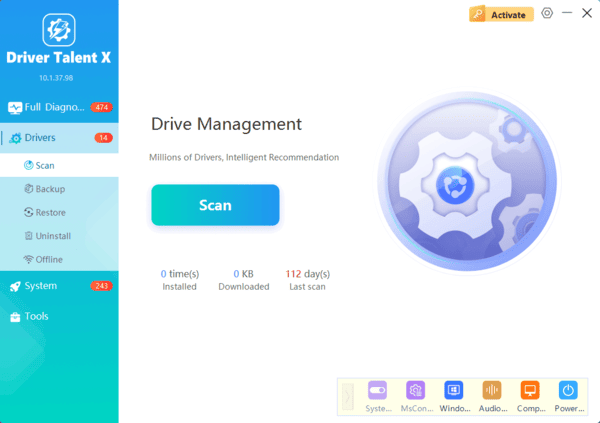
If you want a faster way to check all of this at once, Driver Talent X can scan the system and identify outdated or abnormal camera, chipset, and USB controller drivers. That is often more efficient than searching manually, especially if the webcam issue started after an update and you are not sure which driver actually caused it. Once the drivers are updated, restart the laptop and test the webcam again.
Restart the Webcam Environment
Sometimes the camera problem is temporary and caused by another app still holding the webcam in the background. Restart the laptop fully instead of just closing the current app. After rebooting, open only the Camera app first and test the webcam before launching anything else
This matters because video apps do not always release the camera correctly when they close. If Windows still thinks another app is using the webcam, the next app may fail to open it and display an error or black screen
Check for Windows Update Side Effects
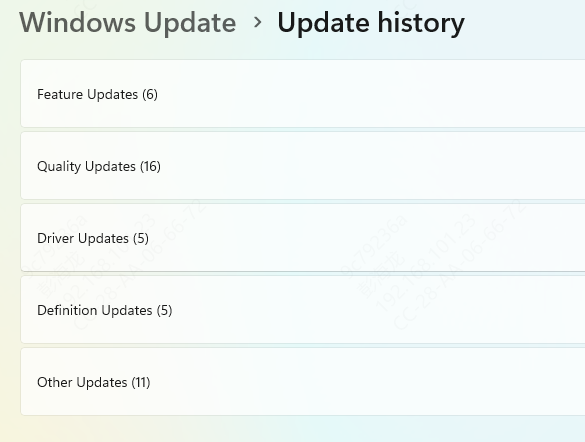
If the webcam stopped working right after a Windows update, the update may have changed the driver or reset a privacy setting. Check Windows Update history and also look for optional driver updates
Sometimes Microsoft installs a generic driver that is less stable than the original HP version
Conclusion
An HP laptop webcam that stops working on Windows 11 is usually a fixable software problem, not a permanent hardware fault. The most effective way to solve it is to work through the issue in layers. Start with camera permissions and HP privacy controls, then check Device Manager, update the camera and supporting drivers, test the webcam in multiple apps, and restart the system properly.
