

Bluetooth headset mic not detected on Windows 10? This guide covers 9 proven fixes — checking headset compatibility, enabling microphone permissions, setting the correct default communication device, updating Bluetooth and audio drivers with Driver Talent, running Windows troubleshooters, checking Bluetooth services, re-pairing the headset, switching to Hands-Free mode, adjusting app settings, and performing a clean boot — to restore microphone functionality.
Check If Your Headset Mic Is Compatible With Windows 10
To verify compatibility
Refer to the product manual or manufacturer website.
Ensure your headset supports Hands-Free Profile (HFP) or Headset Profile (HSP) for mic usage.
Enable the Microphone in Windows 10 Settings
Open Settings → Privacy → Microphone.
Ensure Allow apps to access your microphone is turned ON.
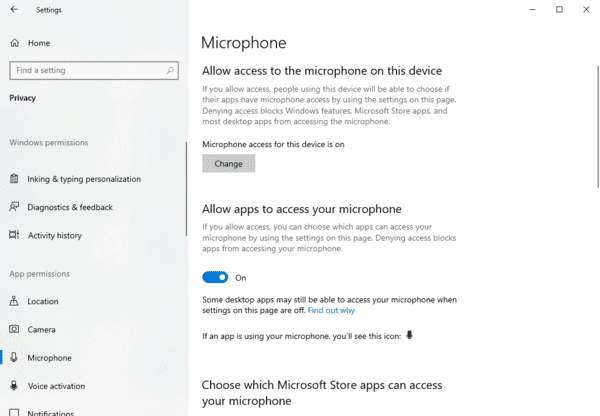
Scroll down and enable microphone access for all relevant apps such as Skype, Zoom, Teams, etc.
Also, go to:
Control Panel → Sound → Recording tab
Right-click on an empty area and check Show Disabled Devices
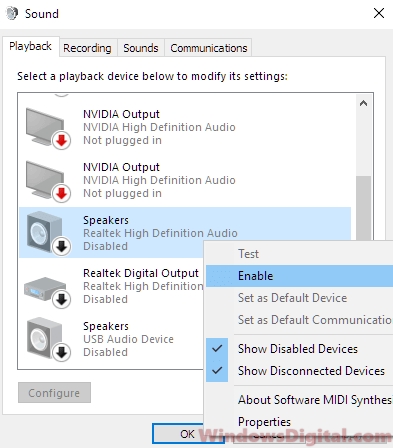
If your headset mic appears, right-click and choose Enable
Set Headset as Default Communication Device
Right-click the sound icon in the system tray.
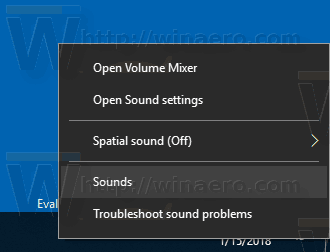
Select Sounds → Recording tab.
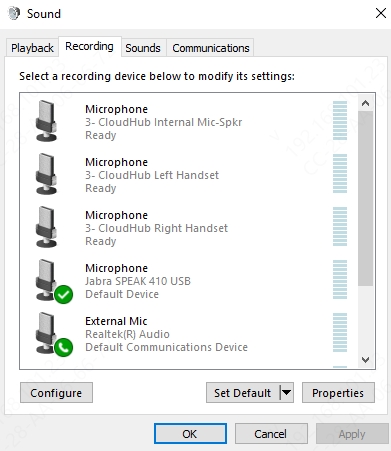
Find your headset mic in the list.
Right-click it and select "Set as Default Device" and "Set as Default Communication Device".
If it's not listed, skip to the next fix.
Update, Roll Back, or Reinstall Audio and Bluetooth Drivers
An outdated or corrupt driver is one of the most common reasons the Bluetooth headset mic is not detected in Windows 10.
Update via Device Manager
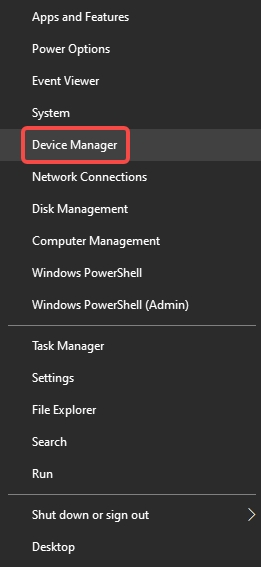
Press Windows + X → Select Device Manager.
Expand Audio inputs and outputs and Sound, video and game controllers.
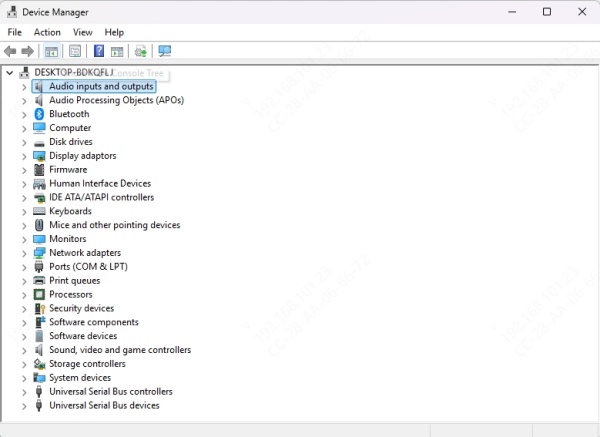
Right-click your Bluetooth headset and choose Update driver.
Then expand Bluetooth, find your adapter, and update it too.
Roll Back Driver
In Device Manager, right-click your audio or Bluetooth device.
Choose Properties → Driver tab → Roll Back Driver.
Use Driver Talent for a Hassle-Free Update
For users who want an automated solution, we strongly recommend using Driver Talent. This powerful driver updater:
Automatically detects outdated or missing drivers.
Installs official drivers compatible with your device.
Fixes audio and microphone recognition problems instantly.
Steps to use Driver Talent:
Download and install Driver Talent from the official website.
Launch the tool and click Scan.
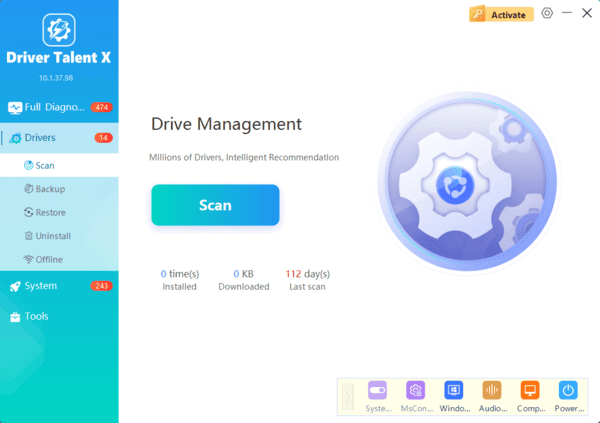
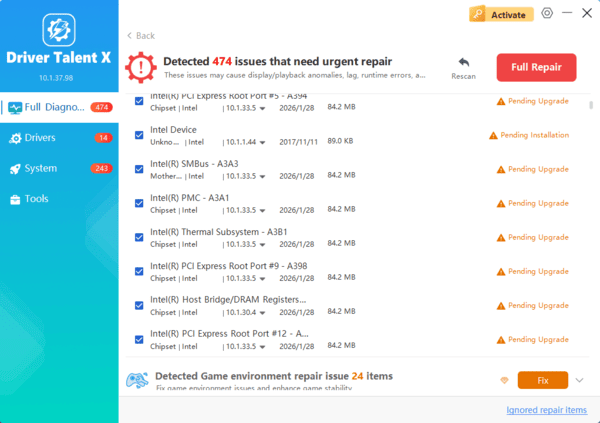
Locate any problematic Bluetooth or Audio drivers.
Click Repair or Update All to fix the issues.
Run the Built-in Troubleshooter
Open Settings → Update & Security → Troubleshoot.
Click Additional troubleshooters.
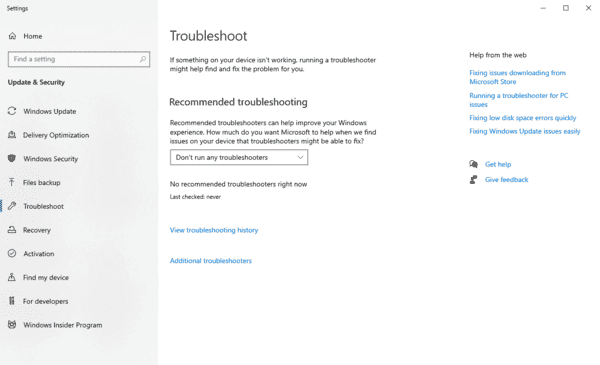
Select Recording Audio, then click Run the troubleshooter.
Check Bluetooth Services
1. Press Windows + R, type services.msc, and press Enter.
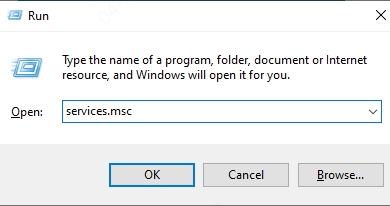
2. Locate and ensure these services are running:
Bluetooth Support Service
Windows Audio
Windows Audio Endpoint Builder
3. Right-click each one → Select Properties → Set Startup Type to Automatic, then click Start if not already running.
4. Restart your PC and reconnect the headset.
Unpair and Reconnect Your Bluetooth Headset
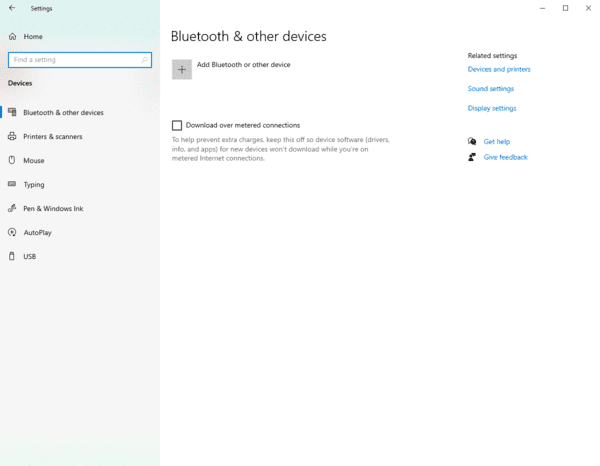
Go to Settings → Devices → Bluetooth & other devices.
Select your Bluetooth headset → Click Remove device.
Restart your computer.
Re-pair your headset:
Put the headset in pairing mode.
Go back to Bluetooth & other devices → Add Bluetooth or other device → Bluetooth.
Select your headset to reconnect.
Switch to Hands-Free Mode
Bluetooth headsets often have two modes: Stereo (A2DP) for audio playback and Hands-Free (HFP/HSP) for calls.
When you want to use the mic:
Right-click the sound icon → Sounds → Recording.
Ensure you select the Hands-Free device as the default microphone.
In the Playback tab, avoid selecting the Stereo mode if you want mic input to function.
Only the Hands-Free profile allows microphone usage, though it may reduce playback quality during calls.
Check App-Level Permissions and Settings
If your mic works in some apps but not others, the problem lies within the app settings.
For example, in Zoom:
Go to Settings → Audio.
Select the correct Microphone input.
Speak and check the input level.
In Discord:
Navigate to User Settings → Voice & Video.
Choose your Bluetooth headset mic under Input Device.
Make sure Input Volume is set to 100%.
Perform a Clean Boot
Background programs or services may interfere with headset mic detection.
Press Windows + R, type msconfig, press Enter.
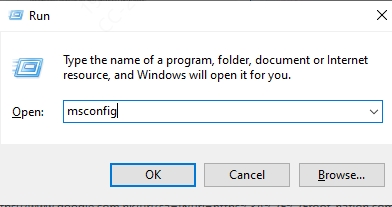
In the General tab, choose Selective startup → Uncheck Load startup items.
Under Services tab, check Hide all Microsoft services, then click Disable all.
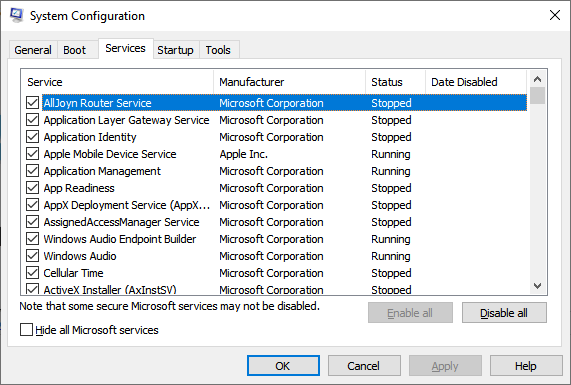
Restart your PC and test the microphone.
If the issue resolves, a third-party program was interfering.
Conclusion
If your Bluetooth headset mic is not detected on Windows 10, or your headphones mic is not showing up, there are several proven methods to fix the issue—from adjusting settings and permissions to updating drivers and checking services.
For the most reliable and convenient fix, we strongly recommend using Driver Talent to automatically handle driver-related issues. It streamlines the troubleshooting process and ensures your system stays updated and stable.
