

Optimize Logitech G Pro X 2 LIGHTSPEED gaming headset with G HUB software settings, including EQ tuning, Blue VO!CE microphone optimization, and DTS Headphone:X surround sound configuration.
Getting Started with G HUB Software
Step 1 – Installation & Connection
Download and install Logitech G HUB from the official Logitech website
Step 2 – Connection Options
Lightspeed wireless (2.4GHz dongle) – lowest latency, best for competitive gaming
Bluetooth – great for casual use, mobile devices, or when the dongle isn't available
AUX (3.5mm) – wired option for console or zero-battery use
Step 3 – Initial Setup
Set Windows system volume to ~80–90%
Let G HUB detect the headset
Update firmware if prompted
Adjust general volume in G HUB to around 70–80% as a good starting point
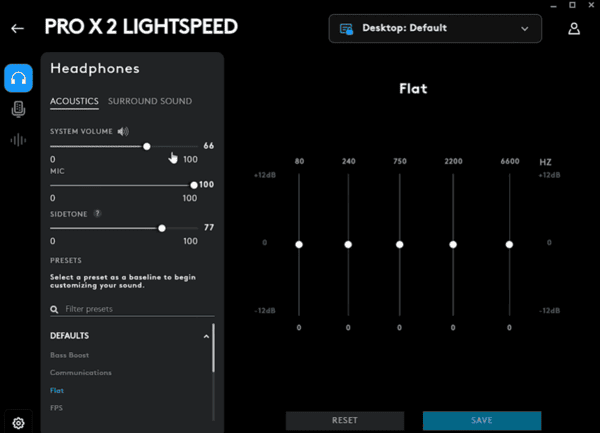
Equalizer (EQ) Settings – Getting the Sound Right
The G HUB EQ interface offers five fixed frequency bands:
80 Hz • 240 Hz • 750 Hz • 2200 Hz • 6600 Hz
Velour pads (included alternative): noticeably less bass, more open & bright sound
Leatherette pads (default): stronger midrange & bass, better isolation in noisy environments
Quick recommendation for most users
Start with flat EQ + very small 80 Hz boost (+3 dB) → best balance between clarity and fun for most games
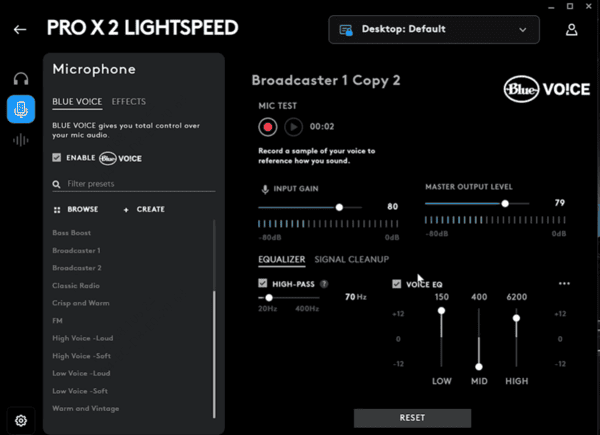
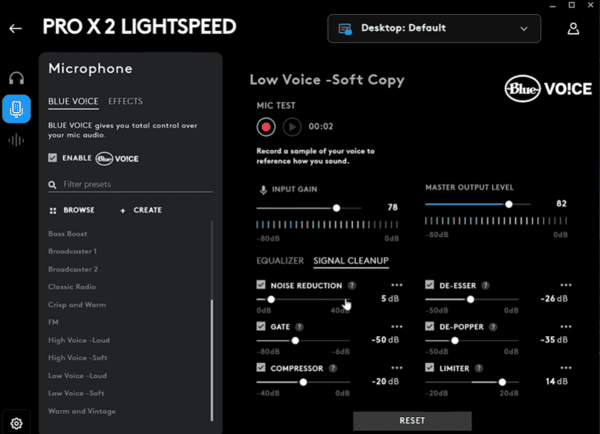
Microphone Settings – Blue VO!CE
Microphone Gain
Loud talkers: -6 to -12 dB
Normal speaking volume: 0 to -6 dB
Quiet talkers: 0 to +6 dB
Sidetone (hear yourself)
Recommended: 35–50%
Blue VO!CE Presets & Custom Chain
Recommended chain for clean, professional voice:
Noise Gate → moderate threshold
Compressor → medium ratio & makeup gain
De-esser → tame harsh "s" sounds
High-pass filter / Depper → remove rumble
Limiter → prevent clipping
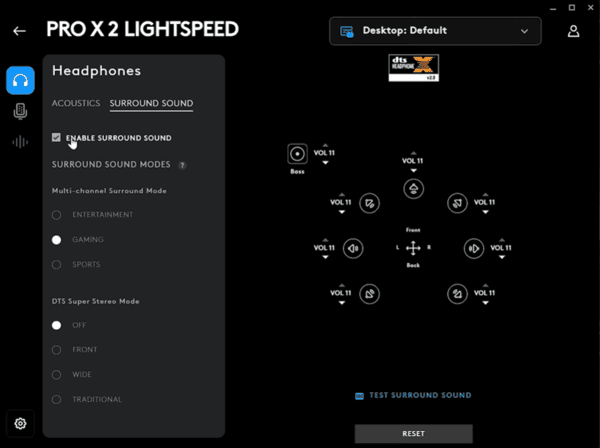
Surround Sound – DTS Headphone:X
Available modes
Off
Front
Wide
Traditional
Super Stereo variants
Channel gain sliders allow fine-tuning of virtual speaker positions
Advanced Tips & Common Optimizations
Maximum volume performance
The headset handles maximum volume very cleanly with almost no distortion — great for loud environments
Game-specific profiles
Create separate profiles in G HUB for different games and use automatic switching when possible
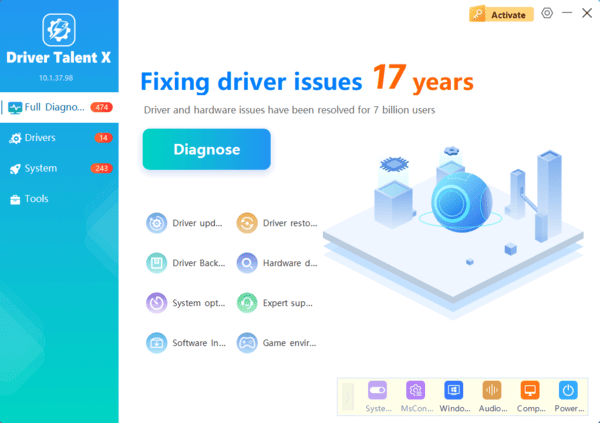
Keep Your Gear Running Smoothly with Driver Talent X
To ensure the best performance of your Logitech G Pro X 2 LIGHTSPEED and all your peripherals, keep your drivers up to date with Driver Talent X
This software automatically detects and updates drivers for all devices, helping to avoid any issues like sound glitches or lag. By using Driver Talent X, you can focus on your game while it handles the technical details
Conclusion
The Logitech G Pro X 2 LIGHTSPEED is an excellent headset that becomes truly great once properly tuned through G HUB. While the EQ system has its limitations, combining a mostly flat profile with smart Blue VO!CE processing and the right surround mode delivers professional-grade performance for both gaming and voice communication.
