Plugged your headphones into your laptop but still hearing sound from the built-in speakers? A laptop headphone jack not working properly can result in no audio, unrecognized headphones, distorted sound, or frequent disconnections. These issues may occur due to loose connections, incorrect playback settings, faulty audio drivers, or problems with the headphone port itself. Before considering expensive hardware repairs, there are several simple troubleshooting steps worth trying. In this article, we'll explain how to diagnose headphone jack problems on Windows 10 and Windows 11, update audio drivers using Driver Talent X, adjust sound settings, check Windows audio services, and determine whether the issue is software-related or caused by damaged hardware.
1. Symptoms of a Non-Working Headphone Jack
No sound from headphones, but speakers work normally
System shows no device detected when headphones are plugged in
Sound is intermittent or accompanied by heavy static
The headphone jack feels loose or fails to detect audio devices
The headphone option is grayed out or unselectable in audio settings
2. Common Causes of Headphone Jack Failure
| Category | Specific Issues |
| Faulty drivers | Missing, corrupted, or incompatible audio drivers |
| Hardware damage | Broken jack, loose connection, or dust buildup |
| Incorrect settings | Audio output device not set properly |
| Audio service issues | Windows Audio service not running normally |
| Software conflicts | Antivirus or sound-enhancement tools causing interference |
3. Fixes for Laptop Headphone Jack Not Working
Method 1: Check Physical Connection
Test headphones on another device to confirm they're working.
Unplug and firmly replug the headphones to ensure a secure connection.
Clean the headphone jack gently with a dry cotton swab or compressed air to remove dust or debris.
Method 2: Set Headphones as Default Output Device
Right-click the sound icon in the taskbar and select "Open Sound Settings".
Under "Output device", select your headphones as the default device.

If headphones are not listed, click "Manage sound devices", enable any disabled headphone devices, and set as default.
Method 3: Restart Windows Audio Service
Press Win + R, type "services.msc", and hit Enter.
Locate "Windows Audio", right-click, and select "Restart".

Double-click the service, make sure Startup type is set to "Automatic", click "Apply" and "OK" to save settings.
Method 4: Update Audio Drivers
Driver issues are one of the most common reasons for headphone malfunctions. It's recommended to use Driver Talent X, which can automatically detect and install the most compatible drivers for your system.
Download the latest version of Driver Talent X and install it.
Open the software, go to the Drivers section, and click "Scan".
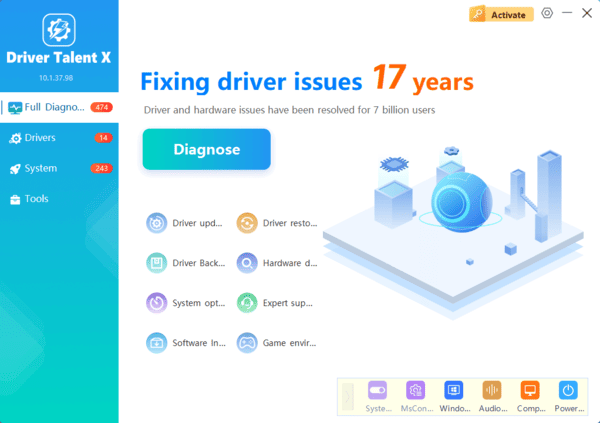
Locate the audio driver in the scan results and click "Upgrade".
Restart your computer to apply the changes.
Method 5: Run Windows Troubleshooter
Go to Settings > Update & Security > Troubleshoot > Other troubleshooters.
Find "Playing Audio" and click "Run the troubleshooter".

Follow the on-screen prompts to diagnose and fix any audio issues.
Method 6: BIOS or Hardware Check (Advanced)
If the above steps don't work, the issue may lie with your motherboard's integrated audio:
Enter the BIOS/UEFI during startup (commonly by pressing DEL or F2) and ensure the HD Audio setting is enabled.
Consider updating the BIOS (do this carefully).
If the audio chip is faulty, consider using a USB external sound card as a workaround or seek repair service.
4. Frequently Asked Questions (FAQ)
Q1: Nothing happens when I plug in my headphones. What should I do?
A: The jack may be loose or the driver might be faulty. Try cleaning the port and updating the audio driver.
Q2: My laptop still plays audio through speakers even with headphones plugged in.
A: Go to Sound Settings and set the headphones as the default output device.
Q3: My headphone audio is intermittent or cuts out randomly.
A: Check the headphone cable for damage and ensure the jack connection is secure.
Most headphone jack issues on laptops are caused by driver problems, misconfigured settings, or hardware-related faults like poor contact. By cleaning the jack, updating drivers, and configuring audio settings properly, most problems can be resolved easily.
If none of the solutions work, consider contacting your laptop's customer support or using an external audio device as a temporary fix. Keeping your drivers and system up to date is a reliable way to prevent similar issues in the future.