

When your Realtek HD Audio driver stops working, even simple tasks like watching videos, listening to music, or joining online meetings can become frustrating. You might notice that your PC has no sound, connected audio devices are not detected, or playback suddenly stops after a Windows update. These symptoms don't always indicate damaged hardware—driver conflicts, disabled audio services, and incorrect system configurations can also be responsible. If you're struggling with Realtek audio problems on Windows 10 or Windows 11, this article will help you identify the possible causes and walk you through six troubleshooting methods, from checking audio connections and adjusting sound settings to repairing or reinstalling drivers with the help of Driver Talent X.
1. Common Symptoms of Realtek HD Audio Driver Issues
No sound output or intermittent audio
Yellow exclamation mark or unrecognized audio device in Device Manager
No sound output after plugging in headphones or speakers
System prompts that there's a problem with the audio device driver
Audio fails while running certain software
2. Possible Causes of Audio Driver Problems
Corrupted or outdated driver
Driver compatibility issues after Windows updates
Audio services not started or disabled
Loose or damaged hardware connections
Conflicts with third-party software or malware infections
3. How to Fix Realtek HD Audio Driver Issues
Method 1: Restart Windows Audio Services
Press Win + R, type "services.msc", and press Enter.
Find Windows Audio and Windows Audio Endpoint Builder services.
Right-click each one and choose "Restart".
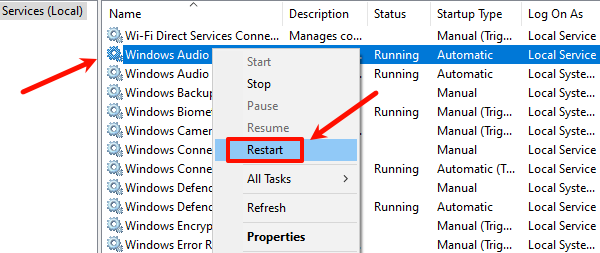
Make sure the startup type is set to "Automatic".
Method 2: Check Hardware Connections and Ports
Ensure that headphones, speakers, and other audio devices are properly plugged in.
Try using a different audio port or device to rule out hardware faults.
Method 3: Disable Audio Enhancements
Right-click the sound icon in the taskbar and select "Sounds".
Go to the Playback tab, select your default playback device, and click "Properties".
In the Enhancements tab, check "Disable all sound effects", then click OK.
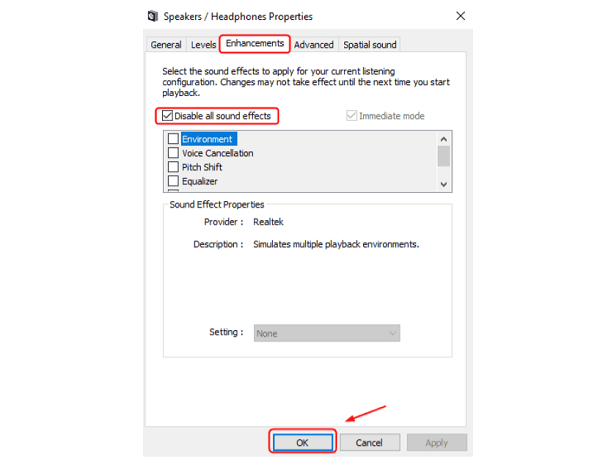
Test if the audio returns to normal.
Method 4: Run Windows Troubleshooter
Go to Settings > Update & Security > Troubleshoot > Additional troubleshooters.
Find "Playing Audio", then click "Run the troubleshooter".
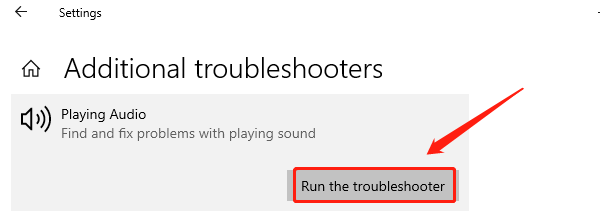
Follow the on-screen instructions to detect and fix audio issues.
Method 5: Update the Audio Driver
Outdated, corrupted, or incompatible drivers are one of the most common causes of audio issues on Windows. Using a tool like Driver Talent X can save time and prevent the risk of downloading or installing the wrong drivers.
Click the download button to get the latest version of Driver Talent X, then install and launch the software.
In the "Drivers" section, choose the "Scan" option to check all driver statuses.
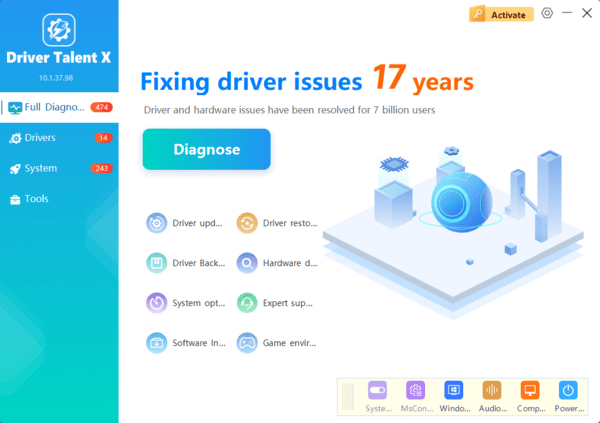
Locate the Realtek HD audio driver in the scan results and click "Upgrade".
Restart your PC after the update is complete to ensure changes take effect.
Method 6: Uninstall and Reinstall the Realtek HD Audio Driver
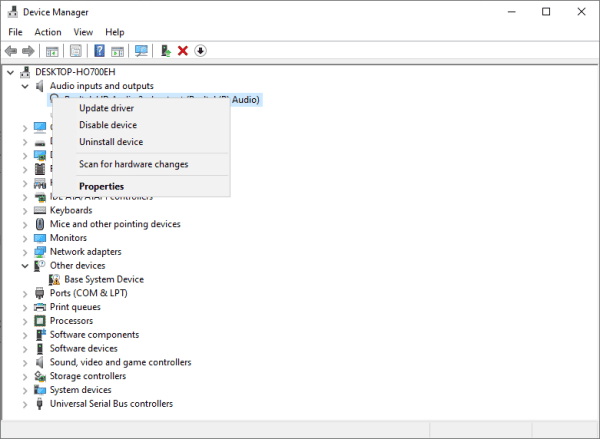
Press Windows + X and select "Device Manager".
Expand the "Sound, video and game controllers" section and locate Realtek HD Audio.
Right-click it and select "Uninstall device".
Check "Delete the driver software for this device" and confirm the uninstallation.
Realtek HD audio driver issues are fairly common, but in most cases, they can be resolved by following the troubleshooting steps outlined above. Start with checking audio services and updating drivers, then use hardware inspections and system tools to assist in restoring functionality.
If the problem persists, it may point to a hardware malfunction—in that case, consider contacting professional repair services for further diagnosis.
