

When Realtek Digital Output has no sound on Windows, audio may appear to work normally while nothing plays through HDMI, optical, or external audio devices. This is common after Windows updates, driver changes, or audio setting adjustments. In most cases, the issue is caused by incorrect settings or driver problems rather than hardware failure. Checking the correct playback device, matching the audio format, and updating or reinstalling the Realtek driver usually restores sound.
Check Whether the Correct Playback Device Is Selected
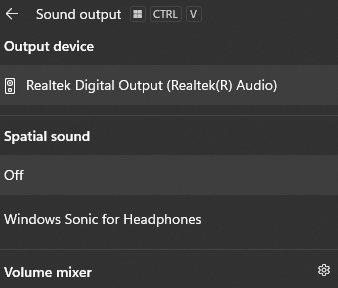
Open Sound Settings from the taskbar volume icon and check the Output device section. If you are using HDMI, optical, or another digital connection, choose Realtek Digital Output if that is the correct device name for your setup
If you are using normal wired speakers or headphones, choose Speakers instead. This simple mismatch is often the entire problem
Make Sure the Connected Audio Device Is Ready
If you are using a monitor, TV, soundbar, or AV receiver, make sure it is powered on and switched to the correct input source. With HDMI audio, the display or receiver must usually be fully active before Windows routes sound to it correctly. With optical output, the receiving device must also be set to the proper optical or digital input
It is also worth checking the cable itself. A loose HDMI or optical cable can create a silent connection even when the device appears connected in Windows. Reseat the cable firmly on both ends and test again. If possible, try another cable to rule out physical damage.
Update the Realtek Audio Driver
Driver problems are one of the main reasons Realtek Digital Output stops working after a Windows update or system change. If the Realtek audio driver is missing, corrupted, or replaced by a generic version, digital output may stop functioning properly even though the device still appears in Sound Settings.
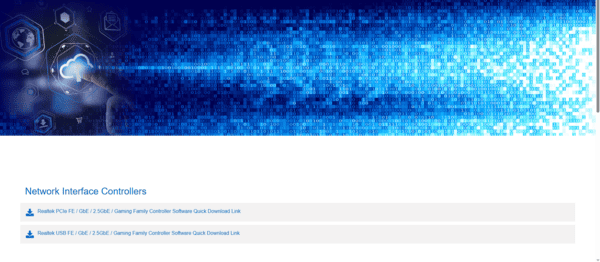
You can update the Realtek driver manually through the motherboard or PC manufacturer's support page.
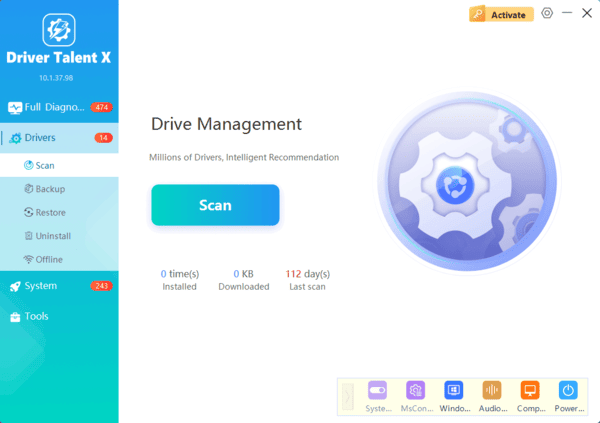
If you want a quicker way to diagnose the problem, Driver Talent X can scan the system and detect outdated or damaged audio drivers automatically. This is especially useful when you are not sure whether only the Realtek driver is affected or whether chipset and related system drivers are also involved. After updating the driver, restart the computer and test Realtek Digital Output again.
Check Whether Realtek Digital Output Is Disabled
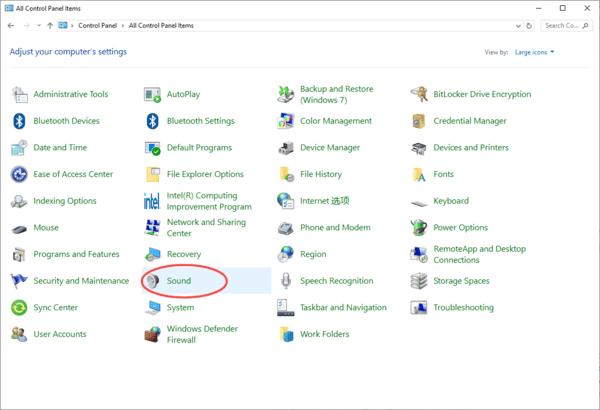
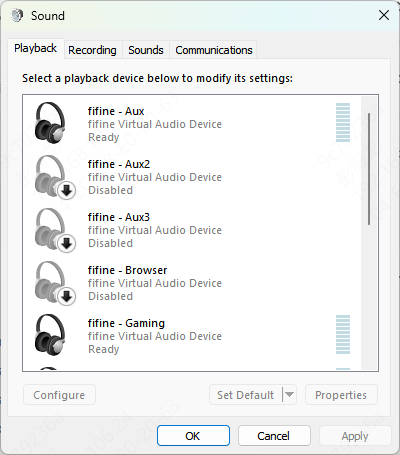
Sometimes the device exists on the system but is disabled. Open the classic Sound control panel, go to the Playback tab, and check whether Realtek Digital Output appears in the device list
If it is hidden or disabled, right-click in the device area and enable the options to show disabled and disconnected devices. If Realtek Digital Output appears grayed out, right-click it and enable it, then set it as the default device if needed
Change the Audio Format
Open the Playback properties for Realtek Digital Output, go to the Advanced tab, and test different default formats. For many devices, 24-bit 48000 Hz works better than higher or less common settings
Apply one format at a time and test sound again. If a connected device cannot handle the format Windows is trying to send, changing this setting can restore audio immediately
Run the Windows Audio Troubleshooter
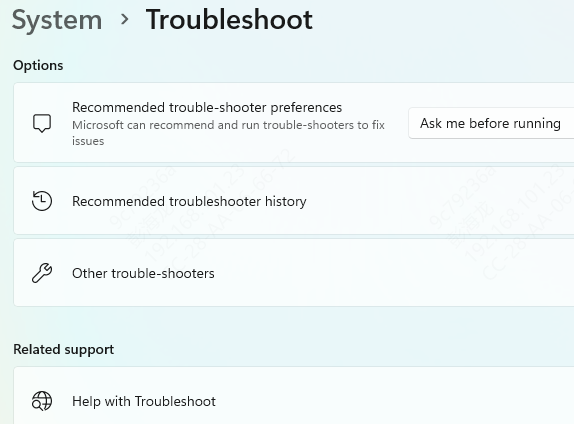
If the cause is not obvious, Windows troubleshooting is worth trying. The Playing Audio troubleshooter can sometimes detect missing device configuration, broken service behavior, muted outputs, or driver inconsistencies
Open Windows Settings, find the audio troubleshooting section, and run the sound troubleshooter for the playback device
Restart Windows Audio Services
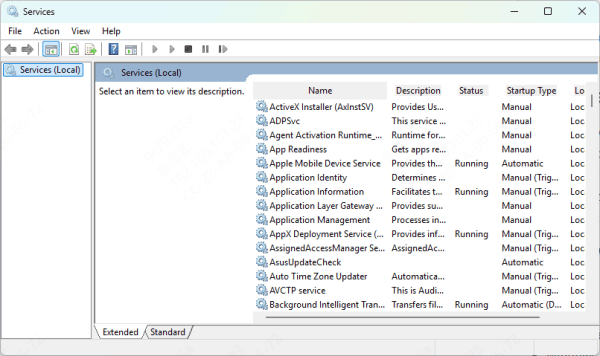
Realtek Digital Output can also fail because Windows audio services are stuck or not running correctly. Press Win + R, type services.msc, and find Windows Audio in the services list. Make sure it is running. If it is stopped, start it. If it is already running, restart it and then test the sound again
You should also check the related audio endpoint service if needed. Restarting these services can help when sound suddenly disappears without any obvious driver or hardware change
Look for Problems After Windows Updates
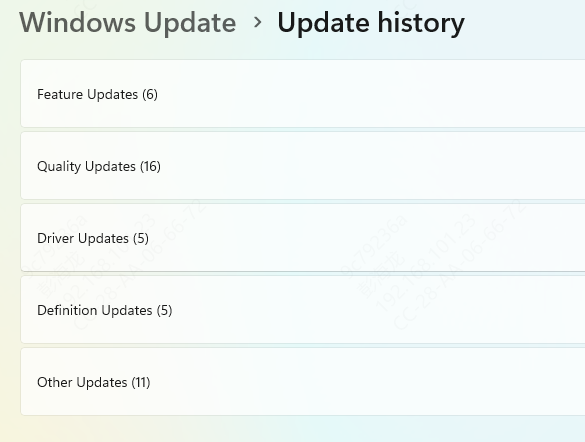
Many users notice this issue after a Windows update. Sometimes the update changes the default playback device, installs a generic audio driver, or resets certain sound settings. If the no sound problem started recently and nothing else in your setup changed, check whether Windows replaced the Realtek driver or altered the playback configuration
In some cases, reinstalling the correct manufacturer driver is enough. In others, you may need to set the digital device as default again or roll back to a more stable driver version if the current one introduced the problem
Check BIOS and Onboard Audio Settings
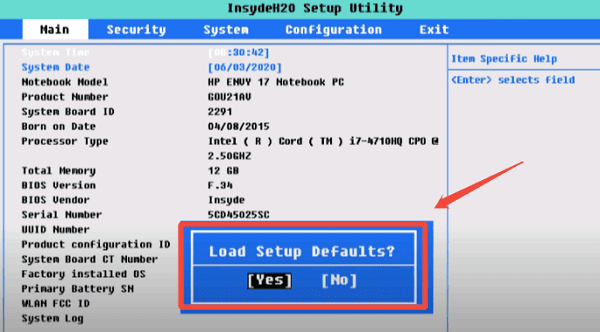
If you are using a desktop PC and Realtek Digital Output is missing entirely, it may be worth checking BIOS settings. Some systems allow onboard audio to be disabled from the BIOS or UEFI firmware
If onboard sound is disabled there, Windows may not load the Realtek device correctly at all
Conclusion
Realtek Digital Output no sound on Windows is usually caused by the wrong playback device, a damaged Realtek driver, format incompatibility, disabled audio services, or a connection problem between the PC and the receiving device. In most cases, the issue can be fixed without replacing any hardware.
