

If your Windows computer cannot connect to WiFi, keeps disconnecting, or fails to detect a usable wireless network, the problem may be related to disabled WiFi, outdated network drivers, incorrect IP or DNS settings, router instability, Windows configuration issues, or security software interference. This guide explains several practical ways to restore wireless connectivity, including restarting the router and PC, checking WiFi settings, updating the wireless adapter driver with Driver Talent X, resetting network settings, reviewing IP configuration, running the Windows network troubleshooter, and checking whether firewall or security software is blocking the connection.
1. Common Causes of WiFi Connection Issues
Missing or corrupted wireless network adapter drivers
WiFi not enabled or wireless switch turned off
Unstable router signal or incorrect router configuration
Incorrect network settings (e.g., DNS or IP address)
Compatibility issues after Windows updates
Firewall or security software blocking the connection
2. Detailed Fixes (For Windows Systems)
Method 1: Restart Your Computer and Router
Turn off your computer completely.
Also power off your wireless router and wait for 1 minute.
Turn the router back on first, then restart the computer.
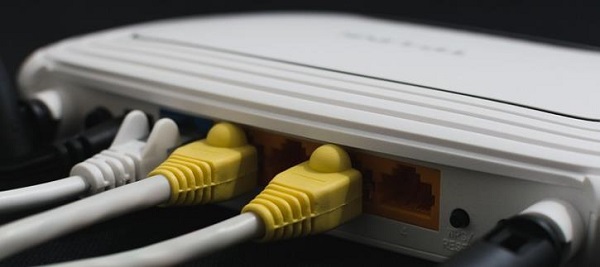
Try reconnecting to WiFi to see if the issue is resolved.
This method works well for most temporary network issues—simple and effective.
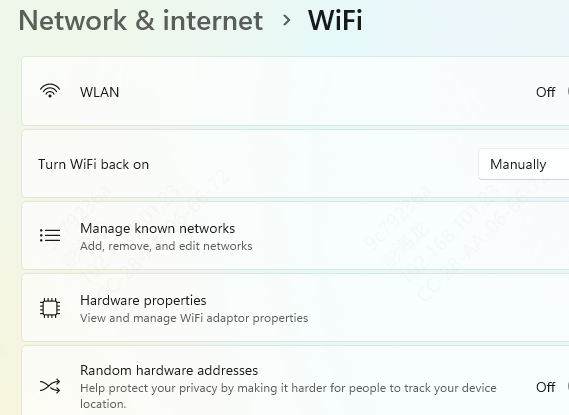
Method 2: Check if WiFi Is Enabled
Press Win + I to open Settings.
Click "Network & Internet" → "select WiFi".
Ensure the WiFi switch is turned on.
If using a laptop, make sure the wireless hotkey (e.g., Fn + F2) is enabled.
Method 3: Update Your Wireless Network Adapter Driver
Outdated or corrupted drivers are a major cause of WiFi connection issues. It's recommended to use a professional driver management tool like Driver Talent X to automatically detect and update your drivers—saving time and avoiding the risk of downloading the wrong driver.
Download and install the latest version of Driver Talent X.
Launch the software, go to the Drivers tab, and click "Scan".
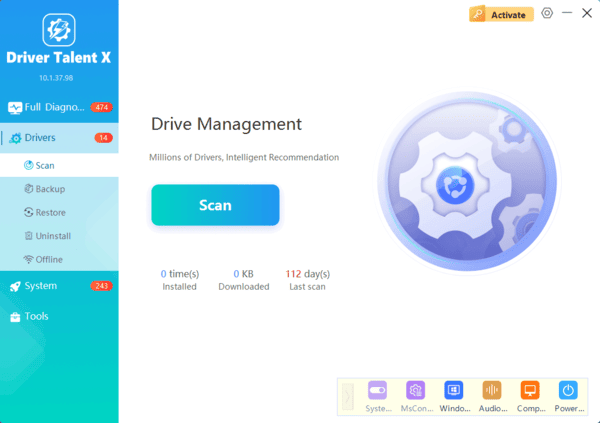
After scanning, locate the wireless adapter driver and click "Upgrade".
Restart your computer after the update to ensure the new driver takes effect.
Method 4: Reset Network Settings
Open Settings (Win + I) and go to "Network & Internet".
In the left menu, click "Status" → scroll down and select "Network Reset".
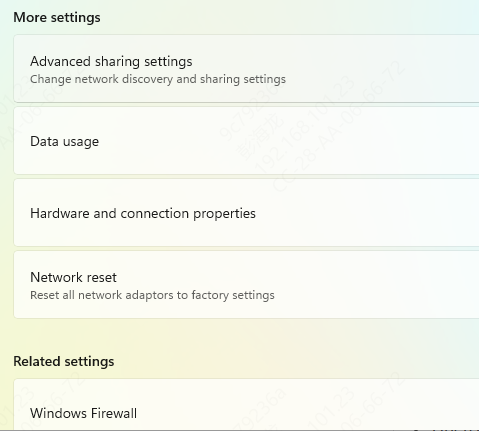
Click "Reset now" and confirm the action.
The system will restart automatically and reset all network configurations.
This method is useful when incorrect or corrupted network settings are causing connection issues.
Method 5: Check IP Address Settings
Press Win + R, type "ncpa.cpl", and press Enter.
Right-click your current wireless network and choose "Properties".
Double-click "Internet Protocol Version 4 (TCP/IPv4)".
Select "Obtain an IP address automatically" and "Obtain DNS server address automatically".
Click "OK" to save and exit.
Method 6: Run the Windows Network Troubleshooter
Open "Settings" → go to "Update & Security" → "Troubleshoot".
Click "Additional troubleshooters".
Select "Network Adapter" → click "Run the troubleshooter".
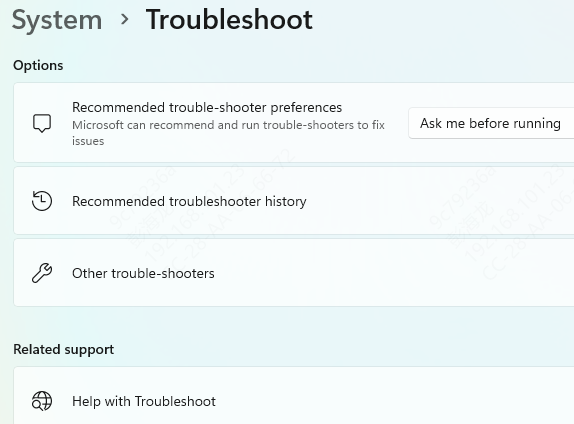
Follow the on-screen instructions to complete the scan and apply the fix.
Method 7: Disable Firewall and Security Software
Sometimes the firewall may unintentionally block WiFi connections:
Press Win + R, type "control", and press Enter to open Control Panel.
Go to "System and Security" → "Windows Defender Firewall".
On the left panel, click "Turn Windows Defender Firewall on or off".
Temporarily disable the firewall for both private and public networks.
If you're using third-party security software, temporarily disable its network protection features as well.
3. Frequently Asked Questions
Why is the WiFi option completely missing from Windows?
The wireless adapter may be disabled, missing from Device Manager, or affected by a faulty driver. Check Network adapters, enable the device, and scan for hardware changes.
Why can my computer detect some networks but not mine?
The router may use an unsupported frequency, channel, or security mode. Check whether the adapter supports the router's 2.4 GHz, 5 GHz, or 6 GHz band and WPA configuration.
Is it safe to disable the firewall while troubleshooting?
Only disable it briefly for testing, preferably on a trusted private network. Turn it back on immediately afterward and adjust the relevant rule instead of leaving protection disabled.
Although being unable to connect to WiFi can be frustrating, most issues can be resolved easily by following the step-by-step methods above. It is recommended to first use Driver Talent X to update your wireless drivers, then combine that with network setting adjustments and diagnostics to significantly improve WiFi connection stability. If the issue persists, contacting your Internet Service Provider (ISP) or a technical support professional for further assistance is advised.
