

Is your Corsair K70 Pro RGB keyboard lighting not syncing with iCUE or other Corsair devices? Even when the keyboard works normally, RGB effects may freeze, display incorrect colors, or fail to synchronize due to outdated firmware, corrupted lighting profiles, USB connection issues, or software conflicts. Fortunately, you can often restore RGB synchronization without replacing your keyboard. This guide covers practical solutions for Corsair K70 Pro RGB not syncing, including updating iCUE, checking lighting settings, reinstalling drivers, updating firmware, and troubleshooting related driver issues with Driver Talent X.
Step 1: Preliminary Checks
Before diving into complex solutions, start with the basics:
Connection Check: Make sure the keyboard is plugged directly into a USB port on your PC. Avoid hubs or adapters, which can interfere with iCUE communication
Test Another PC: If possible, connect your K70 Pro RGB to another system with iCUE installed. If it works, the issue is software-related on your main PC
Inspect Hardware: Look for bent pins or USB port damage. Physical issues can block proper keyboard recognition
iCUE Installation: Ensure the latest version of iCUE is installed. Older versions often fail to sync newer firmware

Step 2: Restart and Reconnect
Sometimes, the simplest solutions are the most effective:
Reboot Your PC: A fresh start can resolve temporary software conflicts
Reconnect the Keyboard: Unplug and plug it back into the same or a different USB port
Direct Connection: Avoid USB hubs. Plug directly into a motherboard port, ideally a USB 3.0 port for faster communication
Step 3: Update Corsair iCUE Software
Your keyboard relies on iCUE to manage lighting and sync profiles. Outdated software can prevent proper communication:
Launch iCUE and go to the Settings tab
Check for software updates. Install any available updates
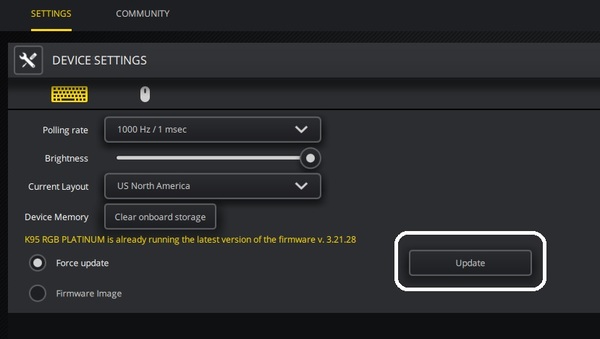
Navigate to your keyboard in iCUE and check for firmware updates
If lighting profiles are still not syncing, reset them to default and reassign macros or effects
Keeping iCUE up to date ensures your keyboard and other Corsair devices communicate correctly
Step 4: Update or Reinstall Keyboard Drivers
Device Manager
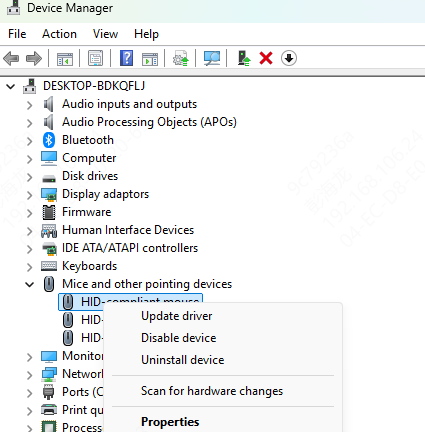
Press Win + X and select Device Manager
Expand Keyboards
Right-click your Corsair K70 Pro RGB > Update driver > Search automatically
Restart your PC after updates
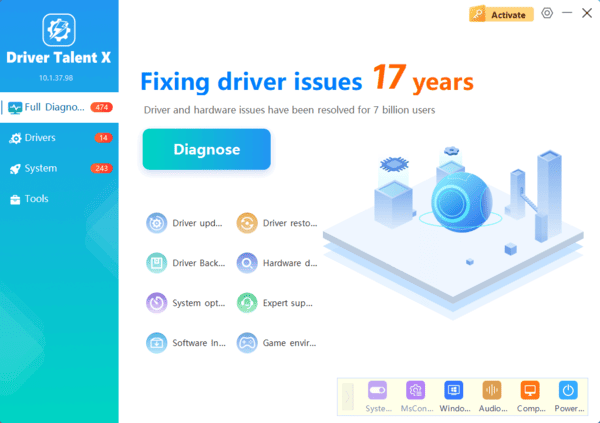
Driver Talent X
Click Diagnose to scan for missing, outdated, or corrupted drivers
Driver Talent X ensures your keyboard and system drivers are fully compatible, eliminating conflicts that often block iCUE sync
Step 5: iCUE Settings and Profile Checks
Even with updated software and drivers, iCUE profiles themselves can sometimes interfere:
Reset Profiles: Go to the Profiles tab in iCUE and restore default settings
Disable Conflicting Devices: If you have multiple Corsair peripherals, temporarily disable other devices to test the keyboard
Macro Overrides: Check that macros or custom key assignments are not interfering with RGB synchronization
A clean profile environment helps your keyboard connect smoothly with iCUE
Step 6: USB Port and Hub Troubleshooting
RGB sync relies heavily on a stable USB connection:
Direct Motherboard Connection: Avoid front-panel USB ports or hubs for initial troubleshooting
Try Different Ports: If the keyboard isn't syncing, switch between USB 2.0 and 3.0 ports
Power Considerations: Ensure your PC supplies enough power to the keyboard, especially if other high-power devices are connecte
Step 7: Firmware and Hardware Considerations
Sometimes, sync issues are firmware-related:
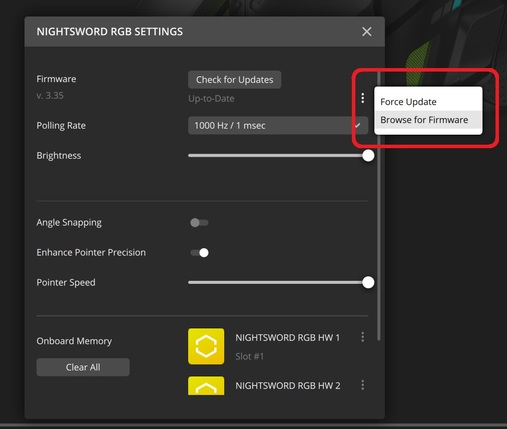
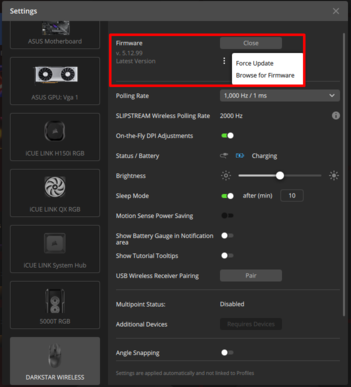
Firmware Update: Use iCUE to update the K70 Pro RGB firmware
Sync Across Devices: Ensure that any other Corsair devices, like mice or headsets, are also updated if you're syncing lighting across multiple peripherals
Factory Reset: If all else fails, perform a factory reset on the keyboard by holding ESC + Function key combinations (check the manual for exact keys)
Firmware updates fix many underlying bugs that prevent proper synchronization
Step 8: Advanced Troubleshooting
For persistent issues:
Test on Another PC: Confirms if the issue is software-specific
Disable Conflicting Software: Programs like AutoHotkey or other macro utilities can interfere with iCUE
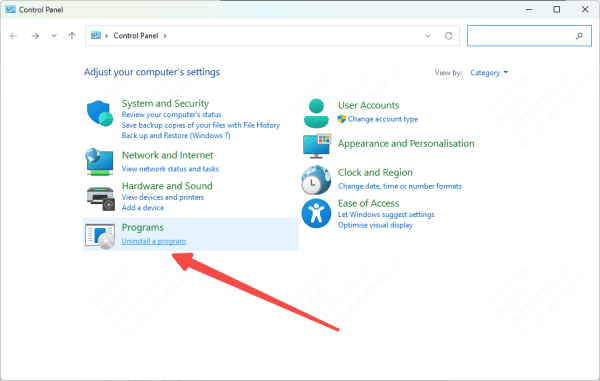
Reinstall iCUE: Uninstall iCUE completely, restart your PC, and reinstall the latest version
These steps eliminate deep conflicts that basic troubleshooting cannot address
The Corsair K70 Pro RGB not syncing is often a software or driver issue rather than a hardware failure. By following these steps—checking connections, updating iCUE and firmware, repairing drivers with Driver Talent X, and resetting profiles—you can usually restore full RGB synchronization.
