

The d3dx11_43.dll missing or not found error can prevent games and multimedia applications from launching correctly on Windows. This problem is usually related to missing or damaged DirectX components, corrupted application files, outdated graphics drivers, or system file issues. Instead of downloading a standalone DLL from an unknown website, it is safer to restore the required components through trusted repair methods. This guide explains how to fix d3dx11_43.dll errors.
Why d3dx11_43.dll Errors Occur
Before applying fixes, understanding the causes ensures long-term solutions. Errors linked to d3dx11_43.dll typically stem from:
Incomplete DirectX installation or outdated DirectX runtime.
Corruption of system files due to malware or abrupt shutdowns.
Manual deletion or accidental overwriting of the DLL file.
Outdated GPU drivers that rely on DirectX libraries.
Step-by-Step Fix for d3dx11_43.dll Error
Follow this structured repair process to resolve DLL issues safely:
1. Update or Reinstall DirectX
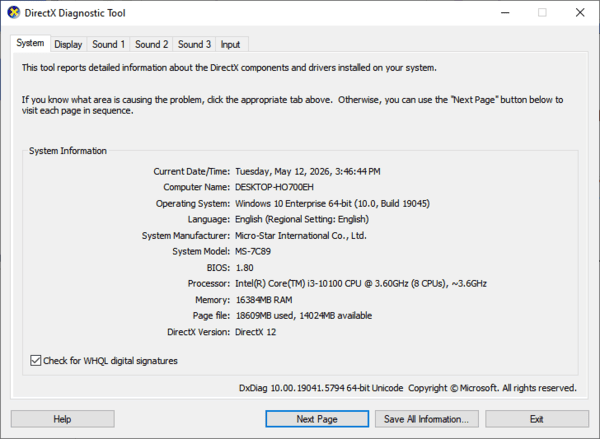
Press Win + R, type dxdiag, and check your current DirectX version.
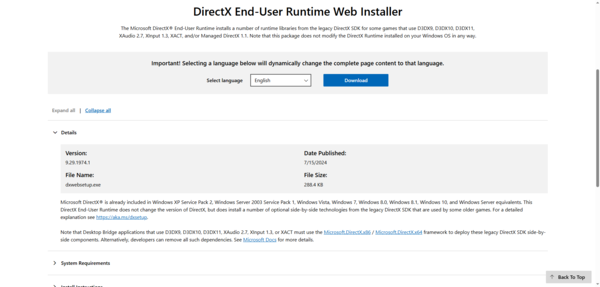
If outdated, install the latest DirectX runtime from Microsoft's website.
2. Reinstall the Problematic Application
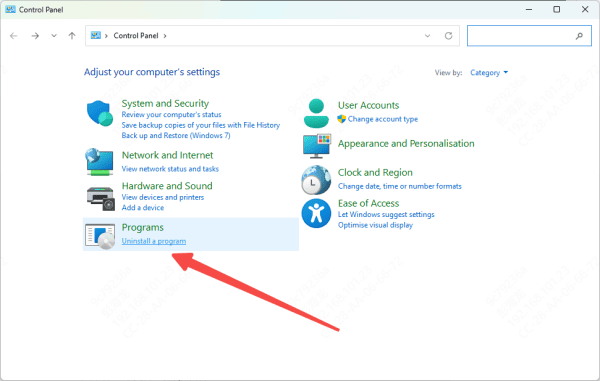
Uninstall the game or software triggering the DLL error.
Reinstall it to ensure all required libraries, including d3dx11_43.dll, are correctly added.
3. Update GPU Drivers
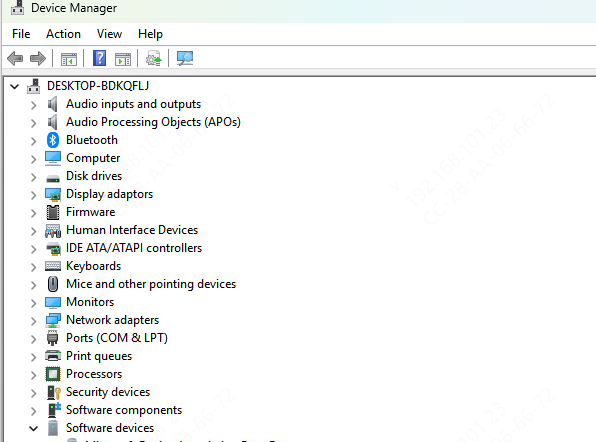
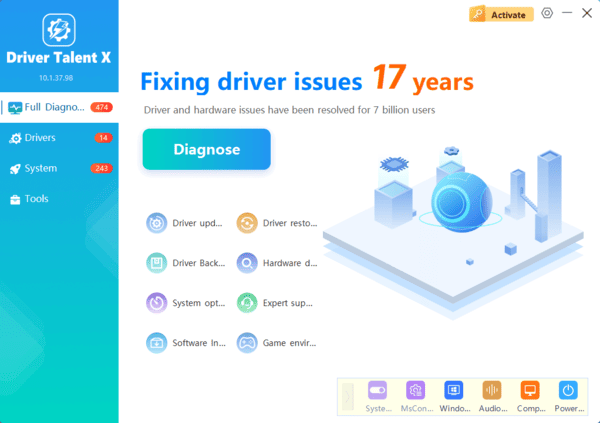
Outdated drivers may trigger DirectX errors. Use Device Manager or, more efficiently, run Driver Talent X to automatically update graphics card drivers.
4. Run System File Checker
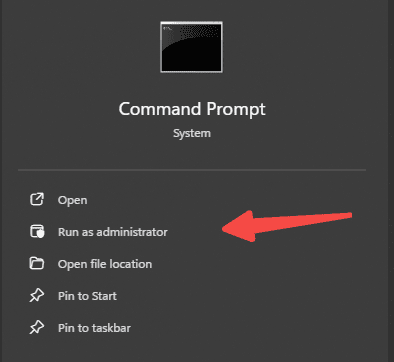
Open Command Prompt as administrator.
Enter: sfc /scannow
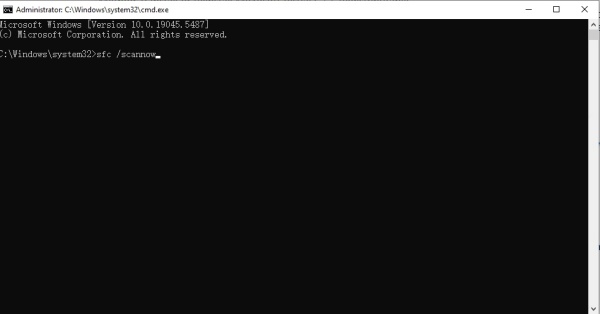
This will repair corrupted system files, possibly restoring d3dx11_43.dll.
5. Fix DLL Errors with Driver Talent
Manual methods often take time, but Driver Talent X simplifies the process. It not only updates drivers but also has a dedicated DLL error repair feature. With one click, it scans for corrupted or missing DLLs—including d3dx11_43.dll—and replaces them with the correct version.
Precautions Before Downloading d3dx11_43.dll
Avoid third-party DLL sites that provide standalone downloads without security checks.
Always use Microsoft's official packages or trusted repair software like Driver Talent.
Back up your system before replacing DLL files to avoid unexpected errors.
Frequently Asked Questions About d3dx11_43.dll
1. Can I manually place d3dx11_43.dll in the System32 folder?
Yes, but it is risky. The file may be incompatible with your system architecture (32-bit or 64-bit). Always use official sources.
2. Does reinstalling DirectX fix the issue?
In most cases, yes. Reinstalling DirectX replaces all required DLL files, including d3dx11_43.dll.
3. Is Driver Talent safe for fixing DLL errors?
Absolutely. It uses certified libraries and ensures DLL compatibility with your Windows version.
4. Which games commonly require d3dx11_43.dll?
Many titles such as Battlefield, Crysis, and FIFA rely on this DirectX library for advanced graphics rendering.
Conclusion
The d3dx11_43.dll error is usually resolved by restoring the legacy DirectX components required by the affected game or application. Start by repairing or reinstalling the program and installing Microsoft’s official DirectX End-User Runtime. If the error continues, update the graphics driver and use Driver Talent to check for related driver or DLL problems. Avoid downloading individual DLL files from unknown websites, as incompatible or modified copies can create additional errors.
