

If GTA San Andreas fails to launch with an eax.dll missing, not found, or loading error, the game may no longer be able to access one of its required audio components. This can happen after incomplete game installations, accidental file deletion, Windows changes, corrupted system files, or software conflicts. Rather than downloading random DLL files from unverified websites, this guide focuses on safer repair options, including restoring game components, checking the Recycle Bin, running SFC and DISM, and using Driver Talent to scan for missing DLL and driver-related problems that may prevent GTA San Andreas from starting correctly.
Manual Windows Troubleshooting
Manually fixing eax.dll involves replacing the file or repairing system components. It's free but requires careful steps to avoid mistakes.
Steps:
Check the Recycle Bin: Sometimes the DLL was accidentally deleted. Restore it if found.
Download eax.dll from a trusted source: Only use official or verified sites—never random third-party downloads.
Place the file in the game directory: Usually C:\Program Files\Rockstar Games\GTA San Andreas\.
Register the DLL:
Press Win + R, type cmd, and press Enter.
Type regsvr32 eax.dll and press Enter.
Restart your PC and try running GTA San Andreas again.
Command Line Solutions
For advanced users, the command line can repair system-level DLL issues affecting GTA San Andreas. This method is powerful but requires caution.
Steps:
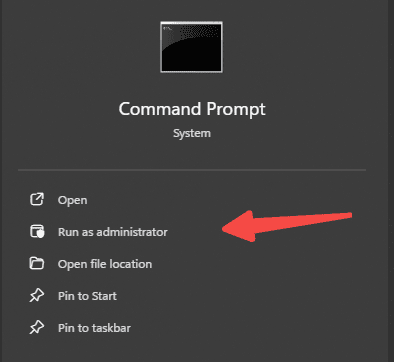
Open Command Prompt as Administrator.
Run the System File Checker tool: sfc /scannow
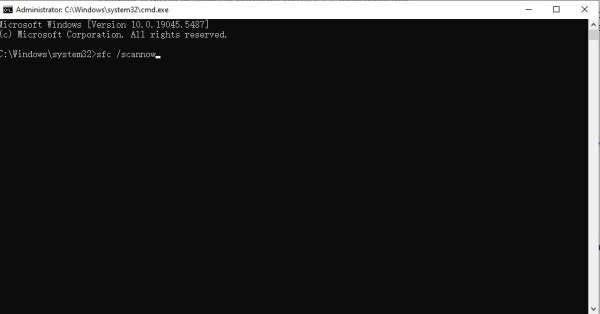
This checks and repairs corrupted system files, including eax.dll.
Run DISM to repair Windows image: DISM /Online /Cleanup-Image /RestoreHealth
Restart your PC and launch the game.
Automatic Repair with Driver Talent
This method is the fastest way to fix missing or corrupted eax.dll. It requires minimal technical knowledge and automatically repairs or replaces the DLL.
I personally found this approach lifesaving when my GTA San Andreas crashed repeatedly due to eax.dll issues. Driver Talent scans your system, identifies missing or corrupted DLLs, and fixes them in one click—no manual downloads or risky system changes needed.
Steps:
Download and install Driver Talent from the official site.

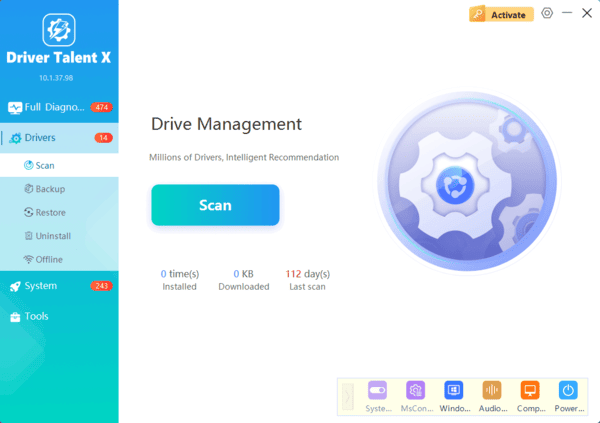
Launch the software and select Scan to detect issues.
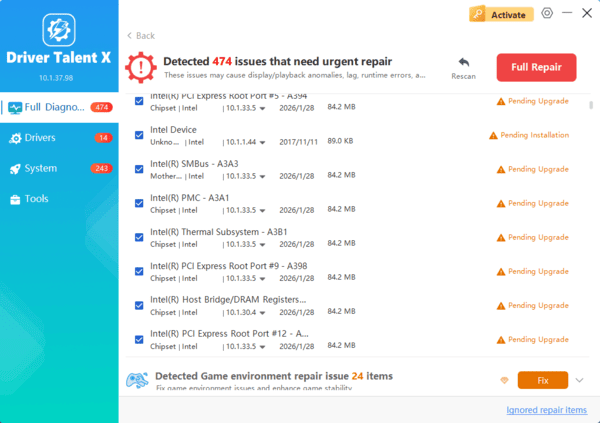
Click Repair next to eax.dll or any other missing game files.
Restart your computer and launch GTA San Andreas.
Frequently Asked Questions
Is eax.dll a Windows system file?
No. The file is normally included with GTA San Andreas or its audio components. Windows repair tools such as SFC and DISM generally will not restore it.
Should I register eax.dll with regsvr32?
Usually not. The game loads eax.dll directly from its installation folder, and the file may not support DLL registration. Using regsvr32 is therefore unnecessary and may return an error.
Can GTA San Andreas run without eax.dll?
Some versions may start but experience missing audio effects or crashes, while others may not launch. Restore the matching file through the game installer rather than downloading an unknown copy.
Conclusion
The GTA San Andreas eax.dll error is usually best resolved by restoring or reinstalling the game through its original, trusted source. Check the Recycle Bin and antivirus quarantine first, then verify or reinstall the game files. Driver Talent can also help identify related DLL or driver problems. Use SFC and DISM only when broader Windows corruption is suspected, and avoid downloading unknown DLL copies or registering eax.dll with regsvr32.
