

The 0x80070035 error appears when Windows cannot find or access the network path you entered. In most cases, this issue can be fixed by following the right troubleshooting steps. Start by checking the network path format and sharing settings, then review firewall, SMB, and network configuration options. If the problem continues, updating network and chipset drivers can help resolve compatibility issues. This guide covers solutions from basic checks to advanced fixes.
Understanding the Error
What Does "The Network Path Was Not Found" Mean?
This error typically appears when Windows can't find the network address you're trying to access. It's like sending someone a letter, but getting it returned because the address doesn't exist or is unreachable.
When Does Error Code 0x80070035 Happen?
You might encounter this error while:
Trying to access a shared folder
Mapping a network drive
Browsing the network
Connecting to another PC or NAS (Network-Attached Storage)
Step-by-Step Fixes for Error 0x80070035
Method 1: Recheck the Network Path
Before diving into advanced troubleshooting, it's always best to start with the basics. A simple mistake in the network path—like a typo in the computer or folder name—can prevent your system from locating the destination.
Steps:
Make sure you're using the correct format: \\ComputerName\SharedFolder
Or try using the IP address instead: \\192.168.1.10\SharedFolder
You can also test the connection using: ping ComputerName
Method 2: Turn On Network Discovery and File Sharing
This method enables Windows to detect other devices on the same network. If network discovery or file sharing is turned off, your PC won't be able to access shared folders, even if the path is correct.
Steps:
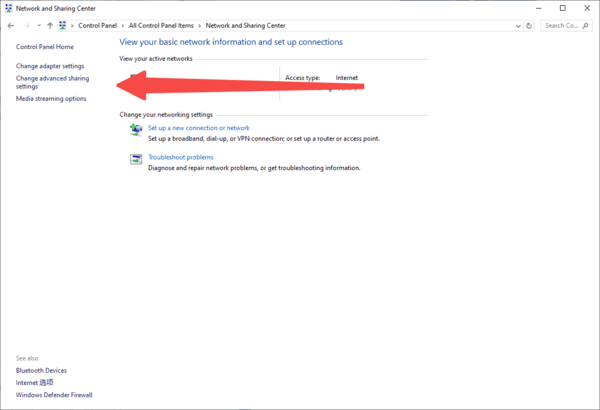
1. Open Control Panel > Network and Sharing Center
2. Click Change advanced sharing settings
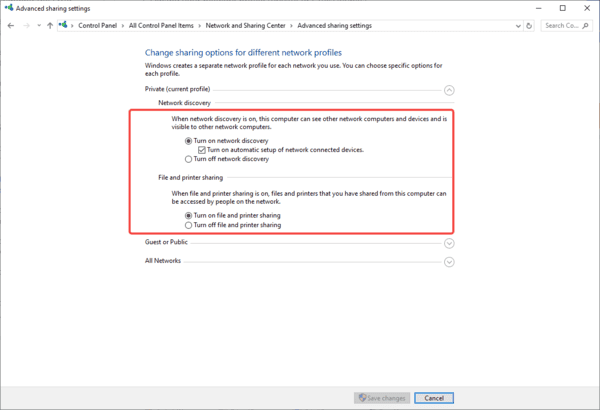
3. Expand your network profile (Private or Guest/Public)
4. Enable: Turn on network discovery. Turn on file and printer sharing
5. Click Save changes when done.
Method 3: Disable Windows Defender Firewall Temporarily
The built-in firewall is designed to protect your system, but sometimes it mistakenly blocks trusted local network connections. Disabling it temporarily can help identify if it's the root of the issue.
Steps:
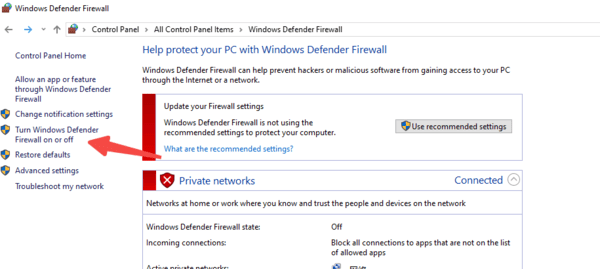
Go to Control Panel > Windows Defender Firewall
Click Turn Windows Defender Firewall on or off
Select Turn off for both private and public networks
Try to access the network path again
Method 4: Map the Network Drive Manually
Mapping a network drive lets Windows remember the connection path and improves stability when accessing shared folders. It's also a workaround that sometimes avoids error 0x80070035.
Steps:
Open File Explorer
Right-click This PC > Map network drive
Choose a drive letter
Enter the network folder path like: \\192.168.1.10\SharedFolder
Enable Reconnect at sign-in if desired
Click Finish
Method 5: Enable SMB 1.0/CIFS File Sharing Support
Some older devices or shared folders still rely on the SMB 1.0 protocol. Microsoft disables this by default in newer Windows versions due to security risks, but enabling it can restore access.
Steps:
Open Control Panel > Programs > Turn Windows features on or off
Scroll down and check SMB 1.0/CIFS File Sharing Support
Click OK
Restart your PC
Note: This protocol is outdated and should be used only when absolutely necessary.
Method 6: Flush DNS and Reset TCP/IP
Sometimes the issue lies within your network stack—specifically DNS resolution or a corrupted TCP/IP configuration. Flushing DNS and resetting TCP/IP can clear out bad settings and restore connectivity.
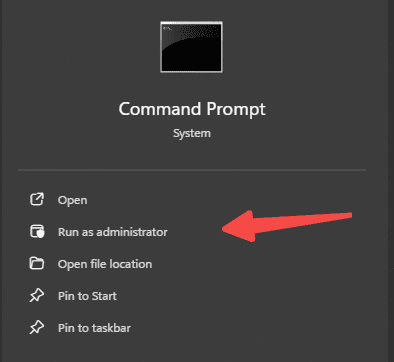
Steps (Command Prompt as Admin):
ipconfig /flushdns
nbtstat -R
nbtstat -RR
netsh int ip reset
netsh winsock reset
Restart your computer afterward.
Method 7: Check and Update Network Drivers
Old or incompatible network drivers can cause random disconnection issues or prevent access to network paths. Keeping them updated ensures your hardware functions correctly.
Recommended Tool: Driver Talent X
Steps:
Download and install Driver Talent X
Run a full scan
Click Upgrade next to any outdated network drivers
Restart your PC after updates
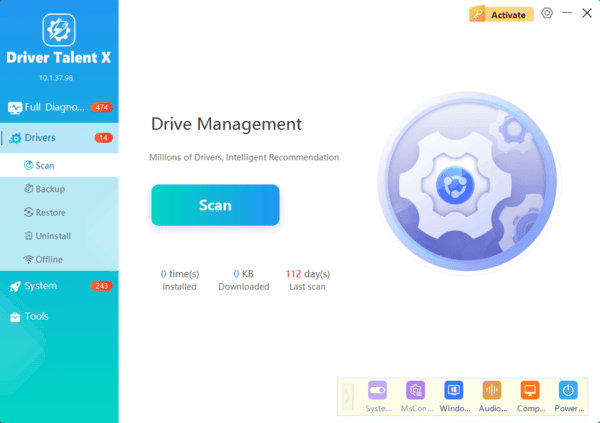
Driver Talent X simplifies the driver update process with one-click repair and backup options.
Conclusion
Error code 0x80070035 may seem cryptic, but with the right steps, it's absolutely fixable. Whether it's just a typo in the path, a firewall hiccup, or an outdated driver, there's always a logical fix. Follow the methods in this guide and you'll likely have your network back on track in no time.
And to fix driver issues, don't wait to give Driver Talent X a try now.
FAQ
What does 0x80070035 mean exactly?
It means the destination network share could not be found or accessed from your current Windows session.
Is SMB 1.0 safe to enable?
Only for old devices that require it. Keep it temporary when possible because SMB 1.0 has known security risks.
Can wrong credentials trigger 0x80070035?
Yes. Cached or invalid network credentials can block access even when the path is correct.
Will resetting TCP/IP remove my files?
No. It resets network configuration only, not personal files.
