

The "No WiFi Option" issue on a Dell laptop can prevent you from connecting to wireless networks and is often caused by disabled adapters, incorrect settings, or outdated network drivers. This guide explains several effective solutions, including enabling WiFi settings, updating network drivers, resetting network configurations, and using automatic driver tools to restore wireless connectivity quickly.
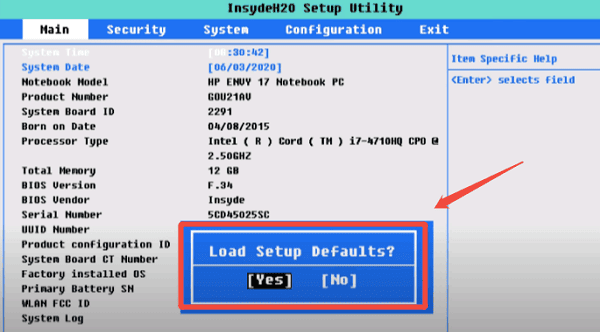
Enable Wireless Adapter in BIOS
Turn off your Dell laptop
Press the F2 key as soon as you turn it back on to enter BIOS
Navigate to the Advanced or Integrated Peripherals tab
Look for the Wireless option and ensure that it is set to Enabled
Save and exit BIOS settings
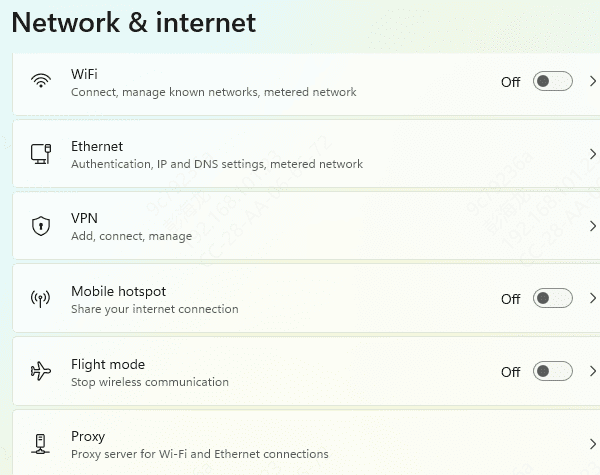
Enable the Wifi Option in the Network Settings
Go to Settings by pressing Windows + I
Click on Network & Internet
In the Status tab, make sure that Wi-Fi is turned on
Update Network Drivers
Outdated or corrupted network drivers are one of the most common causes of missing Wi-Fi options. Updating or reinstalling the drivers can resolve this issue.
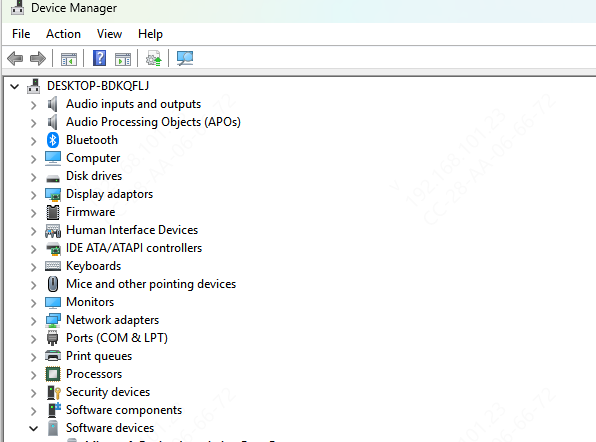
Update via Device Manager
Open Device Manager
Under Network adapters, right-click on your wireless network adapter and select Update driver
Choose Search automatically for updated driver software
Windows will search and install the latest drivers
Use Driver Talent X for Automatic Fixes
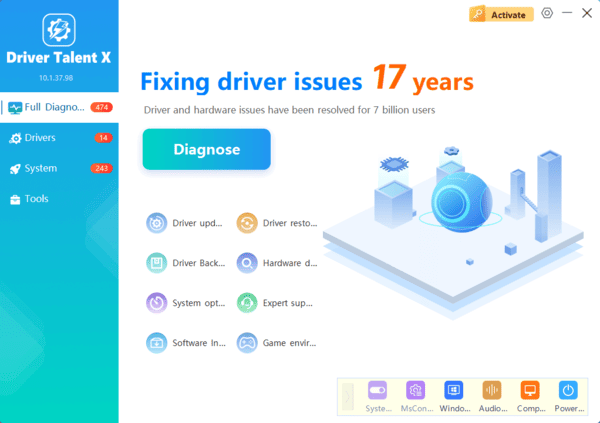
If you're struggling to update or reinstall drivers manually, Driver Talent X offers an automatic solution that simplifies the process of managing your drivers. It can detect missing, outdated, or corrupt drivers and automatically download and install the latest versions for your Dell laptop.
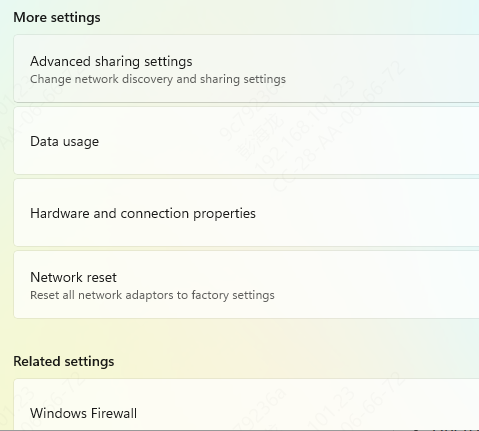
Reset Network Settings
Open Settings by pressing Windows + I
Go to Network & Internet > Status
Scroll down and click on Network reset
Click Reset now and confirm
Troubleshoot Using Windows Network Troubleshooter
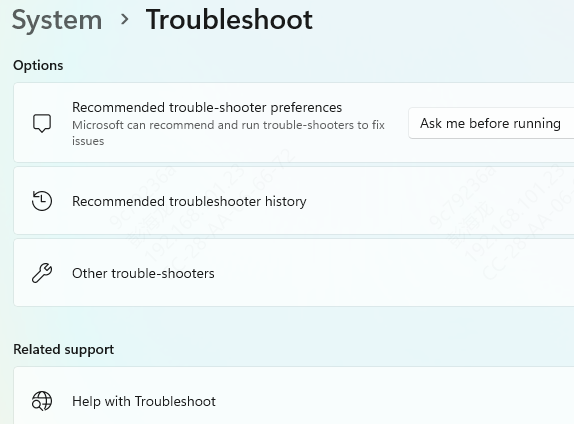
Steps to use Network Troubleshooter:
Right-click the Network icon in the taskbar and select Troubleshoot problems
Follow the on-screen prompts to allow Windows to diagnose and attempt to fix the issue
Conclusion
Fixing the "No Wi-Fi Option" issue on your Dell laptop can often be solved by following these straightforward troubleshooting steps. Whether it's checking the physical Wi-Fi switch, updating drivers, or performing a network reset, you can usually restore Wi-Fi functionality in no time. For a seamless experience, Driver Talent X is a great tool to automate driver updates and avoid any manual hassles. Regularly updating your drivers is a good practice to prevent connectivity issues in the future.
