

The msvcr100.dll missing error prevents many programs and games from launching on Windows 10 and Windows 11. This issue is usually caused by missing Visual C++ components, corrupted system files, or damaged DLL files. This guide explains the causes of the error and provides effective solutions to restore msvcr100.dll and get your applications running again.
Fix 1: Install the Microsoft Visual C++ 2010 Redistributable
Open your browser and go to the official Microsoft download page for Visual C++ 2010 Redistributable
Download the version that matches your Windows installation. For a 64-bit system, download vcredist_x64.exe. For a 32-bit system, download vcredist_x86.exe
If you are running a 64-bit version of Windows but the error is triggered by a 32-bit application, install both versions, as many older programs ship as 32-bit even on 64-bit operating systems

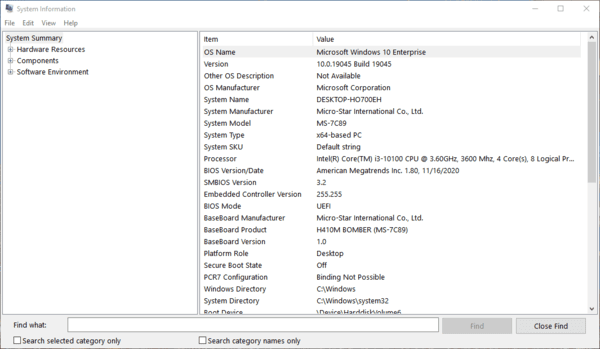
To check your Windows architecture, open Settings, go to System, then About, and look at the System type field
Run the installer after downloading and follow the prompts to complete installation. Restart your computer after the installation finishes, then launch the application that was showing the error
Fix 2: Repair DLL Files with Driver Talent X
If installing the Visual C++ 2010 Redistributable does not resolve the issue, or if you want to check whether other DLL files on your system are also missing or corrupted, Driver Talent X provides an automated DLL repair function that handles this without requiring manual file management.
Driver Talent X scans your system for missing and damaged DLL files, including msvcr100.dll, and repairs them from a verified source. It also checks for driver issues that may be causing related system instability
Download and install Driver Talent X from the official website. Launch the program and click Try Now on the first run. Select Full Checkup to run a comprehensive system scan. Restart your computer after the repair finishes to ensure the file is properly loaded by the operating system

Fix 3: Run System File Checker to Repair Corrupted System Files
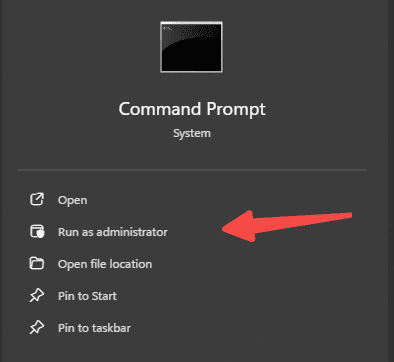
Open the Start menu, search for Command Prompt, right-click it, and select Run as administrator. Type sfc /scannow and press Enter. The scan will take several minutes
Do not close the window while it is running. When the scan completes, restart your computer regardless of whether the scan reported finding issues, then test the application again
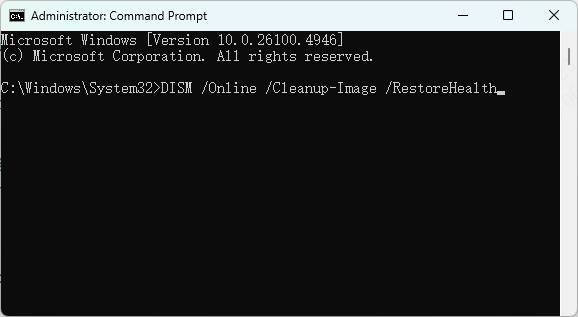
If SFC reports that it found errors it could not repair, follow this by running DISM. In an elevated Command Prompt, type DISM /Online /Cleanup-Image /RestoreHealth and press Enter
This requires an active internet connection as it downloads clean file copies from Microsoft's servers. After DISM finishes, run sfc /scannow again to allow SFC to use the now-repaired component store, then restart
Fix 4: Check Windows Update for Visual C++ Runtime Patches
Some Windows cumulative updates include patches and updates for Visual C++ runtime components. If your system is behind on updates, installing them may resolve the error as a side effect.
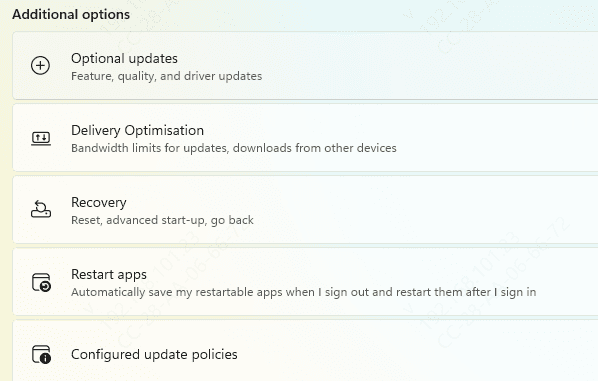
Open Settings and navigate to Windows Update. Click Check for updates and install everything available, including optional updates if they appear
Restart your computer after updates finish installing and test the application
Fix 5: Reinstall the Application Triggering the Error
If the error only appears for one specific program, that program's installer likely failed to install its required prerequisites correctly during the original installation. A clean reinstall forces the prerequisite installation to run again.
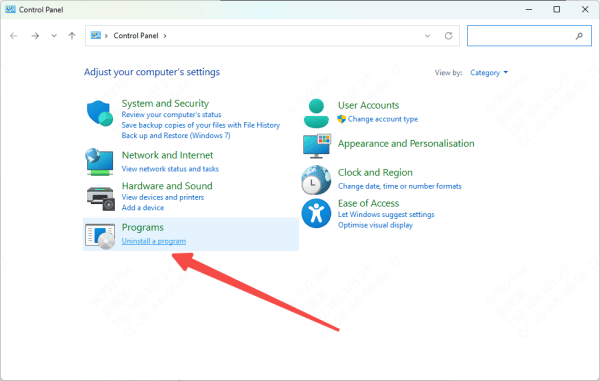
Uninstall the application through Programs and Features in Control Panel. After uninstalling, navigate to the application's installation folder and delete any remaining files to prevent residual data from the broken installation from carrying over
Download the latest installer from the official developer or platform and run it with administrator privileges by right-clicking and selecting Run as administrator.
Fix 6: Manually Register or Replace the DLL File
If none of the above fixes work and you have obtained a verified copy of msvcr100.dll, you can place it in the correct system directory and register it manually. This should only be done with files obtained from Microsoft directly or through a verified tool, not from random DLL download sites, which frequently host malware.
For 64-bit Windows, copy the 64-bit version of msvcr100.dll to C:\Windows\System32 and the 32-bit version to C:\Windows\SysWOW64. For 32-bit Windows, copy the 32-bit version to C:\Windows\System32 only. After copying the file, open Command Prompt as Administrator and type regsvr32 msvcr100.dll and press Enter
A confirmation dialog will appear if registration was successful. Restart your computer and test the application
Conclusion
The msvcr100.dll missing error is caused by the Visual C++ 2010 Redistributable not being installed, being corrupted, or having its files removed by a cleaning tool or antivirus program. Installing the redistributable package directly from Microsoft resolves the problem in most cases. When the error persists, Driver Talent X provides an automated path to detecting and repairing the specific DLL files at fault.
