

If a game keeps crashing, an application closes unexpectedly, or Windows becomes unstable and the error report points to ntdll.dll, there may be a problem somewhere in the system rather than with the DLL alone. Software conflicts, corrupted Windows files, faulty drivers, and hardware errors can all trigger this type of crash. Fortunately, most cases can be diagnosed and repaired with standard Windows troubleshooting methods. This guide walks through several effective fixes to help stop recurring ntdll.dll errors and improve system stability.
Common Signs of an ntdll.dll Problem
The most common sign is a program crash with an error mentioning ntdll.dll. You may also notice apps closing immediately afterlaunch, games crashing to desktop, installers failing to run, or file explorer restarting unexpectedly
Some users see the error after a Windows update. Others notice it after installing a new driver, security tool, or older application. If the problem is more severe, you may also experience system freezes, startup instability, or blue screen errors
Run System File Checker
Open Command Prompt as administrator and run:
sfc /scannow
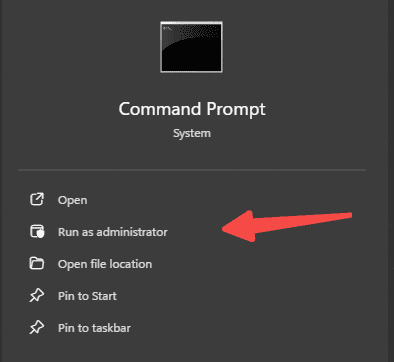
This tool scans protected Windows files and replaces corrupted versions when possible. It is one of the safest built-in repair steps for ntdll.dll-related problems because it works through Windows itself instead of relying on manual file replacement.
Use DISM for Deeper Repair
If SFC cannot fix everything, or if the system still behaves strangely afterward.
Run the DISM repair command:
DISM /Online /Cleanup-Image /RestoreHealth
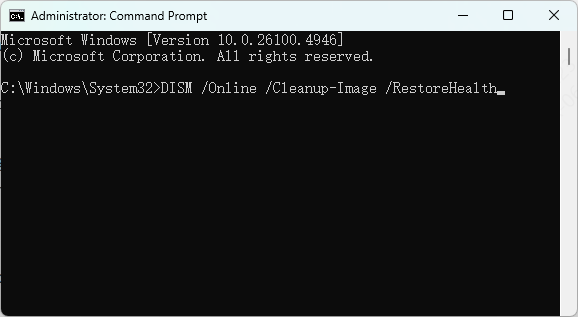
DISM checks the Windows image for deeper corruption and repairs system components that SFC depends on. After DISM finishes, restart the computer and check whether the crash persists.
Reinstall or Repair the Affected Program
If the error appears in only one application, reinstalling that program is often the most direct fix. A broken installation can trigger an ntdll.dll crash even when Windows itself is healthy
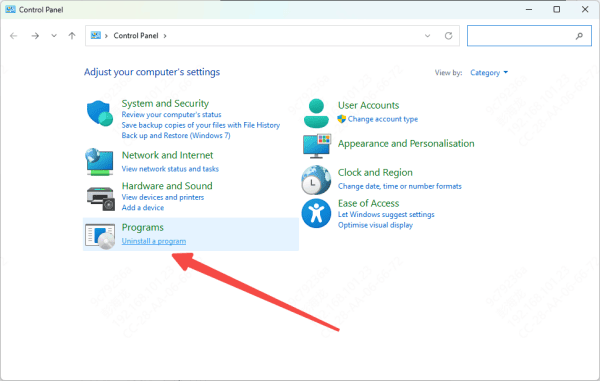
Uninstall the app completely, restart the PC, and install the latest version from the official publisher. If the program has a built-in repair option, try that first
Update Drivers
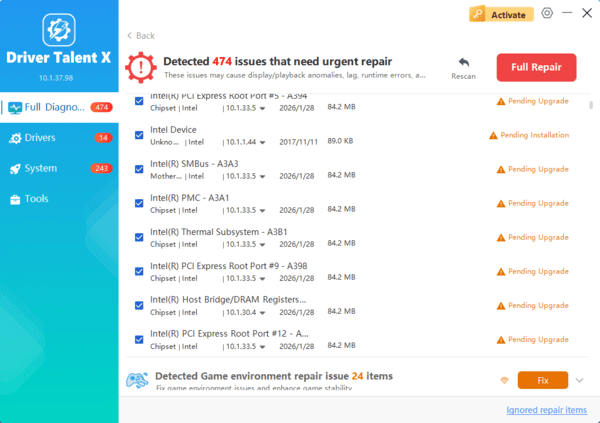
Driver problems are one of the most common reasons behind ntdll.dll crashes, especially after Windows updates, hardware changes, or long periods without maintenance. If your system has outdated, damaged, or incompatible drivers, applications may fail when trying to access graphics, sound, storage, or memory-related functions.
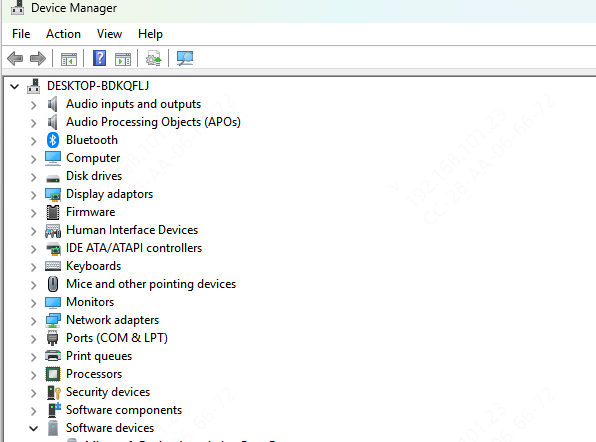
You can update drivers manually through Device Manager and your PC manufacturer's support pages, but that often takes time and may not catch every issue.
A faster option is to run a full driver scan with Driver Talent X, which can detect outdated or problematic drivers and help repair them in a more efficient way.
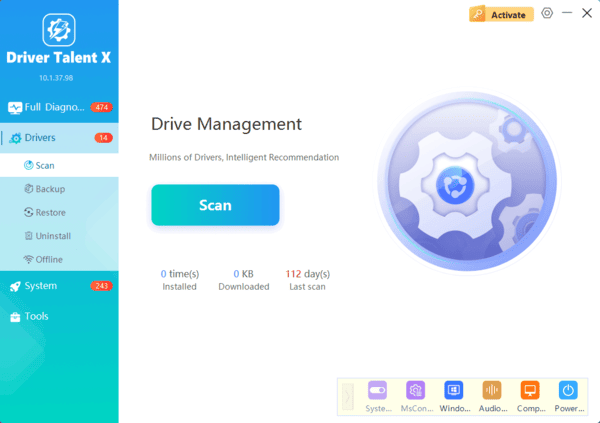
After updating drivers, restart the computer and test the program that was crashing. If the issue disappears after a driver refresh, the ntdll.dll error was likely a symptom of a deeper compatibility problem rather than a damaged DLL alone.
Check Compatibility Settings
Right-click the application shortcut or executable file, open Properties, and review the compatibility settings. Running the app in compatibility mode for an earlier version of Windows can sometimes stop repeated crashes. Running it as administrator may also help if the software fails while trying to access protected areas of the system.
Review Recent Software or Updates
If the problem started recently, think about what changed just before the crashes began. A new security suite, overlay tool, cleanup utility, system tweak app, or recent Windows update may be involved
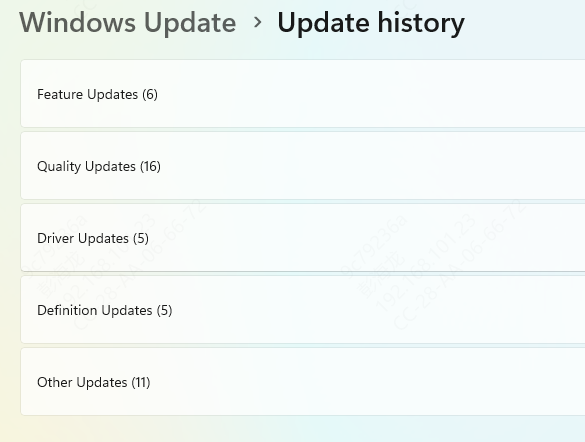
Try uninstalling recently added software one item at a time and test again. If the issue appeared immediately after a Windows update and no other fix works, checking update history may help you identify the change
Test for Memory and Disk Problems
If ntdll.dll errors keep returning after software repairs, hardware health becomes more important. Faulty RAM can corrupt data in memory and trigger system-level crashes that mention core DLL files. Storage problems can also damage files and make Windows unstable.
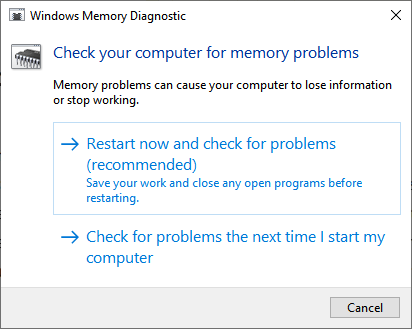
Run Windows Memory Diagnostic by searching for mdsched.exe and following the prompts. Let the system restart and test memory.
You should also check the system drive by opening Command Prompt as administrator and running:
chkdsk C: /f /r
What You Should Not Do
Do not download ntdll.dll from random DLL websites
Do not copy ntdll.dll from another computer unless you are following an official repair method
Do not assume the crash is always caused by the DLL itself
Frequently Asked Questions
Does an error report naming ntdll.dll mean the file is damaged?
No. ntdll.dll is used by many programs, so it can appear in a crash report even when the actual cause is the application, a driver, or faulty memory.
What should I check if only one application crashes?
Repair or reinstall that application and remove any mods, plugins, or overlays it uses. If other programs work normally, focus on the affected app before making broad system changes.
Is chkdsk C: /f /r the first disk check to try?
Usually no. The /r option can take a long time, especially on a large drive. Check the drive's health and back up important files first; use a repair scan when there is evidence of file system or disk trouble.
Final Thoughts
An ntdll.dll error looks serious because it involves a core Windows file, but it is often fixable when approached methodically. Start by determining whether the problem affects one app or the whole system. Then move through the safest repair order: update drivers, run SFC, use DISM, reinstall the affected app, check compatibility settings, review recent changes, and test hardware if needed.
In many cases, the most effective fix is not replacing ntdll.dll itself, but correcting the driver, software conflict, or system corruption that caused the crash in the first place. If you follow that approach, you have a much better chance of restoring Windows stability and preventing the error from coming back.
