

When an HP Pavilion laptop is plugged in but not charging, the cause may be as simple as a loose connection or as serious as a worn battery or damaged charging port. Power adapter problems, battery driver errors, BIOS issues, and outdated chipset or power-management drivers can also interfere with normal charging. Before replacing the battery or charger, it is worth checking both the hardware and Windows configuration. This guide covers practical ways to troubleshoot an HP Pavilion not charging issue, including power checks, battery driver reinstallation, BIOS diagnostics, and driver updates with Driver Talent X.
1. Check the Power Outlet and Adapter Connection
Ensure the issue is not caused by a faulty outlet.
Steps:
Plug another device into the same outlet to verify it works.
Try using a different outlet.
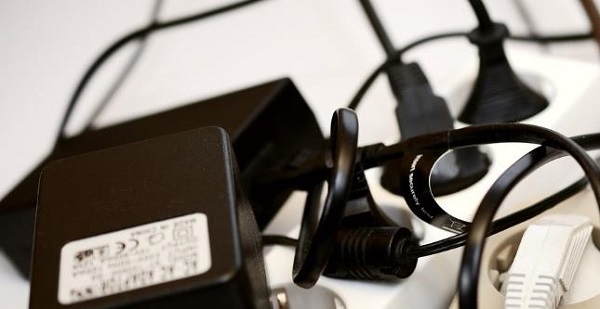
Confirm your HP charger is firmly connected to both the wall and the laptop.
If using an extension cord or surge protector, remove it and connect directly to the wall.
2. Inspect the HP Power Adapter and Cable
The charger may be damaged or incompatible.
Steps:
1). Look for frayed wires, bent pins, or burnt smells on the adapter.
2). Check the wattage printed on the charger label.
HP Pavilion models require specific wattage such as 45W, 65W, or 90W.
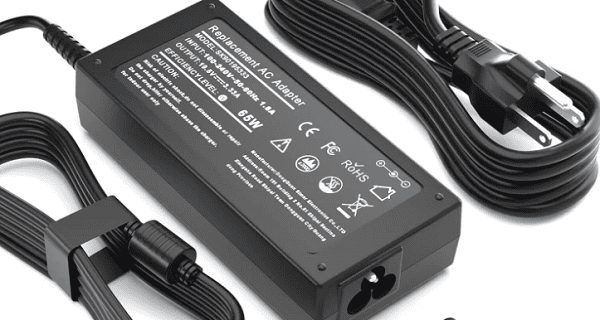
3). Test the charger with another compatible HP laptop if available.
4). If the charger is third-party or non-OEM, replace it with an official HP adapter.
3. Examine the Charging Port
Dust or physical damage to the charging port can stop charging.
Steps:
Turn off the laptop and unplug the charger.
Use a flashlight to inspect the port for debris, bent connectors, or looseness.
Use a clean brush or compressed air to remove dust.
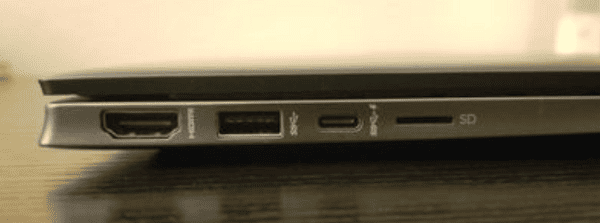
Gently reconnect the charger and check if the port fits tightly.
If the port wiggles or feels loose, it may require professional repair.
4. Perform an HP Hardware Reset
A hardware reset often restores battery recognition.
Steps:
Shut down the HP Pavilion completely.
Disconnect the charger and remove any USB devices.
Press and hold the Power button for 15 seconds to discharge residual power.
Reconnect the charger and try powering on the laptop.
5. Remove and Reinstall the Battery (If Removable)
Some HP Pavilion models have removable batteries.
Steps:
Turn off the laptop and remove the charger.
Slide the battery release latch and remove the battery.
Press and hold the Power button for 15 seconds.
Reinsert the battery and reconnect the charger.
Power on the laptop and test charging.
6. Run Windows Battery and Power Troubleshooter
Windows can automatically detect and fix charging-related issues.
Steps:
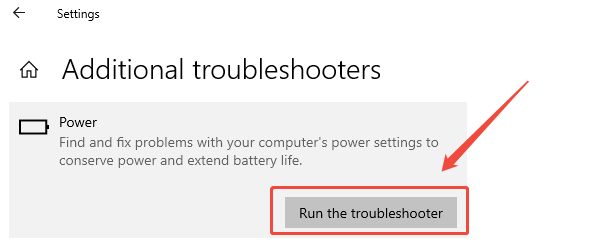
Open Settings, go to "Update & Security".
Select "Troubleshoot" > "Other troubleshooters".
Run the "Power" or "Battery" troubleshooter and follow the on-screen instructions.
7. Check BIOS for Battery and Power Issues
An outdated BIOS may cause charging failure.
Steps:
Press Windows + R, type "msinfo32", and note your BIOS version.
Visit the official HP support website.
Enter your HP Pavilion model number.
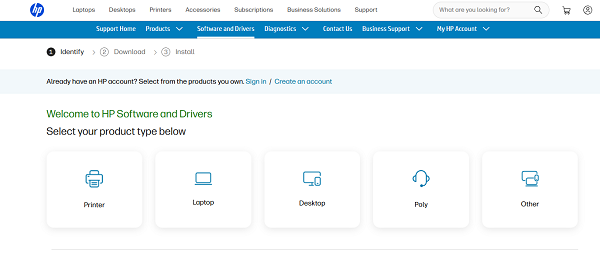
Download the latest BIOS update if available.
Follow HP's instructions to install the update.
Only update BIOS when the laptop still has battery power or is charging intermittently.
8. Consider Battery Failure
Laptop batteries degrade over time.
Signs the battery needs replacement:
The laptop only works when plugged in
Battery percentage drops suddenly
Charging stops at a fixed percentage
Battery report shows poor capacity
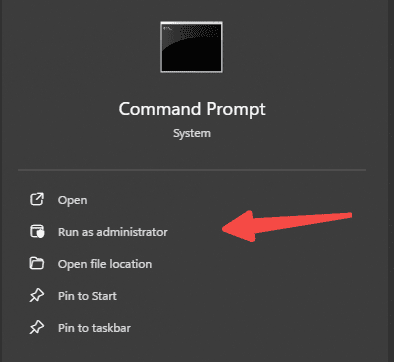
You can generate a Windows battery report by running this command in Command Prompt: powercfg /batteryreport
9. Test With Another HP Charger
If your laptop charges with a different compatible charger, the original one is faulty and should be replaced.
Update Drivers
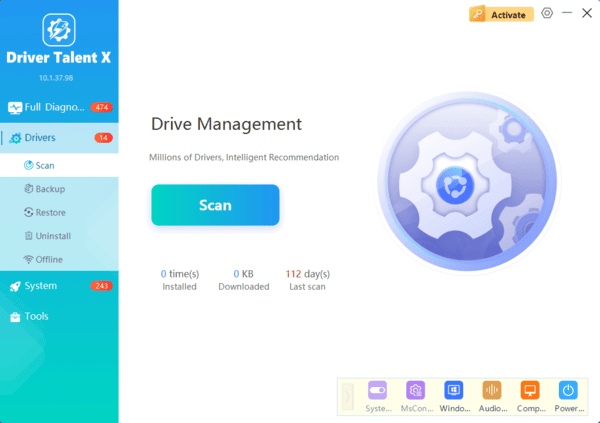
Outdated or corrupted drivers often prevent your HP Pavilion laptop from recognizing the charger. Driver Talent X allows you to scan, download, and install all needed drivers automatically.
Conclusion
Charging problems on HP Pavilion laptops are often caused by faulty power adapters, damaged ports, incorrect settings, or outdated drivers. Start by updating essential system drivers using Driver Talent X, then proceed with hardware inspection and software troubleshooting. With the methods above, you can quickly identify the cause and restore normal charging functionality.
