Updated by Seraphina on Dec 25, 2025 2898 Views

The Logitech G502 is one of the most popular gaming mouse, known for its precision sensor, customizable buttons, and adjustable DPI settings. However, without the correct drivers and software, the mouse may not function properly. Common issues include buttons not responding, DPI settings not saving, RGB lighting not working, or the mouse not being recognized by Windows.


This guide explains how to download and set up Logitech G502 mouse drivers correctly, starting with the most reliable driver update method, followed by multiple manual fixes and setup tips to ensure stable performance on Windows.


Update Logitech Drivers First Using Driver Talent X


Outdated or incompatible mouse drivers are the most common reason for Logitech G502 issues. Before trying advanced troubleshooting, it is strongly recommended to update the mouse driver automatically using Driver Talent X. This ensures compatibility with your Windows version and prevents installation errors.

Download


Download and Install:


  • Click the "Download" button to download the software package.

  • Run the installation file and follow the on-screen setup instructions.


Run a Full System Scan:


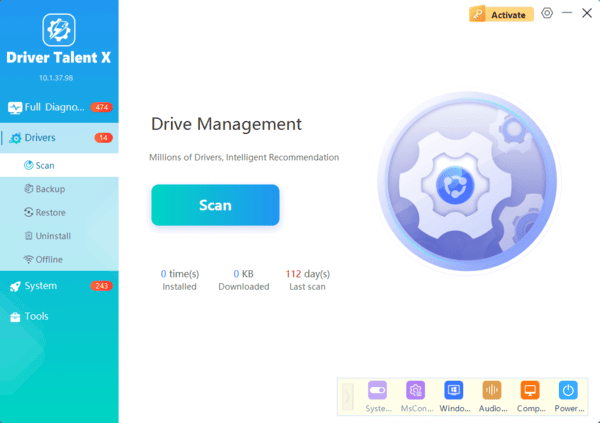
  • Launch the application and go to "Drivers" > "Scan", click "Scan".

  • Driver Talent X will check your USB controllers, mouse drivers, and system components for outdated or corrupted drivers.

perform-scan


Update All Related Drivers:


  • After the scan is complete, the software will display a list of all drivers that need attention. Select the necessary drivers and click the "Repair Now" button.

click-repair-now

  • Driver Talent X will download the latest, certified versions specific to your mouse and Windows version, crucial for minimizing latency.


Reboot Your Computer:


  • Wait for the driver installation process to finish.

  • Restart your computer to apply the changes properly.

Updating drivers with Driver Talent X reduces the risk of installing incorrect driver versions and helps resolve recognition, lag, and configuration issues instantly.


Download Logitech G502 Mouse Software Manually


If you prefer manual setup or need Logitech's customization features, installing the official Logitech software is required.


Option 1: Install Logitech G HUB (Recommended)


Logitech G HUB is the official software for newer Logitech gaming devices, including most G502 models.


Steps:


  • Open your web browser and go to the official Logitech support website.

  • Search for Logitech G502.

  • Select your exact G502 model (Hero, Lightspeed, X, or older versions).

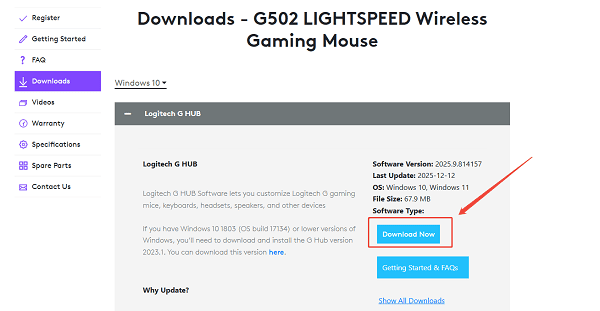
  • Download Logitech G HUB for Windows.

download-Logitech-G-HUB

  • Run the installer and follow the on-screen instructions.

  • Restart your PC after installation.


Logitech G HUB allows you to:


  • Adjust DPI levels and sensitivity

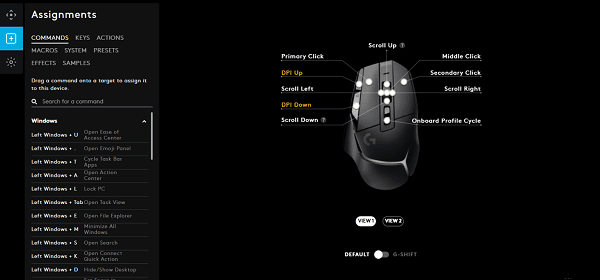
  • Customize button mappings

customize-button-mappings

  • Create game-specific profiles

  • Control RGB lighting

  • Update device firmware


Option 2: Use Logitech Gaming Software (For Older G502 Models)


Some older G502 models may work better with Logitech Gaming Software instead of G HUB.


Steps:


  • Download Logitech Gaming Software from Logitech's support page.

  • Install the software and restart your computer.

  • Connect the G502 mouse directly to a USB port.


Fix Logitech G502 Not Detected by Software


If Logitech G HUB or Gaming Software does not detect the G502 mouse, try the following solutions.


Solution 1: Reconnect the Mouse Properly


  • Unplug the Logitech G502 mouse.

  • Restart your computer.

  • Plug the mouse into a different USB port (preferably a rear motherboard port).

  • Avoid using USB hubs during setup.


Solution 2: Reinstall Mouse Drivers via Device Manager


  • Press Windows + X and select Device Manager.

  • Expand "Mice and other pointing devices", right-click the "Logitech mouse" or "HID-compliant mouse", select "Uninstall device".

select-uninstall-device

  • Check "Delete the driver software for this device" if available.

  • Restart your computer.

  • Windows will reinstall the default mouse driver automatically.

After rebooting, install Logitech G HUB again.


Resolve DPI or Button Customization Not Working


Solution 1: Run Logitech G HUB as Administrator


  • Right-click the Logitech G HUB shortcut.

  • Select "Run as administrator".

  • Check if DPI and button settings are saved properly.


Solution 2: Enable On-Board Memory Mode


  • Open Logitech G HUB.

  • Select your Logitech G502 device.

  • Enable "On-Board Memory Mode".

enable-on-board-memory-mode

  • Save your DPI and button profiles to the mouse hardware.

This prevents profile resets when switching PCs or USB ports.


Fix Logitech G502 Lag or Stuttering Issues


Solution 1: Disable USB Power Saving


  • Open Device Manager.

  • Expand "Universal Serial Bus controllers", right-click each "USB Root Hub", select "Properties".

  • Go to the "Power Management" tab, uncheck "Allow the computer to turn off this device to save power".

disable-usb-power-saving

  • Click OK and restart the system.


Solution 2: Update USB and Chipset Drivers


USB controller or chipset driver issues can cause mouse lag.


Use Driver Talent X to:


  • Scan for outdated USB controller drivers

  • Update motherboard chipset drivers

  • Ensure stable USB communication


Keep Logitech G502 Drivers and Firmware Up to Date


To maintain peak performance:


  • Regularly scan your system with Driver Talent X

  • Keep Logitech G HUB updated

  • Check for firmware updates within Logitech software

  • Avoid installing multiple Logitech driver tools simultaneously


Download


Conclusion


Downloading and setting up Logitech G502 mouse drivers correctly is essential for smooth performance, accurate tracking, and full customization. The fastest and safest way is to update drivers using Driver Talent X, which eliminates compatibility issues and saves time.


For advanced control, installing Logitech G HUB allows you to fine-tune DPI, buttons, and profiles. By combining automatic driver updates with proper software setup, your Logitech G502 will perform at its best on Windows.