

The Omnissa Horizon Client DLL error can prevent the application from launching correctly and interrupt remote desktop access. This issue usually occurs when required DLL files are missing, corrupted, incorrectly registered, or incompatible with the current Windows environment. To resolve the problem, users can try reinstalling the Horizon Client, repairing Windows system files, updating essential drivers, reinstalling Microsoft Visual C++ Redistributables, and removing software conflicts. Keeping system components and drivers updated can also help prevent similar DLL-related problems in the future and ensure stable virtual desktop connections.
Understanding the Omnissa Horizon Client DLL Error
When the Omnissa Horizon Client displays the "problem with the DLL" message, it typically means that one or more Dynamic Link Library (DLL) files are missing, corrupted, incompatible, or not registered properly in Windows. DLL files contain essential code and data used by the application to function correctly.
Common causes include:
Corrupted installation files due to incomplete downloads or malware.
Outdated or incompatible device drivers affecting dependencies.
Damaged system files in Windows affecting DLL registration.
Third-party software conflicts during runtime.
Cause 1: Corrupted or Missing DLL Files
When installation or updates fail, DLL files may not be placed correctly in the system directory. This can lead to instant startup errors.
How to Fix
1. Reinstall Omnissa Horizon Client
Uninstall from Control Panel > Programs and Features.
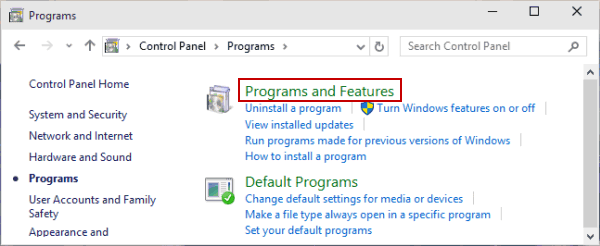
Download the latest installer from the official VMware (now Omnissa) website.
Install with administrative privileges.
2. Manually Register the DLL File
Press Windows + R, type cmd, and press Ctrl + Shift + Enter to open as admin.
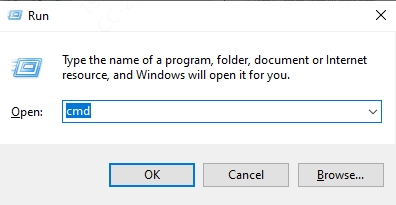
Type: regsvr32 filename.dll
Replace filename.dll with the missing DLL name from the error message.
Cause 2: Outdated or Incompatible Device Drivers
Many DLL errors in Omnissa Horizon Client stem from outdated graphics, network, or USB drivers that the virtual desktop relies on.
How to Fix with Driver Talent
Download and Install Driver Talent from the official site.
Run a Full Scan to detect outdated or corrupt drivers.
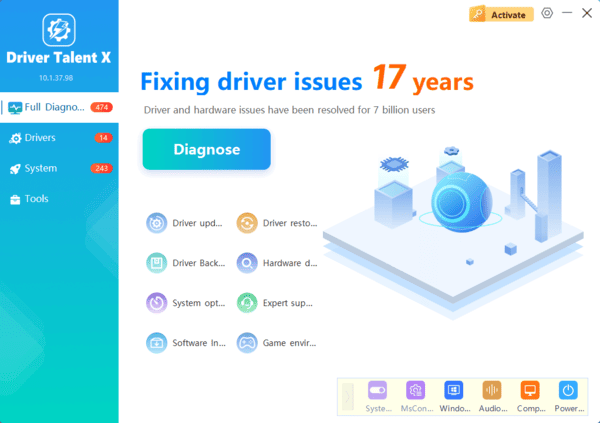
Click Update All to install the latest, stable versions compatible with your Windows system.
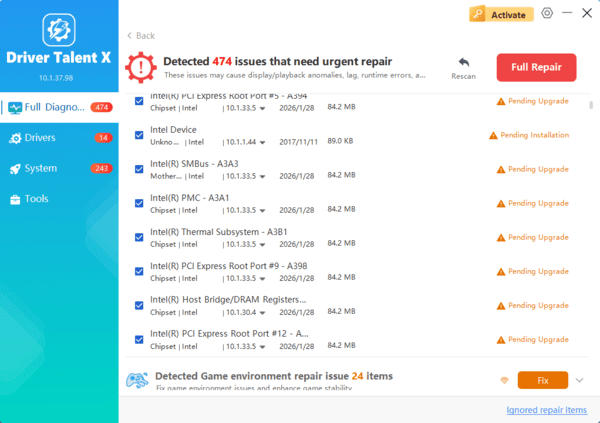
Restart your PC and launch Omnissa Horizon Client again.
Cause 3: Damaged Windows System Files
If Windows core files are corrupted, Omnissa Horizon Client may fail to access required DLL components.
How to Repair Windows System Files
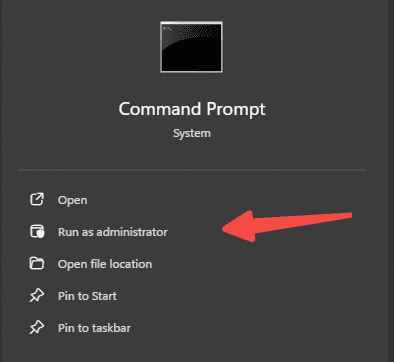
Open Command Prompt as Administrator.
Run System File Checker: sfc /scannow
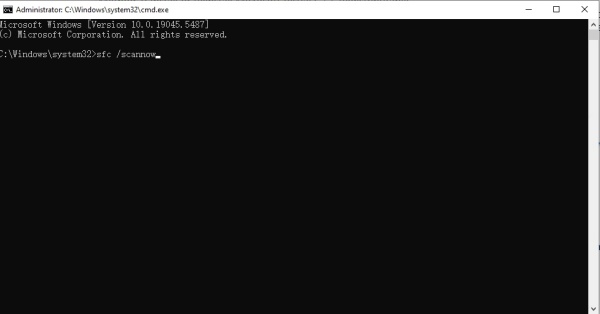
Let the process complete and restart the PC.
If SFC finds and repairs errors, retry opening Omnissa Horizon Client.
Cause 4: Conflicting Third-Party Applications
Security software, old VPN clients, or remote access tools can interfere with Omnissa Horizon Client DLL calls.
How to Resolve Conflicts
1. Temporarily disable antivirus software and check if the error disappears.
2., Remove old versions of VMware, Citrix, or other remote desktop tools.
3. Perform a clean boot:
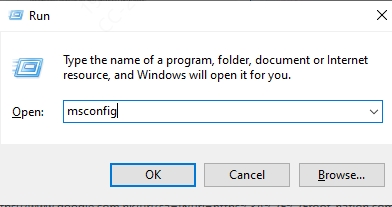
Press Windows + R, type msconfig, and press Enter.
Under Services, check Hide all Microsoft services, then click Disable all.
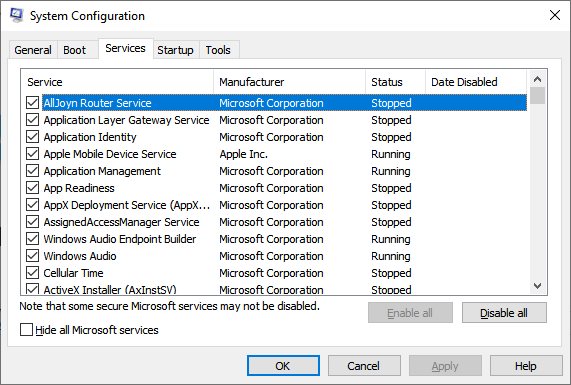
Restart and test the client.
Cause 5: Incorrect Microsoft Visual C++ Redistributables
DLL errors often relate to missing or outdated Visual C++ Redistributables required by Omnissa Horizon Client.
Fix by Reinstalling Redistributables
Go to Control Panel > Programs and Features.
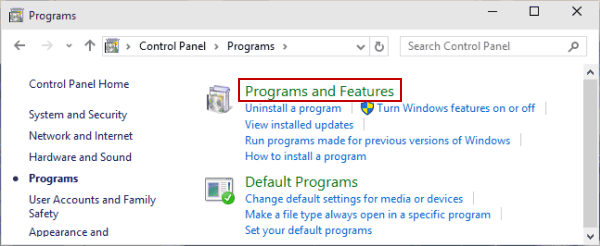
Uninstall all existing Microsoft Visual C++ Redistributable entries.
Download and install the latest x86 and x64 versions from Microsoft’s official website.
Cause 6: Windows Updates and Compatibility Issues
Some Windows updates may break Omnissa Horizon Client DLL compatibility.
How to Check and Fix
1. Go to Settings > Update & Security > Windows Update.
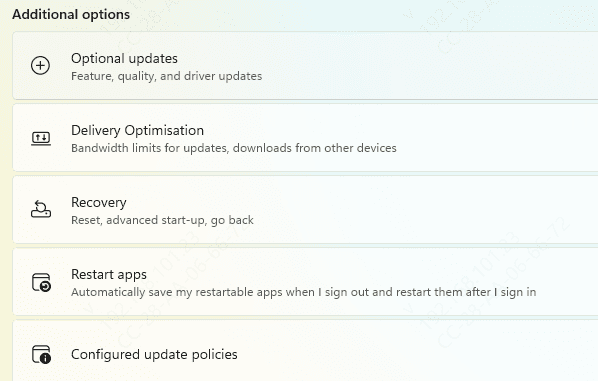
2. Install any pending updates.
3. If the problem started after a recent update, roll back using:
Settings > Update & Security > Recovery > Go back to the previous version.
Preventing Omnissa Horizon Client DLL Errors in the Future
To avoid future issues:
Keep Omnissa Horizon Client updated to the latest version.
Regularly update drivers using Driver Talent.
Maintain system health by running Windows Defender scans.
Avoid abrupt shutdowns during updates or client operation.
Conclusion
The Omnissa Horizon Client there is a problem with the DLL error can have multiple root causes — from missing DLLs to outdated drivers or corrupted system files. Following the above methods will restore functionality and ensure smooth virtual desktop operations.
For a fast, automated, and reliable fix, Driver Talent stands out as the most efficient tool to repair DLL issues, update drivers, and maintain system stability — allowing you to get back to work with minimal downtime.
