

If your Realtek wireless adapter is causing slow Wi-Fi, frequent disconnections, missing networks, or connection failures, the problem may be related to an outdated, corrupted, or incompatible Realtek Wireless LAN Driver. Keeping the correct driver installed helps Windows communicate properly with your wireless network card and can improve both stability and performance. This guide explains how to download and update the Realtek Wireless LAN Driver.
1. What Is the Realtek Wireless LAN Driver?
The Realtek Wireless LAN Driver is the official driver developed by Realtek for its wireless network card chips. It ensures that your computer can recognize the wireless hardware and connect to Wi-Fi networks reliably. Common models include RTL8188, RTL8723, RTL8821, and more.
2. Why Should You Update the Wireless Network Driver?
Fix issues where Wi-Fi won't connect
Improve network stability and speed
Enhance compatibility with the latest Windows versions
Avoid driver conflicts and blue screen errors
3. How to Download the Realtek Wireless LAN Driver
Method 1: Download from the Realtek Official Website
Open your browser and visit the Realtek official website.
Go to "Download" > "Communications Network ICs".
Find your network card model (e.g., RTL8821CE).
Select the appropriate operating system and card type.
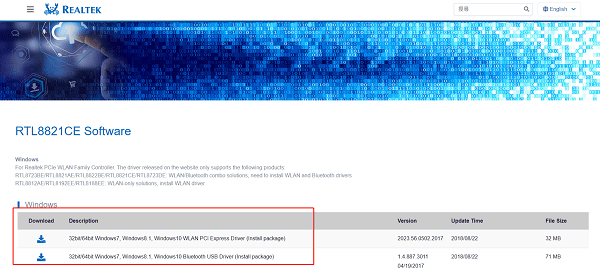
Click "Download" to get the latest driver version.
Once downloaded, double-click the installer to begin installation.
Note: Beginners should confirm their wireless card model to avoid downloading the wrong driver.
Method 2: Use Driver Talent X
Outdated or corrupted drivers can cause network adapter problems, resulting in connection failures. Regular driver updates can prevent such issues. For users unsure of their device model or unfamiliar with manual installation, Driver Talent X is highly recommended—it saves time and reduces the risk of installing the wrong driver.

Click the download button below to get the latest version of Driver Talent X.
Install and launch the software.
In the "Drivers" tab, click "Scan" to automatically detect all drivers on your computer.
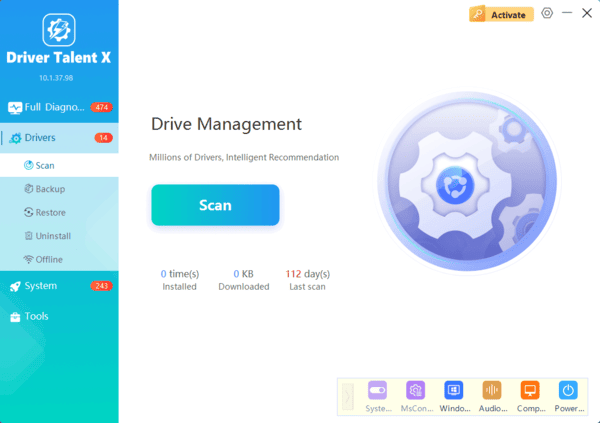
Locate Realtek Wireless LAN in the scan results and click "Upgrade".
Restart your computer to apply the updated driver.
4. How to Verify the Driver Update
Open Device Manager (press Win + X > select Device Manager).
Expand "Network adapters".
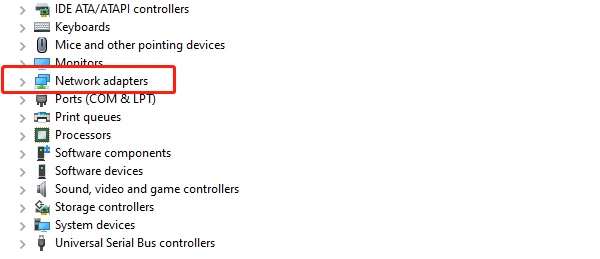
Locate Realtek Wireless LAN, right-click, and select "Properties".
Under the Driver tab, check if the version and date reflect the latest update.
5. Common Problems and Solutions
1. Can't access the internet after updating the driver?
Try restarting your PC or rolling back to the previous driver version.
2. Installation says "Incompatible"?
Make sure the driver matches your system version (e.g., Windows 10 64-bit).
3. Wireless networks not showing up?
Check that wireless services are enabled, or use Driver Talent X to re-scan and repair the driver.
Installing the correct Realtek Wireless LAN Driver can resolve slow Wi-Fi, missing networks, frequent disconnections, and other connection problems. You can download the driver manually after identifying the exact wireless adapter model or use Driver Talent X to detect and update it automatically. After installation, restart Windows and verify the driver version in Device Manager. If the new driver causes problems, roll back to the previous stable version.
