


The Kernelbase.dll file is a critical Windows system component responsible for handling core system operations that allow applications to run smoothly. When this file becomes missing, corrupted, or improperly registered, it can cause program crashes, system instability, or prevent applications from launching entirely. Fortunately, Kernelbase.dll errors can usually be resolved without reinstalling Windows. This guide provides step-by-step solutions to help you fix Kernelbase.dll issues efficiently and restore normal system and application performance.
Run the System File Checker (SFC) Tool
Press Windows + S to open the search bar
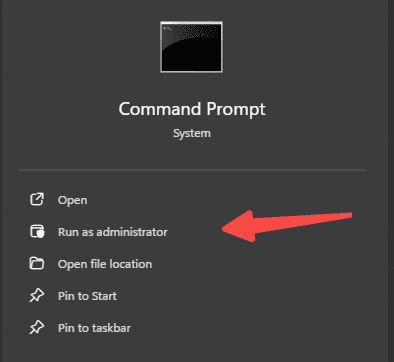
Type cmd and right-click on Command Prompt to select Run as Administrator
In the Command Prompt, type:
sfc /scannow
Press Enter and wait for the scan to complete. The tool will attempt to fix any corrupted or missing system files, including Kernelbase.dll
Restart your PC once the scan is done
Use the DISM Tool to Repair Windows Image
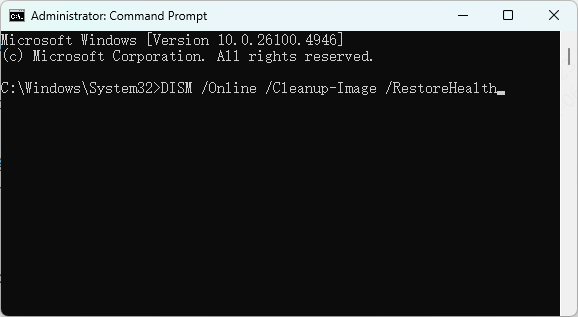
Open Command Prompt as Administrator
Type the following commands one by one, pressing Enter after each:
DISM /Online /Cleanup-Image /CheckHealth
DISM /Online /Cleanup-Image /ScanHealth
DISM /Online /Cleanup-Image /RestoreHealth
After the process completes, restart your PC
The DISM tool can fix deeper system issues, especially those related to missing or corrupted system files.
Automated DLL Repair Tool
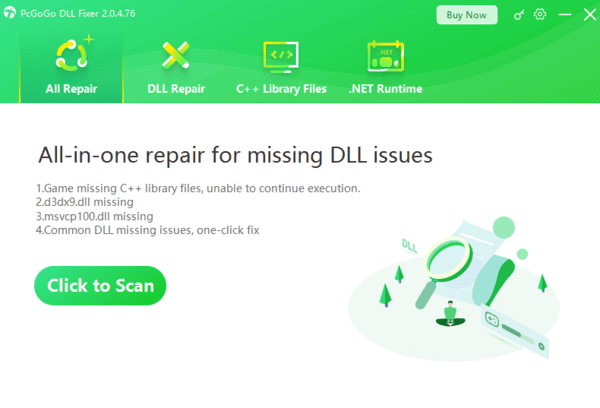
For a quicker and easier solution, you can use PcGoGo DLL Fixer. This tool scan your system for missing, corrupted, or improperly registered DLL files and automatically fix them without the need for manual intervention.
Download
Download the PcGoGo DLL Fixer software from the official website
Once downloaded, install the tool by following the on-screen instructions. After installation, open the program
Run a System Scan
Click the Scan button within the software to allow it to search for missing dll files
Repair
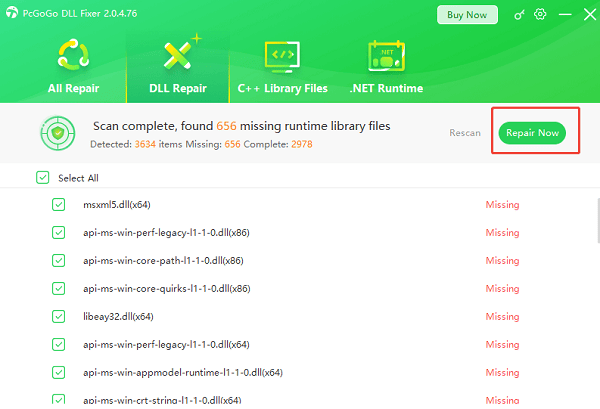
After the scan completes, find dll or related errors in the results and click Repair Now
The tool will automatically restore the correct version of the DLL file
Restart Your Computer
Once the repair is complete, restart your computer to apply the changes and check if the error is resolved
This method is especially useful when manual fixes are too complicated or when system corruption prevents normal repairs
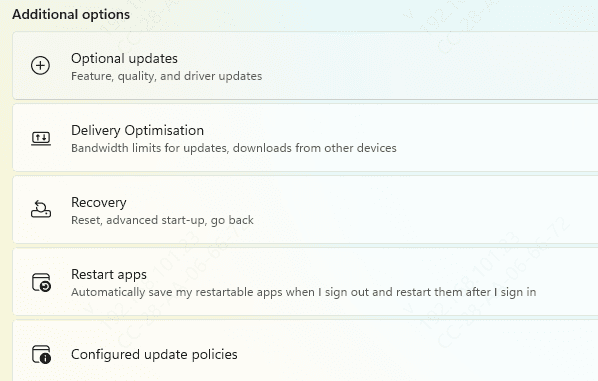
Check for Windows Updates
Windows regularly releases updates that fix bugs and system issues, including those related to Kernelbase.dll. Make sure your system is fully updated.
Open Settings by pressing Windows + I
Go to Update & Security > Windows Update
Click Check for updates
Install any available updates and restart your PC
Scan for Malware
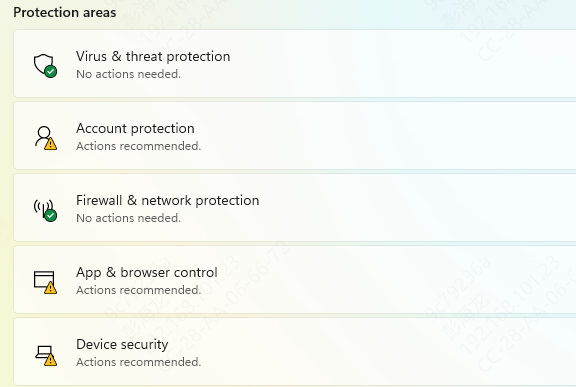
Malware infections can corrupt or delete system files, including Kernelbase.dll. Running a malware scan will help ensure your system is clean.
Open Windows Security by searching for it in the Start menu
Go to Virus & threat protection
Click Quick scan or Full scan to check for malicious software
If any threats are found, follow the prompts to remove them
Conclusion
A missing or corrupted Kernelbase.dll file can cause frustrating issues like application crashes and system instability. Fortunately, the error can be fixed without reinstalling Windows. By following the steps in this guide—whether it's using built-in tools like SFC and DISM, or PcGoGo DLL Fixer—you should be able to resolve the issue effectively. These steps should fix most common causes of Kernelbase.dll errors.
