

If your Surface keyboard suddenly stops typing, you can usually fix it in minutes without a repair shop visit. In most cases, the issue is caused by loose Type Cover contact, disabled keyboard settings, failed Windows updates, or a corrupted driver. Start with the quick checks below, then move to firmware and driver repair if needed.
Part 1. Basic Troubleshooting
If your Surface keyboard has suddenly stopped working, often the solution is simpler than you might think. Start with these basic troubleshooting steps before diving into more complex fixes.
Restart Your Surface Device: Sometimes a simple reboot can clear up software glitches or temporary communication errors between the keyboard and your Surface device. It's quick, safe, and surprisingly effective
Detach and Reattach the Keyboard: If you're using a Surface Pro, detach the Type Cover and reattach it securely. This resets the connection between the keyboard and tablet
Clean the Keyboard Connectors: Dust or grime can interfere with the connection. Use a soft brush or compressed air to clean the keyboard pins and connectors gently

Part 2. Settings and Configurations
Windows includes many accessibility settings that can interfere with normal keyboard operation. Checking and adjusting these configurations could quickly restore functionality.
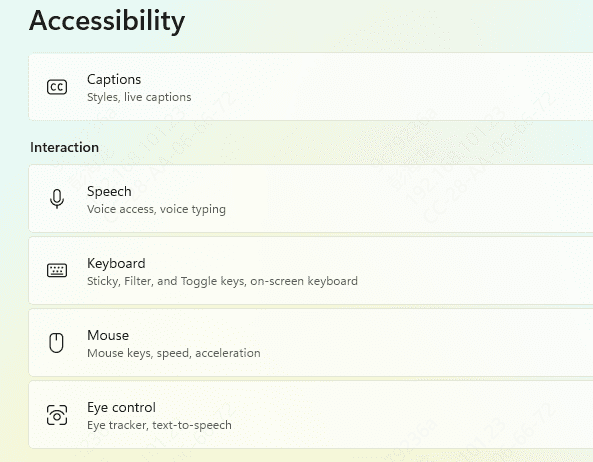
Check for Filter Keys and Sticky Keys
These features are meant to help users with disabilities, but they can also affect key responsiveness. Disabling them can often resolve strange keyboard behavior. Turn them off via:
Settings → Accessibility → Keyboard
Disable Fast Startup
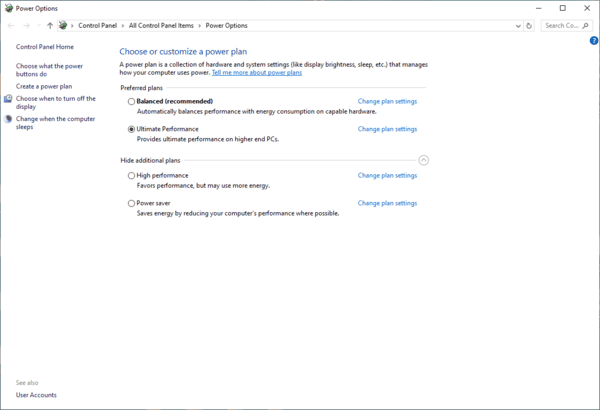
Fast startup speeds up boot times by caching drivers and services—but it can also prevent hardware like keyboards from initializing correctly. Disabling it may help.
Go to Control Panel → Power Options → Choose what the power buttons do
Click Change settings that are currently unavailable
Uncheck Turn on fast startup
Part 3. Software-Based Solutions
If basic steps didn't help, the issue might lie deeper within Windows settings or software conflicts. These software-based fixes aim to correct configuration errors or corrupted components.
Update Windows
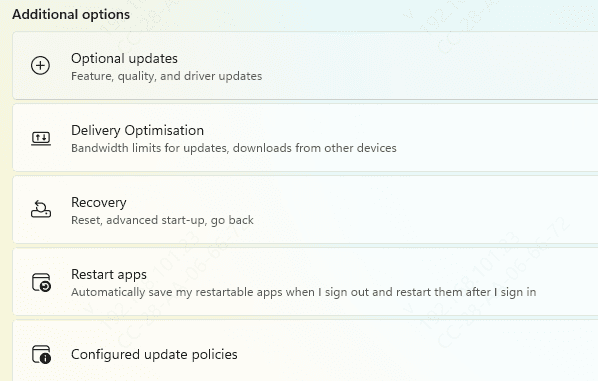
Outdated or bugged software is a common cause of keyboard malfunctions. Keeping Windows and your device firmware up to date ensures better compatibility and fewer errors. Head to:
Settings → Windows Update → Check for updates
Install all available updates and restart your device
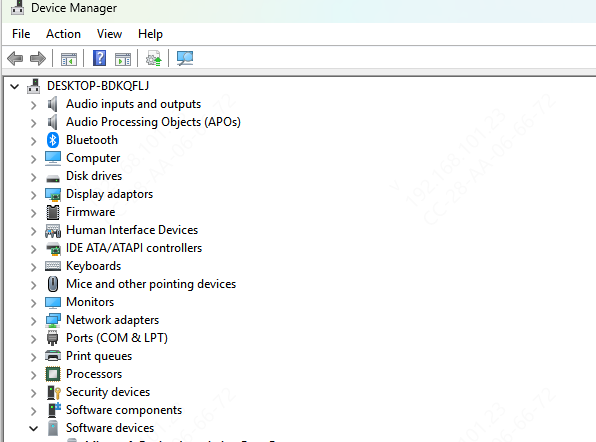
Check Device Manager for Keyboard Errors
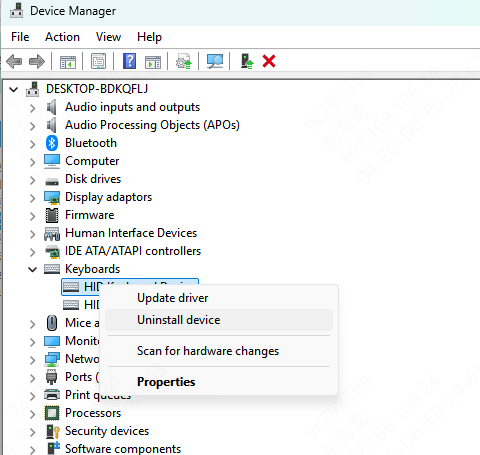
Device Manager gives you a behind-the-scenes look at your hardware. If your keyboard driver has failed or is missing, this tool can help you identify and correct it.
Press Win + X → Select Device Manager
Expand Keyboards
Right-click your keyboard and choose Properties to check if it shows an error
Run the Windows Keyboard Troubleshooter
Windows comes with built-in troubleshooting tools designed to automatically detect and fix keyboard-related problems. This is a user-friendly first step for non-technical users.
Go to: Settings → Troubleshoot → Other Troubleshooters → Keyboard → Run

Let Windows scan and fix common keyboard-related problems.
Part 4. Driver Fixes
Device drivers are the bridge between hardware and the operating system. If they're outdated or corrupted, your keyboard may not function correctly. Updating or reinstalling them can often bring it back to life.
Reinstall Surface Keyboard Drivers
Sometimes the keyboard driver may become corrupted. Uninstalling and reinstalling it forces Windows to set it up again from scratch, often resolving unresponsiveness.
Go to Device Manager
Right-click your Surface Keyboard → Click Uninstall device
Restart your Surface, and Windows will reinstall the driver automatically
Use Driver Talent to Automatically Update Drivers
Manually tracking down the right drivers can be a headache. Driver Talent simplifies this by automatically detecting, downloading, and installing the correct drivers for your Surface keyboard.
Key Features of Driver Talent
One-click driver updates
Backups and restores drivers
Compatible with all Surface models
How to Use Driver Talent
Step 1. Download and install Driver Talent
Step 2. Launch the app and click Scan

Step 3. Click Upgrade next to the Surface Keyboard driver
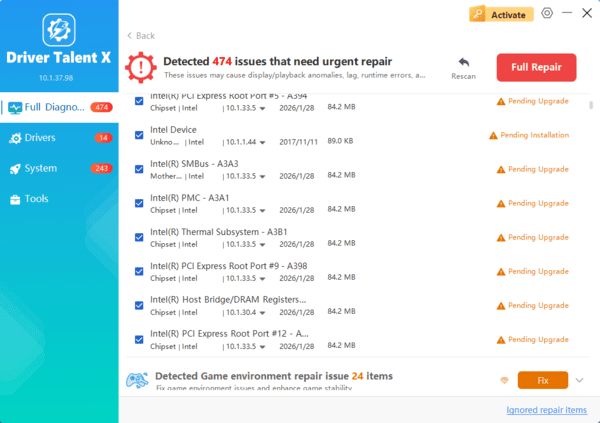
Step 4. Restart your device once the update completes
Part 5. Hardware Checks
If software fixes haven't solved the issue, it's time to examine the physical condition of your keyboard and device. These checks will help rule out or confirm a hardware failure.
Test the Keyboard on Another Surface Device: If you have access to another Surface, plug your keyboard in. If it works there, your original device might be the issue
Inspect for Physical Damage: Spills, bent pins, and drops can all lead to a malfunctioning keyboard. Take a few minutes to thoroughly inspect the hardware for any signs of damage
Conclusion
A Surface keyboard not working is inconvenient, but it's rarely the end of the world. Whether you're dealing with a Surface Pro Type Cover, a Microsoft Surface Bluetooth keyboard, or a Surface Laptop's built-in keyboard, these step-by-step solutions should help you isolate and fix the issue.
FAQ
Why is my Surface keyboard not working but touch works?
Usually the keyboard communication path failed, not the touchscreen layer. Check Type Cover pins, keyboard driver status, and recent Windows updates.
Does reinstalling keyboard drivers delete files?
No. Reinstalling keyboard drivers only refreshes input device configuration and does not affect personal files.
My Surface keyboard works in BIOS but not in Windows. What does it mean?
This usually indicates a software or driver conflict in Windows. Focus on troubleshooting settings, updates, and driver repair.
