

Your HP laptop's camera plays an important role in video meetings, online learning, streaming, and content creation. However, when the camera driver is outdated, missing, or corrupted, you may experience problems such as the camera not being detected, poor video quality, application crashes, or errors in apps like Zoom, Teams, or Windows Camera. In this guide, we'll walk you through several safe and effective methods to update your HP camera driver, helping you resolve camera issues and restore smooth video performance.
Preliminary Steps
Before updating the camera driver, it's important to prepare your system:
Backup Important Files
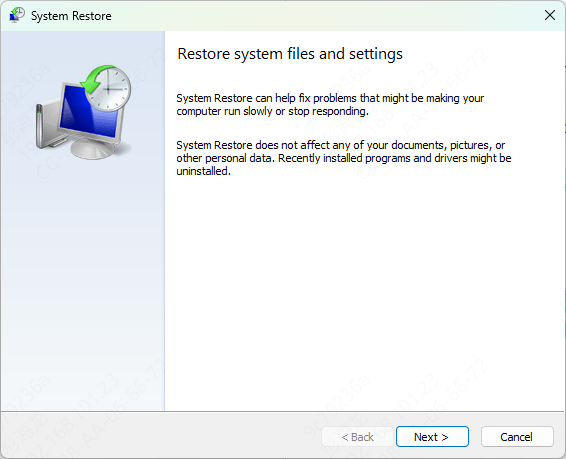
Create a restore point or backup critical files to revert your system if anything goes wrong
Check Privacy Settings
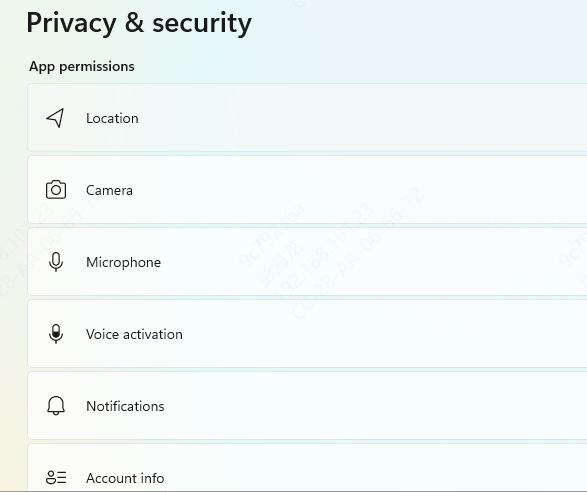
Ensure your camera isn't blocked: Settings → Privacy → Camera → Allow apps to access your camera
Power and Connectivity
Ensure your laptop is plugged in and connected to a stable internet connection
Method 1 – Update Using HP Support Assistant
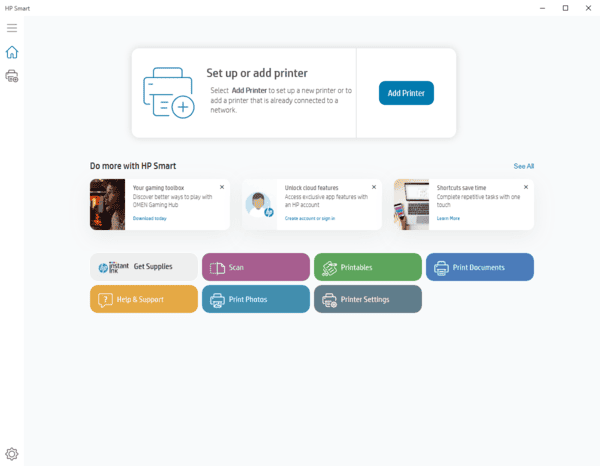
HP Support Assistant simplifies the driver update process:
Open HP Support Assistant on your device
Navigate to the Updates section
Click Check for Updates and Messages
If a camera driver update is available, select it and click Download and Install
After installation, restart your laptop to apply the update
Method 2 – Manual Update via HP Official Website
For users who want more control over updates:
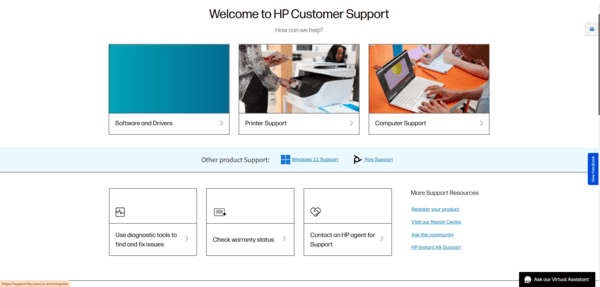
Go to HP Support → Software & Drivers, then enter your laptop model
Select your operating system
Locate the latest camera driver in the list of drivers
Download and install it manually, following the on-screen instructions
Restart your device after installation
Method 3 – Update via Windows Device Manager
Device Manager allows you to update drivers directly from Windows:
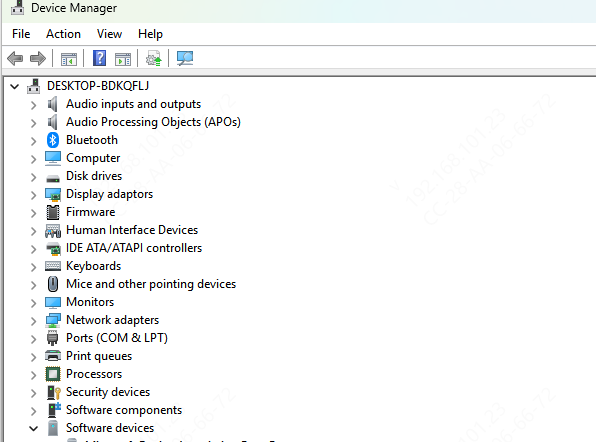
Press Windows + X and select Device Manager
Expand Cameras or Imaging Devices
Right-click your camera → Update driver → Search automatically for updates
Follow the prompts to install the latest driver
Restart your laptop to complete the update
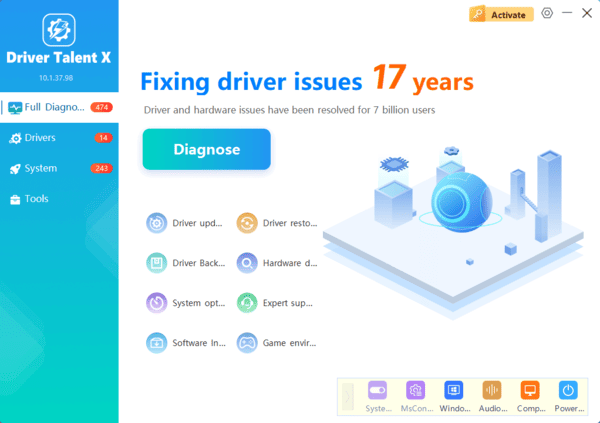
Method 4 – Automatic Driver Updates with Driver Talent X
For a safe, convenient, and all-in-one solution, Driver Talent X can handle your HP camera driver updates automatically.
Troubleshooting Camera Driver Issues
Even after updating drivers, you may encounter problems. Here's how to solve them:
Camera not detected: Ensure the camera is enabled in Windows settings and unblocked by privacy settings
Driver installation fails: Temporarily disable antivirus or firewall and retry installation
Conflict with old drivers: Uninstall previous drivers before installing the new version
App-specific issues: Make sure the app has permission to access the camera in Settings → Privacy → Camera → Allow apps to access your camera
Conclusion
Keeping your HP camera driver updated ensures smooth video calls, high-quality recordings, and proper functionality across all applications. You can use HP Support Assistant, manual downloads from HP's official website, Windows Device Manager, or Driver Talent X for automatic updates. Regularly updating and maintaining your drivers helps prevent crashes, improves device performance, and keeps your HP laptop ready for all video and camera-related tasks.
