

Valorant voice chat problems can prevent players from communicating with teammates and affect the overall gaming experience. Issues such as microphone detection failures, no teammate audio, disabled voice settings, network restrictions, or outdated audio drivers can all cause voice chat to stop working. This guide explains how to troubleshoot Valorant voice chat issues on PC and consoles by checking audio settings, updating drivers, adjusting permissions, and fixing system or network conflicts.
Understanding Valorant Voice Chat Not Working Issues
Voice chat issues in Valorant may manifest as no sound from teammates, unable to transmit voice, or complete failure of the voice chat system. These problems can stem from various sources, including software glitches, hardware conflicts, network restrictions, or console-specific limitations. Key symptoms include:
Voice chat is muted or disabled automatically
Microphone input not detected
No incoming voice from teammates
Chat sound is distorted or delayed
Console users unable to access voice chat features
Fixes for Valorant Voice Chat Not Working on PC
1. Verify and Configure Your Microphone and Audio Devices
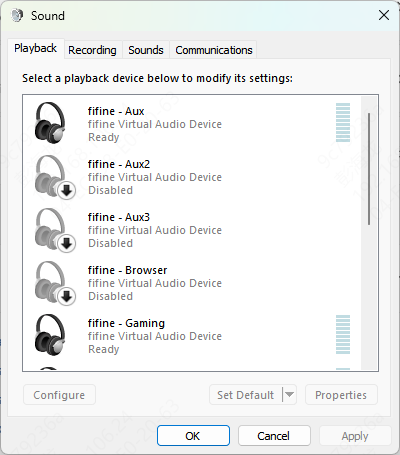
If Valorant can't detect or use your microphone correctly, voice chat will fail entirely. Ensuring your mic is set up as the default device on your PC can resolve the issue immediately.
Open Windows Sound Settings (Right-click speaker icon > Sounds > Recording tab)
Make sure your main microphone is set as the Default and Default Communication Device
Speak into your microphone and check the input levels
Disable other unused recording devices to prevent conflicts
2. Enable Voice Chat in Valorant Settings
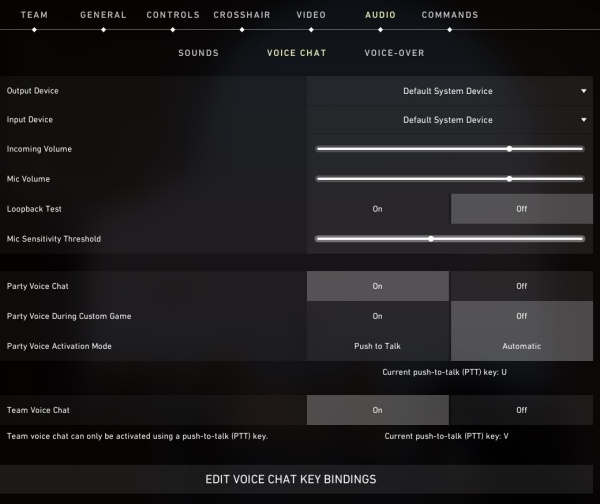
Sometimes the issue isn't with your system but with Valorant's internal settings. If voice chat is turned off inside the game or improperly configured, you won't hear or be heard.
Launch Valorant and go to Settings > Audio > Voice Chat
Turn on Party Voice Chat, Team Voice Chat, and Enable Incoming/Outgoing Voice
If you use Push-to-Talk, make sure the correct key is set and functioning
Test voice chat using the built-in test option
3. Allow Valorant Through Firewall and Antivirus
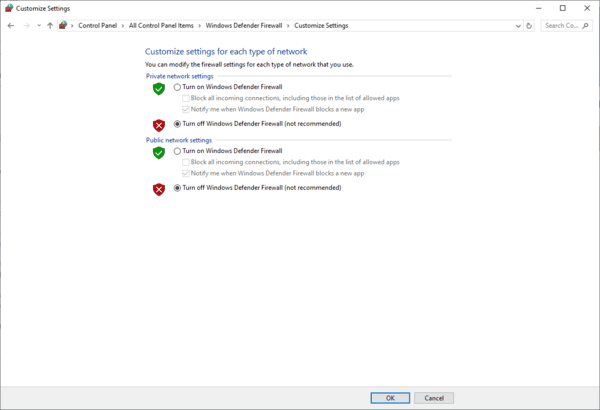
Firewalls and antivirus programs often block network features like voice chat, thinking they are potential threats. Whitelisting Valorant ensures it has the permissions it needs to communicate online.
Go to Control Panel > Windows Defender Firewall > Allow an app or feature through firewall
Click on Change settings and locate Valorant and Riot Vanguard
Make sure both are allowed for Private and Public networks
Temporarily disable third-party antivirus to test if it is causing interference
4. Update Audio Drivers
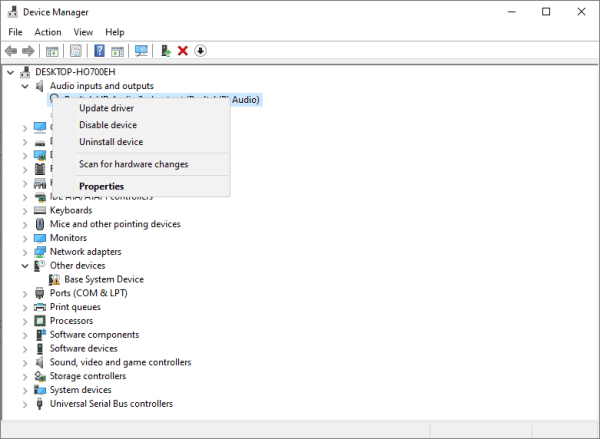
Outdated or corrupt drivers often cause the microphone not to function properly. Installing the latest drivers ensures smooth and reliable audio performance across applications.
Device Manager
Open Device Manager and expand Sound, video and game controllers.
Right-click your audio driver and select Update Driver
Choose Search automatically for updated driver software
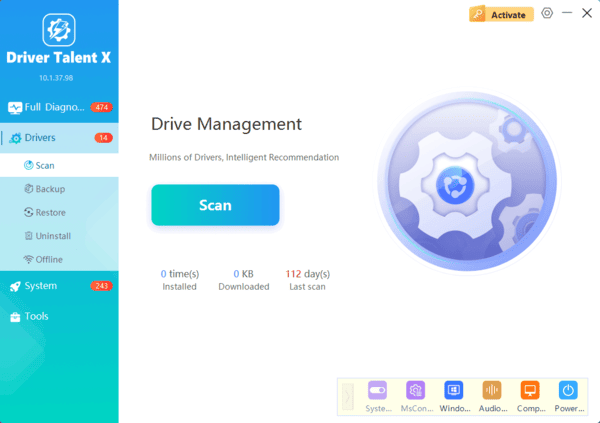
Driver Talent X
For an easier way to update outdated driver or install missing driver, we recommend Driver Talent X. It will automatically detect all outdated and missing drivers and find matching drivers for you. You can solve all driver issues with just one click.
Step 1. Download and install Driver Talent X by clicking the button below
Step 2. Launch Driver Talent X and go to Drivers tab. Click the Scan button to start a full scan
Step 3. After scanning finished, review the results and upgrade the outdated drivers
Step 4. Restart your PC to apply the changes
5. Restart Riot Vanguard and Valorant Client
Riot Vanguard, the anti-cheat system, occasionally causes conflicts with system audio permissions. Restarting Vanguard often helps reestablish proper access for your microphone.
Close Valorant completely
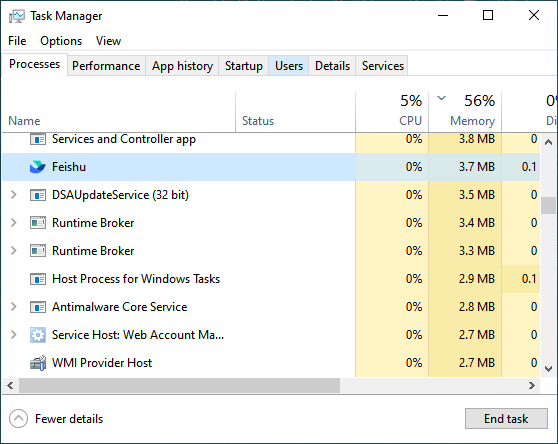
Open Task Manager and find any processes related to Riot Vanguard or Valorant
End those tasks
Restart the PC and relaunch Valorant
6. Check Network and Router Settings
Voice chat relies on a stable internet connection and open ports. Blocked UDP ports or unstable networks can disrupt audio transmission in-game.
Restart your router
Ensure UDP ports 7000–7500 (used by Riot) are open
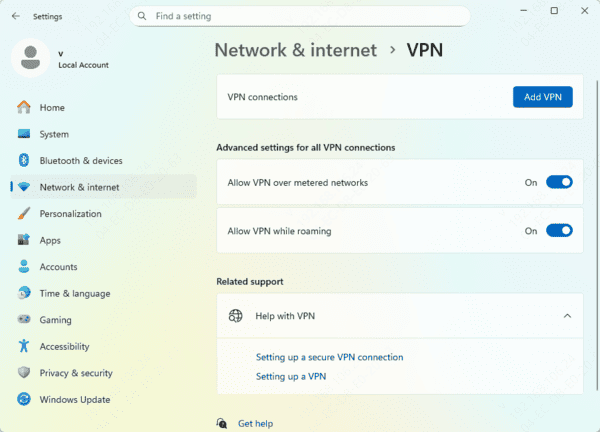
Avoid using VPNs or proxies that may throttle or block voice traffic
Use a wired Ethernet connection if possible
Fixes for Valorant Console Voice Chat Not Working
Console users may face unique voice chat problems due to privacy settings, controller hardware, or network restrictions. The following solutions are tailored specifically to Xbox and PlayStation users.
1. Check Console Privacy and Communication Settings
Console privacy settings can block communication features to protect user safety. If voice chat is disabled at the system level, Valorant won't have permission to use it.
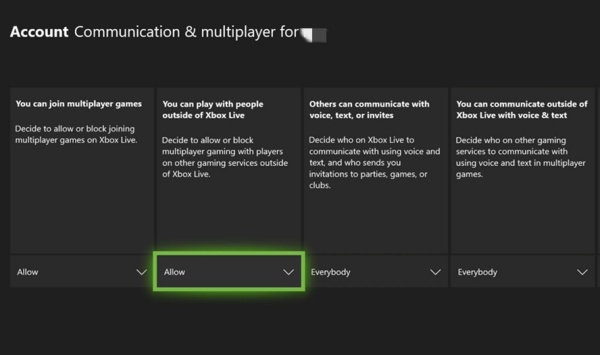
On Xbox: Go to Settings > Account > Privacy & online safety > Xbox privacy > Communication & multiplayer. Set communication options to allow voice chat with friends or everyone
On PlayStation: Visit Settings > Network > Communication and Multiplayer, and ensure voice communication is allowed
2. Confirm Console Party Chat and Game Chat Settings
Sometimes the issue arises from the console being stuck in party chat, which overrides Valorant's in-game chat.
Exit any existing party chat session
Open Valorant and ensure in-game voice chat is enabled
Speak to test if other players can hear you in team or party voice chat
3. Update Console and Valorant App
Console firmware and game updates often contain patches for known bugs. Running outdated versions can cause persistent chat failures.
On both Xbox and PlayStation, navigate to System > Updates
Install any available system updates
Check Valorant for game updates via the game's menu
Restart the console after installing
4. Check Headset and Controller Connections
If your console can't detect a microphone, the headset or controller could be the issue. Testing alternate hardware can help identify the source.
Unplug and reconnect your headset
Try a different headset or connect the current one to another device
Make sure your controller's firmware is updated
5. Power Cycle Your Console
A hard reset often clears bugs that regular reboots don't solve. This step resets temporary files that could affect voice communication.
Turn off your console completely
Unplug it from the power source for 30 seconds
Plug it back in and restart Valorant
Test voice chat with a friend or in a match
Conclusion
The issue of Valorant voice chat not working can be resolved through meticulous troubleshooting of system settings, software configurations, and device compatibility. By following these detailed steps, both PC and console players can restore full voice chat functionality and ensure smoother gameplay and communication.
