

If Windows keyboard shortcuts suddenly stop working, the problem may be caused by a faulty keyboard connection, outdated or corrupted drivers, a locked Windows key, disabled shortcut settings, third-party software conflicts, or damaged system files. You may notice that combinations such as Ctrl+C, Ctrl+V, Alt+Tab, or Windows-key shortcuts no longer respond even though individual keys still work. This guide explains several practical ways to restore keyboard shortcuts.
1. Common Issues
Windows key unresponsive, unable to open the Start menu
Common shortcut combinations like Ctrl+C, Ctrl+V, Alt+Tab, Alt+F4 not working
Function keys (F1 to F12) not working
Shortcuts not working inside specific programs (e.g., Excel, Word)
2. Common Causes of Windows Shortcuts Not Working
Keyboard driver issues or missing drivers
System shortcuts disabled
Third-party software intercepting shortcuts (e.g., gaming assistants, input method editors)
Windows key locked (some keyboards have a Win Lock feature)
Corrupted system files or abnormal registry settings
3. Effective Methods to Fix Shortcut Issues
Method 1: Check Keyboard Hardware and Connection
Try connecting to a different USB port or test with a wireless keyboard.
Connect the keyboard to another computer to verify if it works.
Clean keycaps and key contacts to prevent stuck keys.
Method 2: Enable the Windows Key (for keyboards with Win Lock)
Check if your keyboard has a "Win Lock" key; press it once and retest the Windows key.
Some keyboards require pressing Fn+F6 (or other combos) to toggle the Win key; refer to your keyboard manual.
Method 3: Use System Tools to Repair File Errors
Run Command Prompt as administrator.
Enter and execute the following commands one by one:
sfc /scannow
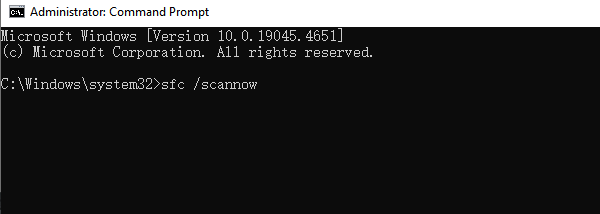
DISM /Online /Cleanup-Image /RestoreHealth
After the scan and repair finish, restart your computer.
Method 4: Check if Shortcut Functions Are Disabled
Game Mode:
Some laptops disable the Windows key in game mode; disable this via the manufacturer's control center.
Group Policy Settings (Windows Pro editions):
Press Win+R, type "gpedit.msc" and press Enter.
Navigate to "User Configuration" > "Administrative Templates" > "Start Menu and Taskbar".
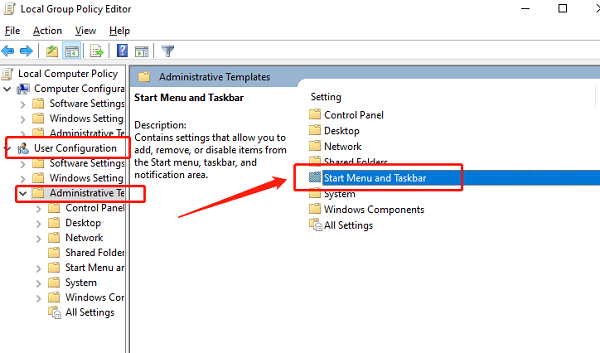
Find "Turn off Windows+X hotkeys" and set it to "Not configured" or "Disabled".
Click "Apply" and "OK" to save.
Method 5: Restart Windows Explorer
Press Ctrl+Shift+Esc to open Task Manager.
Find "Windows Explorer" under the Processes tab.
Right-click it and select "Restart".
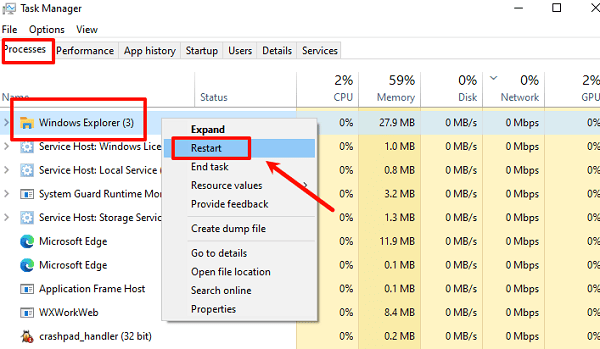
Check if the shortcut keys start working after the restart.
Method 6: Update Keyboard Drivers
Outdated, corrupted, or incompatible drivers can cause shortcut failures. It's recommended to use Driver Talent X for automatic driver detection—this saves time and avoids risks of downloading or installing incorrect drivers.
Click the download button to get the latest Driver Talent X, install and launch it.
Select the "Drivers" tab and click "Scan" to detect all device drivers automatically.

Locate the keyboard driver in the scan results and click "Upgrade".
Restart your PC after the update to apply the changes.
4. Additional Suggestions
Uninstall any conflicting third-party software such as gaming assistants or keyboard remapping tools.
Try creating a new user account and test if shortcuts work there.
Keep Windows updated to the latest version to avoid compatibility issues.
Although Windows shortcut failures may seem complicated, most issues can be quickly resolved by the above methods. Whether it's driver problems, accidental settings changes, or system file errors, patiently troubleshooting usually restores normal function.
If you encounter similar problems, try these steps one by one, and let your keyboard shortcuts regain their efficient power!
