

When your wireless mouse stops responding, the cause may be somewhere between the mouse itself and the way Windows communicates with it. You might notice delayed movement, missing clicks, frequent disconnections, or a mouse that is not detected at all. These symptoms can develop after a Windows update, waking the PC from sleep, changing USB ports, or reconnecting a Bluetooth device. Before replacing the mouse, try the troubleshooting methods below to check the connection, Windows settings, power management, and related drivers.
Reconnect the Receiver or Re-Pair Bluetooth
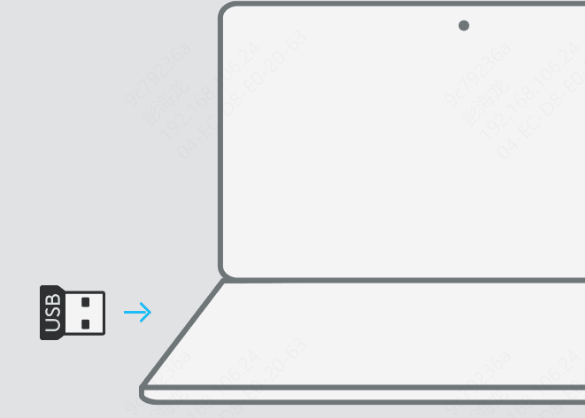
If the mouse uses a USB wireless receiver, unplug it and reconnect it. Then try another USB port if necessary. A loose receiver or unstable USB port can make the mouse appear completely dead even when the mouse itself is still fine
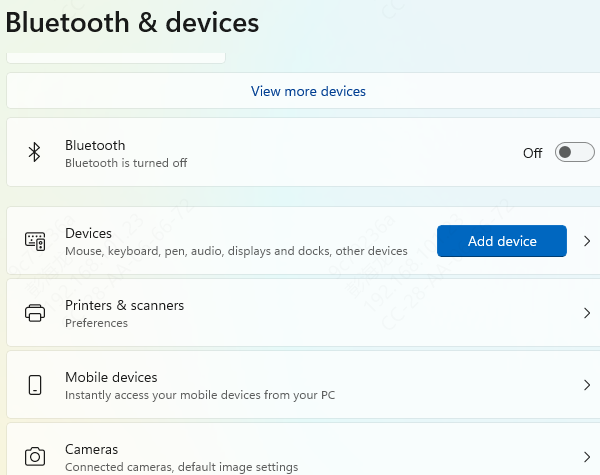
If the mouse uses Bluetooth, remove it from the Bluetooth device list and pair it again. Bluetooth connections can break after sleep, after Windows updates, or after switching between multiple paired devices. Re-pairing often restores a clean connection and fixes random detection problems
Restart the PC and Mouse
A full restart can solve temporary input communication issues. Restart Windows completely, then turn the mouse off and back on after the system has finished loading
If the mouse starts working again after restart, the problem may have been temporary rather than a true hardware or driver failure
Check USB Ports and Bluetooth Status
If you are using a USB receiver mouse, try a different USB port. Avoid USB hubs if possible and test a direct port on the computer. Some hubs and unstable front-panel ports can create connection issues that look like mouse failure
If you are using a Bluetooth mouse, confirm that Bluetooth is actually turned on in Windows. Also check whether other Bluetooth devices are behaving normally. If multiple Bluetooth devices are unstable, the issue may not be the mouse itself but the Bluetooth adapter or its driver
Adjust Power Saving Settings
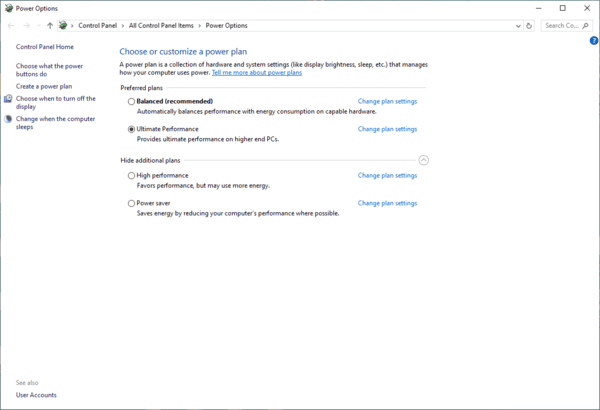
Windows sometimes turns off USB or Bluetooth devices to save power. This can make a wireless mouse disconnect randomly, fail after sleep, or stop responding until the system restarts
Open Device Manager and check the power management settings for USB root hubs or the Bluetooth adapter. Disable the option that allows Windows to turn off the device to save power. After that, restart the computer and test the mouse again
Reinstall the Mouse Driver
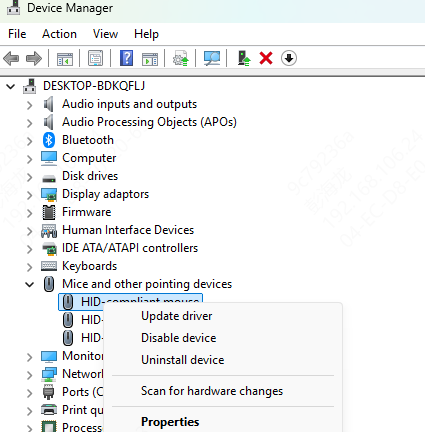
A damaged or unstable device driver can also cause wireless mouse problems. In Device Manager, uninstall the mouse device and restart the PC so Windows can reinstall it automatically
Even though wireless mice often use simple driver support, Windows can still mis-handle them if the device registration becomes corrupted
Check Bluetooth, USB, and Chipset Drivers
Wireless mouse problems are not always caused by the mouse device entry alone. A Bluetooth mouse depends on the Bluetooth adapter driver. A receiver-based mouse depends on USB communication. In both cases, chipset and system communication drivers can also affect stability
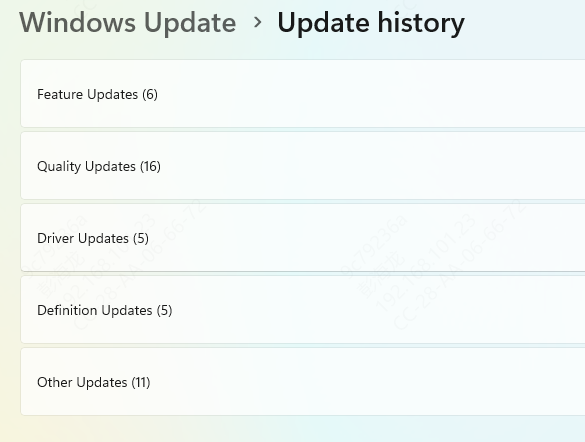
If the issue began after a Windows update or if multiple wireless or USB devices are acting strangely, those related drivers deserve attention. Repairing only the visible mouse entry may not be enough if the deeper system drivers underneath it are damaged
Use Driver Talent X
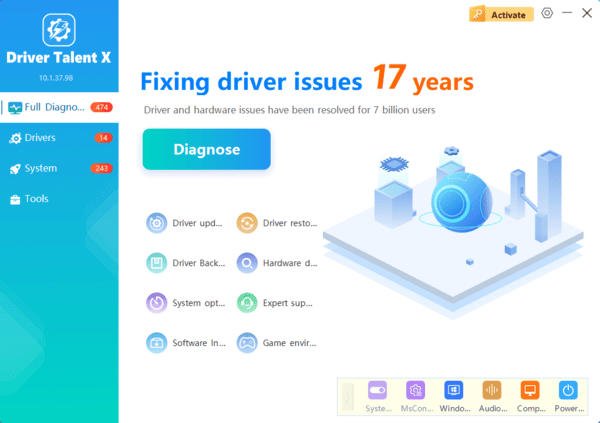
If you want a faster way to scan for the related drivers that may be causing the issue, Driver Talent X can help
This is especially useful when the problem involves random disconnects, system-wide Bluetooth issues, unstable USB behavior, or a recent update that changed multiple drivers at once
Conclusion
Most wireless mouse problems on Windows are caused by a few common issues: low battery, weak or lost receiver connection, Bluetooth pairing failure, power-saving settings, damaged drivers, or wireless interference. The best troubleshooting order is simple. Start with the battery, power switch, and connection method. Then restart the system, try another port, adjust power management, and repair the related drivers if needed.
If the issue may be tied to drivers, Driver Talent X can help by scanning and repairing the supporting drivers more efficiently. If the mouse still fails after all of these steps and also fails on another computer, the remaining cause is more likely to be hardware failure rather than Windows itself.
