

ASUS display driver issues can affect more than just screen quality, causing problems such as black screens, flickering, incorrect resolution, blurry text, external monitor failures, performance drops, or application crashes. In most cases, the hardware is not the problem. These issues are often caused by graphics driver conflicts after Windows updates, failed driver installations, corrupted system files, or conflicts between integrated and dedicated GPUs. Since ASUS devices may use Intel, NVIDIA, AMD, or hybrid graphics solutions, the correct fix can vary depending on your model. In this guide, we'll explain the common causes of ASUS display driver problems and provide effective solutions to install the correct drivers, resolve conflicts, and restore stable graphics performance.
Fix 1: Restart the PC and Check Display Connections
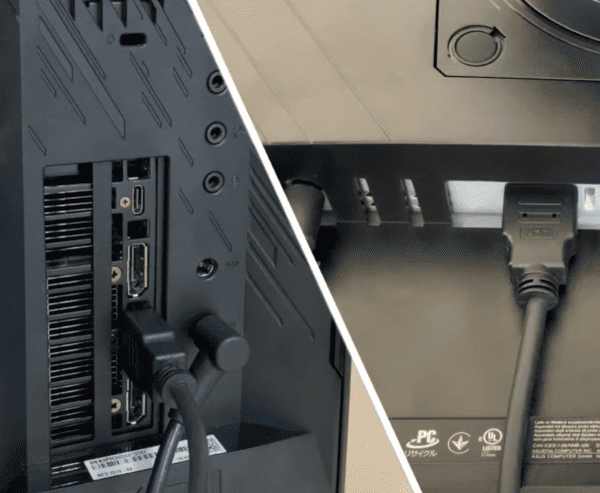
Restart the computer completely. A temporary graphics driver hang may clear after a normal reboot. If you are using an external monitor, reconnect the display cable and test another port if available. Also check whether the issue happens only on the laptop screen, only on the external display, or on both
If the laptop panel works but the external monitor does not, the graphics driver may still be the problem, especially if HDMI or USB-C output stopped working after a recent update. If both screens show the same symptoms, the driver becomes an even more likely cause
Fix 2: Update the Display Driver
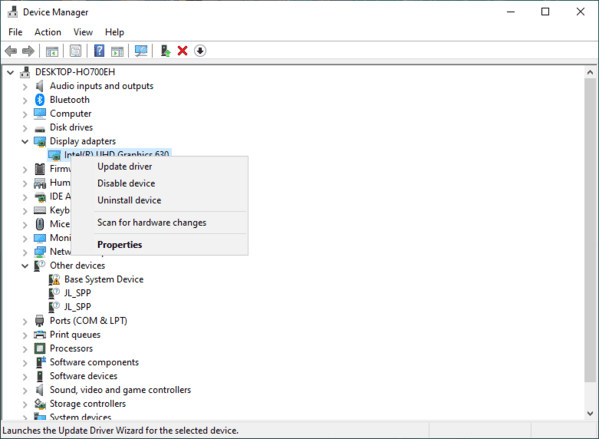
Check Device Manager
If the adapter appears in Device Manager, right-click it and choose Update driver. Then select Search automatically for drivers. Windows may find a compatible version and install it immediately. Restart the PC after the update and test the display again.
Use Driver Talent X
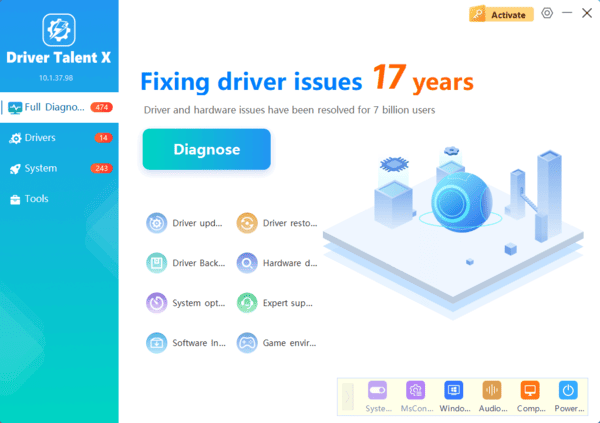
If you are not sure which GPU model your ASUS device uses, or if both integrated and dedicated graphics drivers seem broken, an automatic repair tool is faster. Download and install Driver Talent X. Open the program, go to the Drivers tab, and click Diagnose
Driver Talent X is especially useful on ASUS laptops with Intel plus NVIDIA or Intel plus AMD hybrid graphics, where more than one driver may need to be fixed at the same time
Fix 3: Fix Black Screen or Flickering After a Driver Update
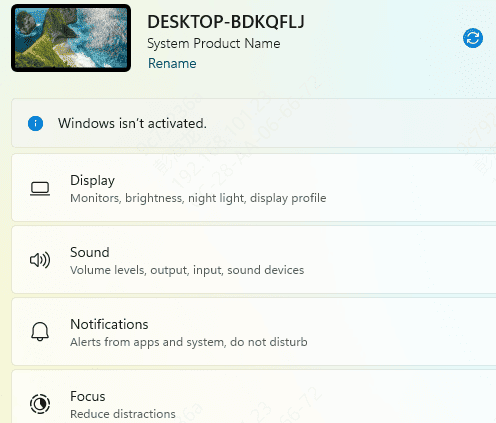
You can lower the refresh rate temporarily in Display Settings. Sometimes a newly installed driver sets a refresh rate or display mode that the panel does not handle well
If the issue disappears in Safe Mode, that strongly suggests a driver problem rather than a hardware failure
Fix 4: Repair System Files and DirectX Problems
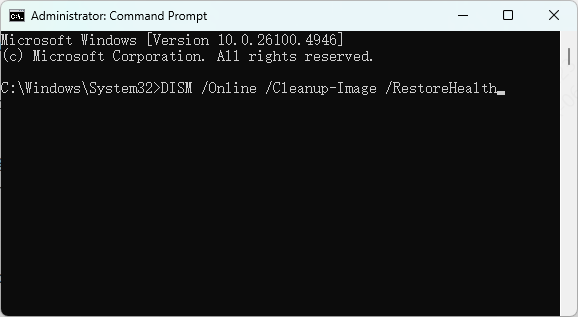
Corrupted system files can interfere with graphics drivers, especially after forced shutdowns, failed updates, or repeated crashes. Run System File Checker and DISM from an elevated Command Prompt to repair Windows system components
If the display driver itself is correct but DirectX-related components are damaged, the screen may still flicker or apps may still crash. Repairing system files helps eliminate that layer of the problem
Fix 5: Check Hybrid Graphics and ASUS-Specific Settings
Many ASUS laptops rely on automatic switching between integrated and dedicated graphics. If one GPU driver is missing, the other may not behave correctly. On gaming and creator laptops, this can cause black screen during app launch, display lag on battery power, or external monitor detection problems
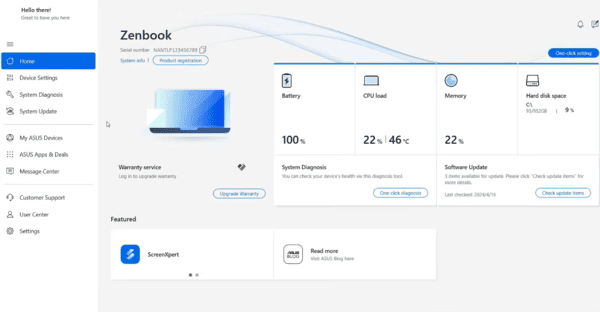
If your ASUS software or BIOS includes graphics mode options, check whether the system is using a hybrid mode or a dedicated-only mode. A mismatch between BIOS graphics settings and installed drivers can cause persistent display issues even after reinstalling the driver
Fix 6: Check BIOS, Chipset, and Windows Updates
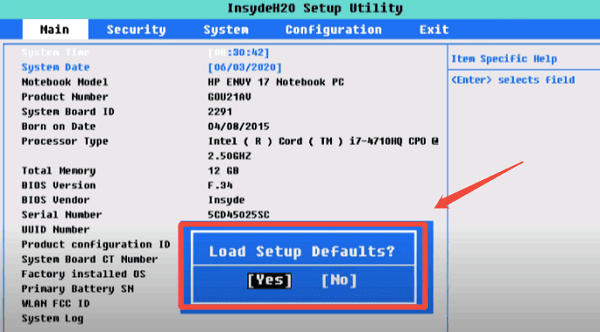
Display problems are not always caused by the graphics driver alone. Outdated BIOS or chipset drivers can affect how the GPU initializes during startup. If the graphics adapter disappears occasionally or the screen stays black after boot, check whether there are pending ASUS BIOS or chipset updates for your model
Also review recent Windows updates. Major Windows updates often replace working OEM graphics drivers. If the problem started right after an update, reinstall the ASUS-approved display driver rather than relying on the version Windows selected automatically
ASUS display driver problems are usually caused by outdated, corrupted, or mismatched graphics drivers, not permanent hardware failure. The most effective repair order is to restart the system, inspect the display adapter in Device Manager, update or cleanly reinstall the correct ASUS-approved graphics driver, and then repair system files or hybrid graphics conflicts if necessary.
