

Dead by Daylight lag can affect gameplay through FPS drops, input delays, rubber-banding, and unstable connections. These issues are commonly caused by high graphics settings, outdated drivers, network instability, background processes, or incorrect Windows configurations. This guide explains how to reduce Dead by Daylight lag by optimizing game settings, improving network performance, updating drivers, and adjusting system settings for a smoother gaming experience.
Fix FPS Lag: Optimize In-Game Graphics Settings
Set the Quality Preset to Low as a starting point. Then adjust individually
Shadows should be set to Low. Textures can remain at Medium unless your GPU has less than 4 GB of VRAM, in which case set it to Low. Effects and Foliage should both be set to Low
Use Fullscreen rather than Windowed or Borderless Window
Set the frame rate limit to match your monitor's refresh rate or leave it uncapped if your system can sustain high frame rates without overheating
Fix Input Lag in Dead by Daylight
V-Sync should be disabled if input lag is your primary complaint. V-Sync synchronizes frames to your display's refresh rate but introduces a buffer delay of one to two frames between your input and the on-screen response
Motion blur should be disabled. It adds a processing step that contributes to perceived input delay and also reduces your ability to track moving targets accurately
Fix Network Lag: Reduce Ping and Rubber-Banding
Use a wired Ethernet connection. Wireless connections introduce timing inconsistency at the packet level that causes the rubber-banding and teleporting behavior associated with network lag
Even a strong Wi-Fi signal with low average ping will produce intermittent spikes that feel worse than a wired connection with slightly higher average latency
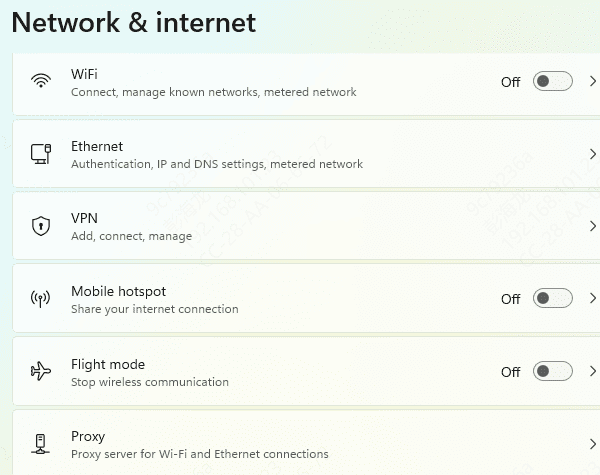
Close all background applications that use your internet connection before starting a session
Steam downloading updates, cloud storage services syncing files, Chrome loading pages in background tabs, and torrent clients all compete for the same bandwidth your game needs to maintain a stable connection to the Dead by Daylight servers
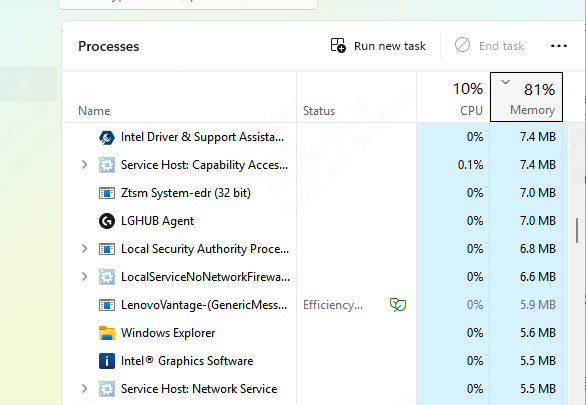
Update Drivers
Outdated GPU, network adapter, and chipset drivers are a consistent source of lag that is easy to overlook. Driver updates frequently include performance improvements for specific games and fixes for bugs that cause frame drops or connection instability.
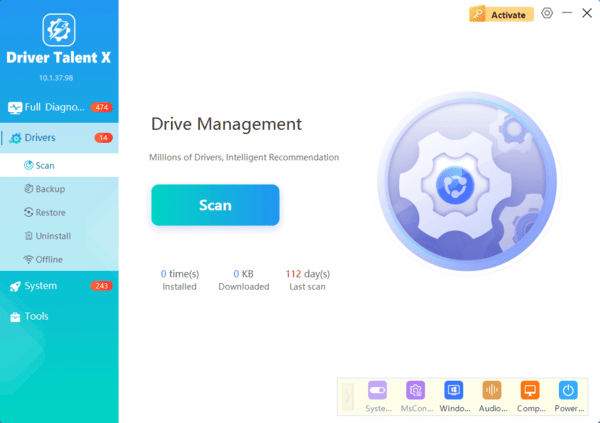
Download and install Driver Talent from the official website at www.drivethelife.com. Launch the application and click Scan. When the scan completes, review the results and click Fix or Upgrade next to any outdated drivers. Restart your PC after the update process finishes
Keeping drivers current also prevents the class of errors where a driver update from one component causes conflicts with another, which can produce stuttering that appears intermittently and is difficult to diagnose
Advanced Windows Settings That Reduce Lag
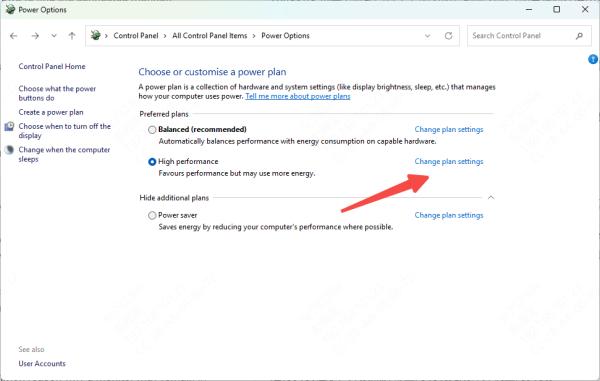
Set your power plan to High Performance. Open Control Panel and navigate to Power Options. Select High Performance to prevent Windows from throttling CPU and GPU performance to save power
On a laptop, keep the device plugged in while playing, as battery power modes impose hard limits on processor performance regardless of the power plan setting
VerReinstall the Game Files
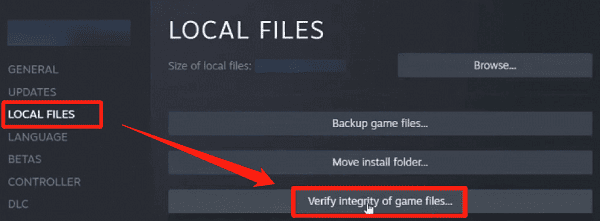
If lag or stuttering persists after all other fixes, corrupted game files may be the cause. Open Steam, right-click Dead by Daylight in your library, and select Properties
Go to the Installed Files tab and click Verify integrity of game files. Steam will check every file against the original and re-download any that are missing or corrupted
Conclusion
Dead by Daylight lag is fixable in most cases by addressing one or more of the root causes: graphics settings that exceed your hardware's capacity, outdated drivers, network instability, or Windows settings that compete with the game for resources. Start with the in-game graphics adjustments and driver updates, as these resolve the majority of cases. Use Driver Talent to keep all drivers current and avoid the class of lag that returns after system updates.
