

Experiencing frequent blue screen crashes related to ntoskrnl.exe on Windows 10? As a core component of the Windows operating system, ntoskrnl.exe manages essential functions such as memory, hardware communication, and system processes. When Windows encounters problems involving this component, you may see BSOD errors such as SYSTEM_SERVICE_EXCEPTION, IRQL_NOT_LESS_OR_EQUAL, or MEMORY_MANAGEMENT. Although ntoskrnl.exe often appears in crash reports, the underlying cause may involve incompatible drivers, faulty RAM, corrupted system files, disk errors, or unstable hardware settings. This guide covers seven practical methods to troubleshoot ntoskrnl.exe blue screen errors, including updating drivers with Driver Talent X, repairing Windows system files, testing memory, and restoring system stability.
I. Common Causes of ntoskrnl.exe Blue Screen Errors
Incompatible or corrupted drivers
Faulty or loose RAM (memory)
Hard drive bad sectors or file system errors
Conflicts with third-party antivirus or system optimization tools
System instability caused by overclocking
Corrupted or missing Windows system files
Malware or viruses infecting the system kernel files
II. 7 Effective Solutions
Method 1: Run System File Checker (SFC)
Corrupted system files can also cause kernel errors. Use the built-in SFC tool to scan and repair them.
Run Command Prompt as Administrator.
Type the command: sfc /scannow and press Enter.
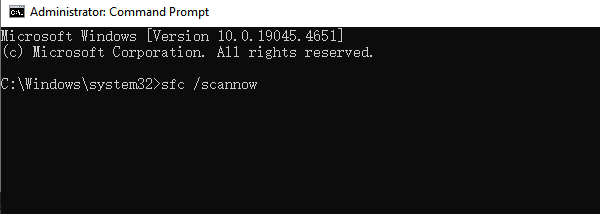
Wait for the scan and repair process to complete, then restart your computer.
Method 2: Run Windows Memory Diagnostic
RAM issues can also trigger blue screen crashes.
Search for "Windows Memory Diagnostic" in the Start menu.
Select "Restart now and check for problems".
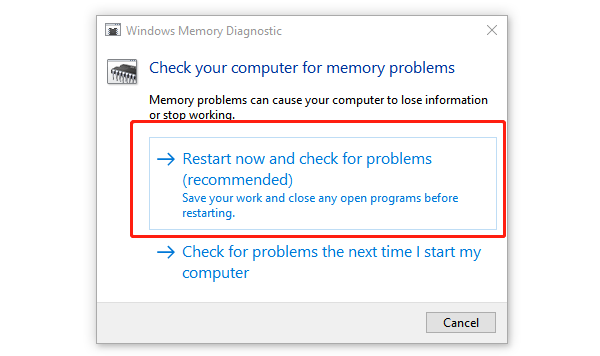
Windows will automatically scan your memory and report any issues.
If memory faults are detected, try changing RAM slots or replacing memory modules.
Method 3: Update Device Drivers
Outdated or damaged drivers are one of the most common causes of ntoskrnl.exe BSOD. It's recommend to use the Driver Talent X tool, which can save time and prevent the risk of downloading or installing incorrect drivers.
Click the download button to get the latest version of Driver Talent X. Install and launch the software.
Go to the "Drivers" section and click "Scan" to automatically check the status of all drivers on your computer.
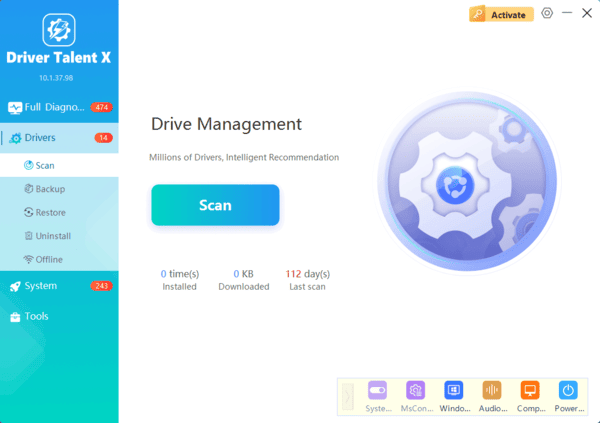
Locate problematic drivers in the scan results and click "Upgrade".
Restart your computer after the update to ensure the new drivers take effect.
Method 4: Check Hard Drive Health
You can scan and fix hard drive errors using the CHKDSK tool.
Open Command Prompt as Administrator.
Type the command: chkdsk C: /f /r /x and press Enter.
When prompted to schedule the disk check on the next restart, type "Y" and restart your computer.
Method 5: Temporarily Disable Security Software
Some third-party antivirus programs or recent system optimization tools can conflict with the system kernel.
Temporarily uninstall third-party antivirus software or disable the Windows Firewall.
Remove any recently installed optimization or cleaning tools.
Restart and check if the system runs stably.
Method 6: Disable Overclocking (BIOS/UEFI Settings)
If you've overclocked your CPU, GPU, or RAM, reverting to default settings may stabilize your system.
Reboot your PC and enter the BIOS setup.
Find settings related to CPU Frequency, XMP, or Overclocking and set them to Auto or Disabled.
Save and exit the BIOS, then restart the system.
Method 7: Use System Restore or Reset
If none of the above methods work, you can restore Windows to a stable state or reset your system.
System Restore:
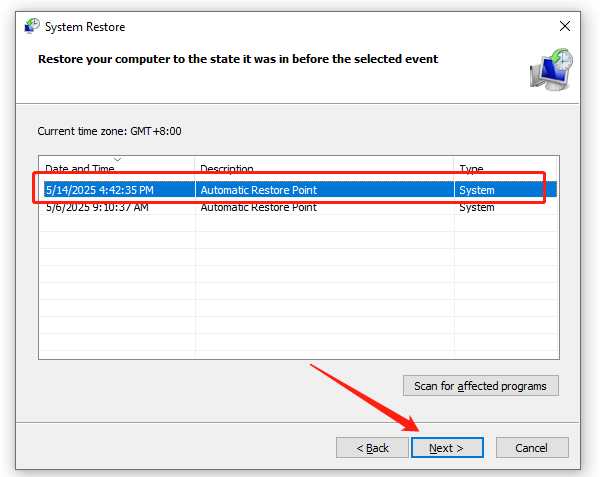
Search for "Create a restore point" and open the System Restore utility.
Choose a stable restore point and follow the on-screen instructions.
Reset Windows (Keep Files):
Go to Settings > Update & Security > Recovery, and click "Reset this PC".
Choose "Keep my files" and follow the prompts to reset your system.
III. Additional Recommendations
Back up important data regularly to prevent data loss due to crashes.
Use genuine Windows and keep it up to date to avoid security vulnerabilities.
Consider using a professional driver management tool like Driver Talent X to regularly detect and fix potential driver issues.
While ntoskrnl.exe BSOD errors may seem serious, most problems can be resolved through driver updates, memory checks, and system repair.
Follow the 7 methods outlined in this article to diagnose and fix the issue step by step—most users can successfully restore system stability. Download Driver Talent X now to fix driver conflicts with one click and boost your system performance with ease!
