Few Windows problems are as alarming as a sudden blue screen that interrupts your work, freezes your computer, and forces an unexpected restart. Known as the Blue Screen of Death (BSOD), this critical system error can appear on Windows 10 and Windows 11 with stop codes such as CRITICAL_PROCESS_DIED, MEMORY_MANAGEMENT, or IRQL_NOT_LESS_OR_EQUAL. Although these errors may seem difficult to diagnose, they often provide valuable clues about underlying problems, including faulty hardware, incompatible drivers, corrupted system files, or problematic Windows updates. Fortunately, not every blue screen requires a complete Windows reinstallation. This guide explains the common causes of Windows BSOD errors and introduces six practical troubleshooting methods, including updating device drivers with Driver Talent X, checking memory health, repairing system files with SFC and DISM, removing conflicting updates, and resetting Windows when necessary.
1. What Is a Windows Blue Screen Error?
A Windows blue screen error is a protective mechanism triggered by the operating system when it encounters a critical system failure or hardware conflict. The system halts all current processes and displays a blue screen with white text (or a sad face), along with an error message. Common error codes include:
CRITICAL_PROCESS_DIED
MEMORY_MANAGEMENT
INACCESSIBLE_BOOT_DEVICE
IRQL_NOT_LESS_OR_EQUAL
SYSTEM_THREAD_EXCEPTION_NOT_HANDLED
These codes can help identify the root cause of the blue screen.
2. Common Causes of Windows Blue Screen Errors
Incompatible or corrupted drivers
Hardware failures (e.g., RAM, power supply, hard drive)
Conflicts with third-party software (e.g., antivirus programs)
Failed system updates or conflicting patches
Virus or malware infections
Overclocking or overheating
3. Basic Actions After a Blue Screen
Record the Error Code: The blue screen usually displays a Stop Code or error message at the bottom. Take a photo or note it down for troubleshooting.
Restart the Computer: Some occasional errors may resolve automatically after a restart. If blue screens happen frequently, further steps are needed.
4. Common Methods to Fix Blue Screen Errors
Method 1: Uninstall Recent Updates or Software
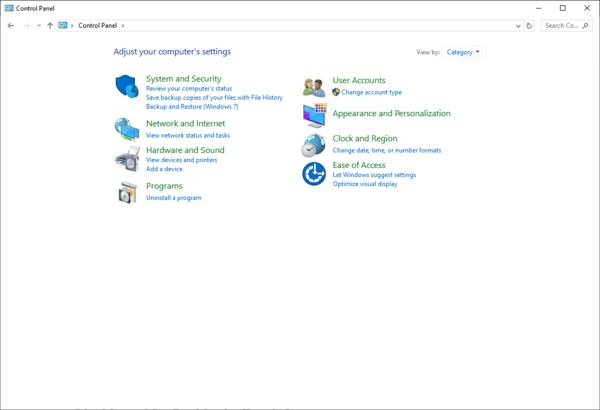
Go to Control Panel → Programs and Features → View installed updates.
Uninstall any recent updates, especially those installed just before the blue screen began.
Also uninstall newly installed third-party software such as antivirus or optimization tools.
Method 2: Run Windows Memory Diagnostic Tool
Press Win + R, type "mdsched.exe", and press Enter.
Choose "Restart now and check for problems" (recommended).
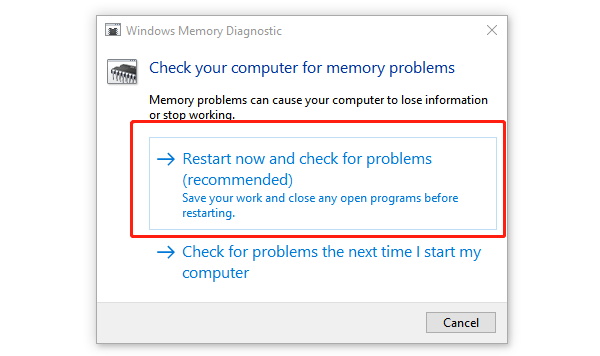
The computer will reboot and run a memory check. The process may take a few minutes.
After the scan, results will appear at the next login.
If memory errors are detected, consider replacing the faulty RAM module.
Method 3: Update Drivers
Outdated or corrupted graphics drivers are one of the main causes of system crashes and blue screens. Keeping your drivers up to date can effectively prevent such issues. It's recommend to use Driver Talent X, which simplifies the process and reduces the risk of downloading incorrect drivers.
Download the latest version of Driver Talent X, install, and launch the program.
In the "Drivers" section, click "Scan" — the software will automatically detect the status of all drivers on your computer.
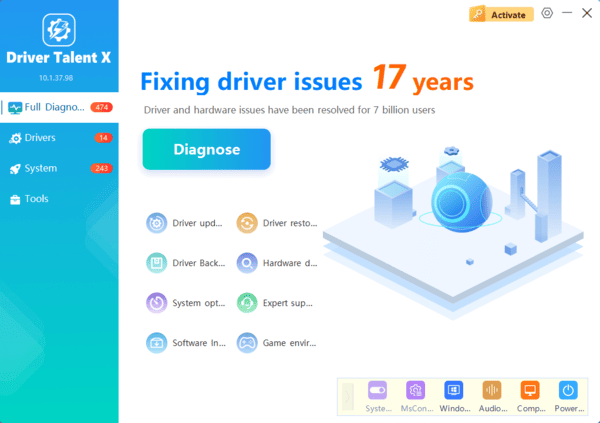
Locate your graphics driver in the results, and click "Upgrade".
Restart the computer after the update to ensure the driver takes effect.
Method 4: Run System File Repair Commands
Run the SFC command:
Press Win + S, type "cmd", right-click Command Prompt, and select "Run as administrator".
In the command prompt, enter the following and press Enter: sfc /scannow
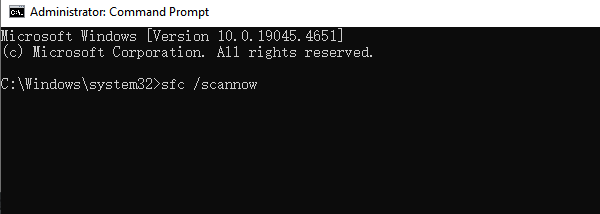
Wait while Windows scans and repairs any corrupted system files.
Run the DISM command (if SFC fails):
In the elevated Command Prompt, enter the following commands one by one and press Enter after each:
DISM /Online /Cleanup-Image /CheckHealth
DISM /Online /Cleanup-Image /ScanHealth
DISM /Online /Cleanup-Image /RestoreHealth
Once complete, restart your computer and check if the issue is resolved.
Method 5: Disable Automatic Restart to View Blue Screen Details
Right-click This PC → Properties → Advanced system settings.
Under the Startup and Recovery section, click Settings.
Uncheck "Automatically restart" under System failure and click OK.
The next time a blue screen occurs, you will be able to see the full error message.
Method 6: Reset Windows
Press Win + I to open Settings, then go to "Update & Security" > "Recovery".
Under "Reset this PC", click "Get started".
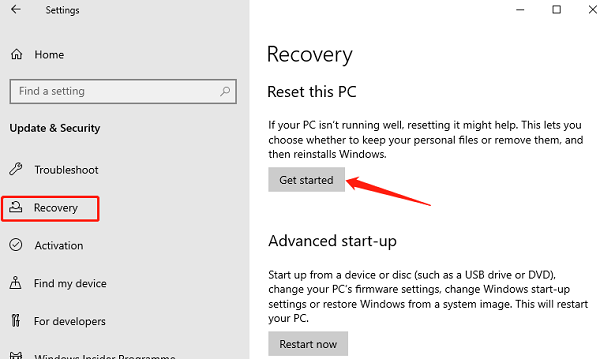
Choose "Keep my files" (to preserve personal data) or "Remove everything" (for a full reinstall – recommended).
Follow the on-screen instructions to complete the reset.
5. Frequently Asked Questions
What if Windows keeps crashing before I can sign in?
Use Windows Recovery Environment to access Startup Repair, System Restore, or Startup Settings for Safe Mode. Safe Mode can help you remove a recently installed driver or application.
Will disabling automatic restart fix the blue screen?
No. It keeps the error screen visible so you can record the stop code and any named driver. You still need to troubleshoot the underlying cause.
Should I choose "Remove everything" when resetting Windows?
Only if a full reset is necessary and your important files are backed up. "Keep my files" also removes applications and resets settings. Neither option fixes faulty hardware, so investigate recurring hardware errors before resetting.
While blue screen errors may appear serious, most issues can be resolved with proper troubleshooting and the right tools. If you've tried all of the above and the problem persists, it's advisable to contact a professional technician for further diagnosis.