

You open Device Manager and see your graphics adapter under Display adapters with a downward arrow and the message: "This device is disabled (Code 22)." Your screen may be at the wrong resolution or certain features may not work. Code 22 simply means the device is disabled—your graphics card is not broken. It just needs to be re-enabled and, ideally, have the correct driver installed to prevent it from disabling again.
What Error Code 22 Actually Means
Device Manager assigns error codes to hardware based on their status. Code 22 specifically means the device has been turned off — either manually by a user, automatically by Windows during a driver replacement, or as a result of a driver conflict that caused Windows to disable the device to protect system stability
This distinguishes it from other common graphics error codes. Code 43 means the device has stopped working due to a driver or hardware error. Code 10 means the device cannot start. Code 22 means none of those things — it means the device is off and needs to be switched back on. In many cases the fix takes under a minute
Fix 1: Enable the Device in Device Manager
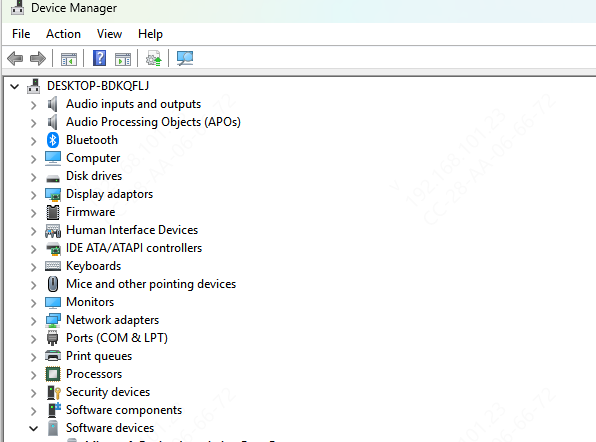
Press Win + X and select Device Manager. Expand Display adapters. Find the graphics adapter with the Code 22 status — it will have a grey downward arrow on the icon. Right-click it and select Enable device
Windows will reinitialize the adapter. After a few seconds, right-click it again, select Properties, and confirm the Device status field now says "This device is working properly"
Restart the PC and verify that display output has returned to normal — correct resolution, correct refresh rate, and no missing display features
Fix 2: Enable via Safe Mode When the Screen Is Unusable
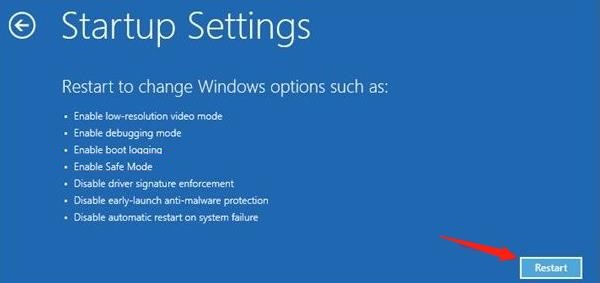
To enter Safe Mode, open Settings and go to Update and Security, then Recovery. Under Advanced startup, click Restart now. After the restart, select Troubleshoot, then Advanced options, then Startup Settings, then Restart. When the startup options appear, press 4 to boot into Safe Mode
In Safe Mode, open Device Manager, expand Display adapters, right-click the graphics adapter showing Code 22, and select Enable device. Exit Safe Mode by restarting the PC normally. Windows will boot with the graphics adapter enabled and restore normal display output
Fix 3: Update or Reinstall the Graphics Driver
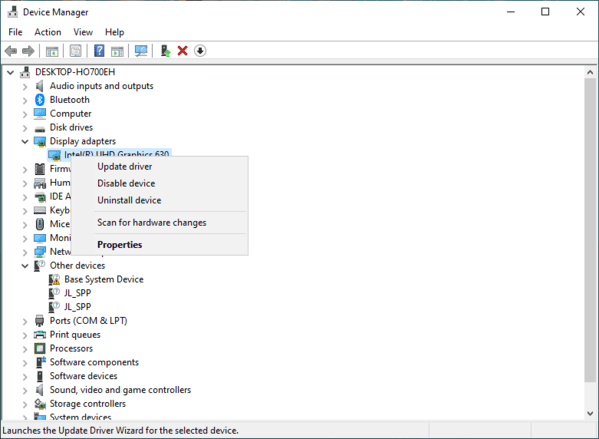
Device Manager method: in Device Manager, right-click the graphics adapter and select Update driver. Choose Search automatically for drivers. If Windows locates and installs a compatible driver, restart and test
For a full reinstall, right-click the adapter and select Uninstall device. Check the option to delete the driver software if it appears. Restart the PC
Windows will reinstall a basic display driver automatically, which restores basic display function. Then install the correct full driver from the GPU manufacturer — for NVIDIA from nvidia.com, for AMD from amd.com/en/support, for Intel from intel.com or using Intel Driver and Support Assistant
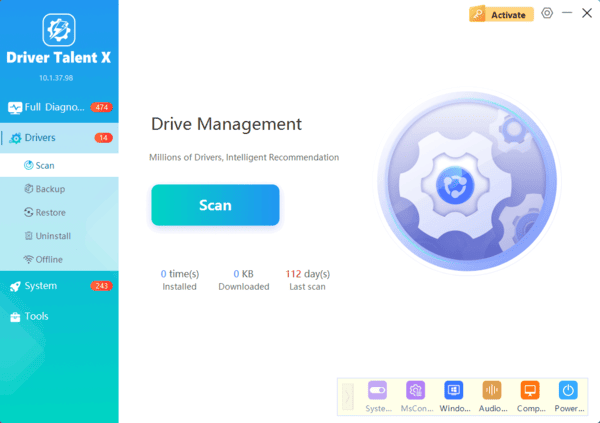
For a faster and more reliable approach, use Driver Talent X. It identifies your exact GPU model by hardware ID and installs the correct matched driver version without requiring you to navigate manufacturer download pages or select the right package manually
This is the most effective method when a Windows Update driver replacement was the original cause of the Code 22 state
Fix 4: Check BIOS Settings for Disabled Graphics
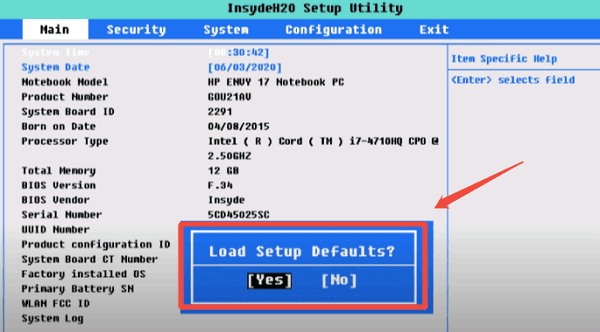
Restart the PC and enter the BIOS by pressing Del or F2 during the POST screen — the key varies by manufacturer and is usually displayed briefly at startup. Navigate to the Advanced or Chipset section
Look for settings related to Primary Display, Integrated Graphics, PCIe Graphics, or discrete GPU configuration. Confirm the relevant adapter is set to Enabled or Auto. Save the BIOS settings and restart
This is particularly relevant on desktop systems that have both integrated and discrete graphics, and on laptops with dual GPU configurations where one GPU may be set to disabled in firmware
Fix 5: Check for Windows Updates
When Code 22 appeared immediately after a Windows Update, a subsequent patch addressing the known driver conflict may already be available
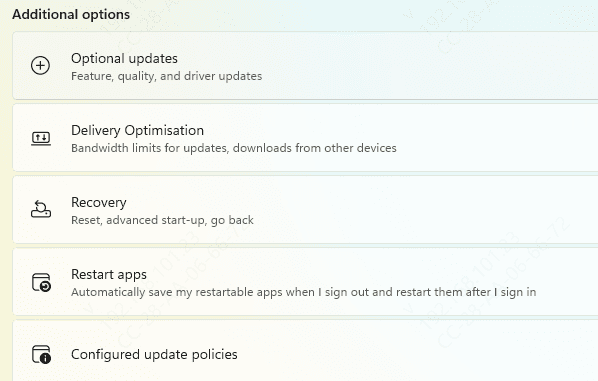
Go to Settings, then Windows Update, and click Check for Updates. Install all available updates and restart. After the restart, check Device Manager to see whether the Code 22 status has cleared
If the adapter still shows as disabled, re-enable it manually using Fix 1 and then install the correct driver using Driver Talent X to stabilize the installation
Preventing Code 22 from Returning
After re-enabling the GPU, install a correctly matched driver immediately
A device re-enabled without a proper driver is vulnerable to being disabled again by Windows on the next update cycle or restart
Conclusion
Error Code 22 on a graphics adapter means the device is disabled, not broken. Fix 1 resolves it immediately in the majority of cases. When the adapter re-enables but Code 22 returns after a reboot, the driver is the underlying issue — a clean driver installation through Driver Talent X eliminates the conflict causing Windows to keep disabling the device. For stubborn cases where the driver reinstall doesn't hold, Fix 4 with DDU provides a completely clean starting point.
