Most Windows users never think about their AMD CPU driver until something goes wrong. A system that randomly restarts, stutters under load, throws blue screens, or runs slower after a Windows update — these problems are often traced back to an outdated or incompatible chipset driver, not the hardware itself. This guide explains what AMD CPU drivers actually are, why they matter, and how to update them correctly on Windows 10 and Windows 11.
What an AMD CPU Driver Actually Does
When people say "AMD CPU driver," they're referring to the AMD chipset driver — the software layer that manages communication between your processor, motherboard, and operating system. It controls how Windows interacts with core components like the PCIe controller, USB ports, memory controller, and power management features built into AMD's platform
Without a current chipset driver, Windows may not fully utilize your CPU's power management capabilities, storage devices may underperform, and new hardware added to the system may behave unpredictably. AMD releases chipset driver updates regularly to address these issues and maintain compatibility with new Windows builds
How to Check Your Current AMD Chipset Driver Version
Before updating, check what version is already installed. Open the Windows search bar and type Add or remove programs. Search for AMD in the application list. You'll see entries like AMD Chipset Software or AMD PSP Driver. The version number is listed next to each entry.
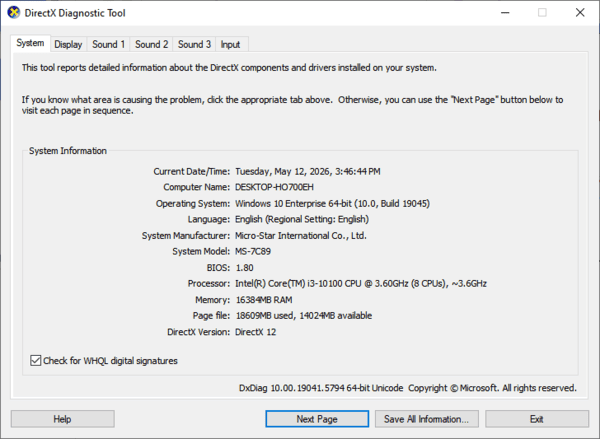
Alternatively, press Win + R, type dxdiag, and press Enter. The DirectX Diagnostic Tool lists your system information including processor details that help you confirm your CPU model before downloading the right driver package
Note your current version and compare it against the latest available from AMD's website or through the methods below
Download Directly from AMD's Website
For users who want to download from AMD's official source, go to AMD website and navigate to Drivers and Support. Use the search bar to find your specific CPU model, for example Ryzen 7 7700X or Ryzen 5 5600. On your CPU's support page, select your operating system — Windows 10 64-bit or Windows 11 64-bit — and download the Chipset Drivers package.
Run the downloaded installer and follow the on-screen steps. When the installation completes, restart your PC. The new chipset driver takes effect after the restart. Check Add or remove programs again to confirm the version number has updated
One important note: after a major Windows version upgrade, AMD's website may offer a newer chipset driver than what Windows Update installed. Always check AMD's site directly after upgrading Windows

Windows Update
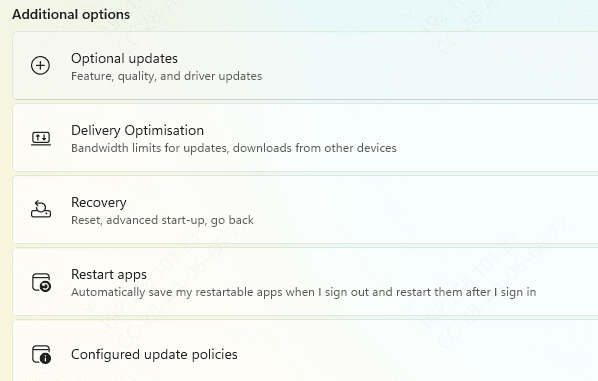
Windows Update occasionally delivers AMD chipset driver updates through the Optional updates section
Go to Settings, then Windows Update, and click Check for Updates
After the main scan finishes, click View optional updates or Advanced options depending on your Windows version and check the Driver updates section
Update Using Driver Talent X
The fastest way to update AMD chipset drivers without making mistakes is Driver Talent X. The manual process on AMD's website requires you to correctly identify your CPU family, socket type, and operating system before downloading — and choosing the wrong package produces either a failed installation or a driver that conflicts with existing components.
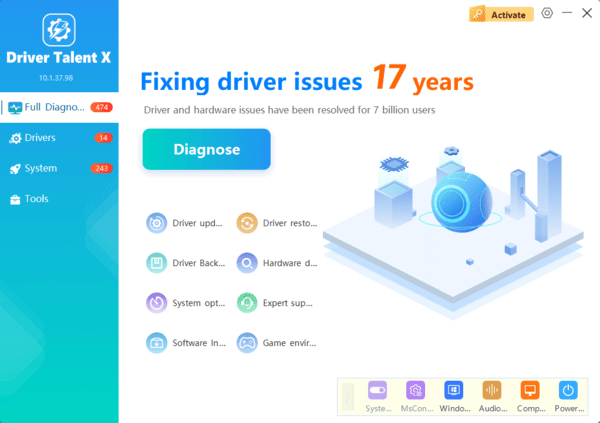
Driver Talent X reads your hardware directly and identifies the correct AMD chipset driver for your specific CPU and Windows version. Click Scan and it will audit all your hardware drivers including AMD chipset components
Click Download next to any outdated driver to install the correct matched version. Restart when prompted

After the Update: What to Expect
A chipset driver update is not like a game patch with visible changes. You won't see a dramatic difference on screen. What changes underneath includes more accurate CPU power state management, improved USB and PCIe stability, and better compatibility with recent Windows updates
If your PC was experiencing intermittent freezes, unexpected restarts, or blue screens before the update, monitor the system for a few days afterward. Most chipset-related stability issues resolve within one or two reboots as Windows adjusts to the new driver
If a new driver causes unexpected problems — which is rare but possible — open Device Manager, expand System devices, find the AMD chipset components, right-click and select Properties, go to the Driver tab, and click Roll Back Driver to return to the previous version. If Roll Back Driver is greyed out, use System Restore to revert to before the driver was installed

Conclusion
Updating your AMD CPU driver is a five-minute task that prevents a category of system problems most users never connect to their driver status. The chipset driver is not visible day-to-day, but it underpins how reliably your CPU, memory, storage, and USB devices work together under Windows.
