

Outdated Intel graphics drivers can cause screen flickering, poor gaming performance, display errors, and compatibility issues after Windows updates. Keeping your Intel HD, UHD, Iris Xe, or Arc graphics drivers updated helps improve stability and performance. This guide explains how to update Intel graphics drivers on Windows 10 and Windows 11 using multiple methods, including automatic tools and manual installation.
Why Updating the Intel Graphics Driver Matters
Intel releases graphics driver updates regularly. Each update typically includes fixes for display bugs, performance improvements for games and applications, compatibility updates for new DirectX versions, and patches for crashes caused by conflicts with recent Windows updates
Running the driver that came with your PC at purchase is almost never the best option if more than a few months have passed
How to Check Your Current Driver Version
Press Win + X and open Device Manager. Expand Display adapters. Right-click your Intel graphics entry and select Properties, then click the Driver tab. Note the Driver Version and Driver Date
This tells you what you're running and whether it's worth updating after comparing against the methods below
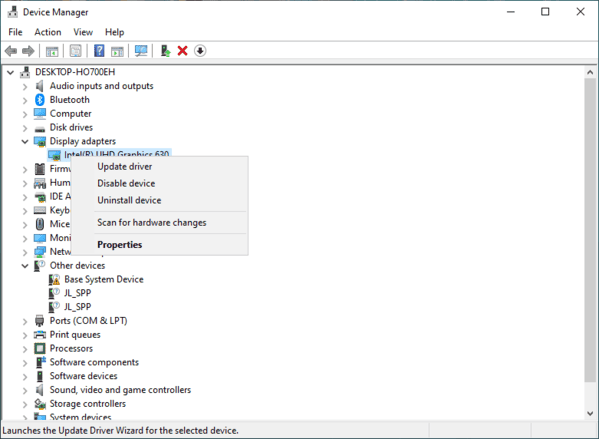
Method 1: Update Using Intel Driver and Support Assistant
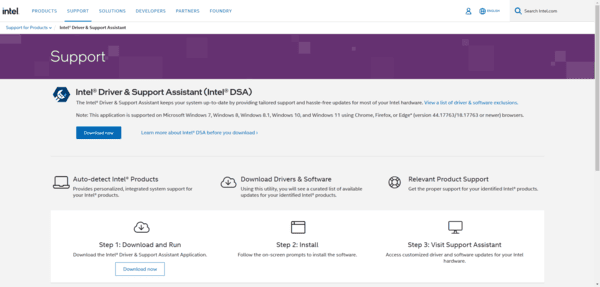
Intel provides an official automatic update tool called Intel Driver and Support Assistant. It scans your system, identifies which Intel hardware needs updated drivers, and guides you through the download and installation.
Download Intel DSA from Intel's official website and install it. Open it and let it scan. If a graphics driver update is available, click Download and follow the prompts
The limitation is that it only covers Intel hardware, so other drivers on your system require a separate tool
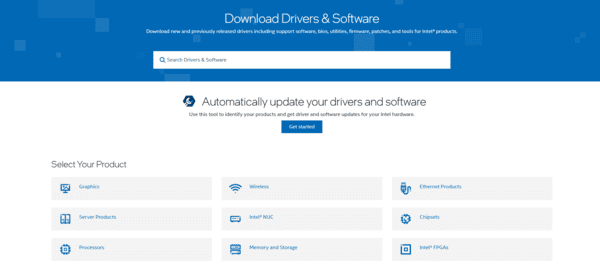
Method 2: Download from Website
Manual download gives you full control over which driver version is installed, which matters when you need a specific version for compatibility reasons.
Go to Intel's download center at intel.com and select the Graphics category. Filter by your product family — Intel HD or UHD for older integrated graphics, Intel Iris Xe for 11th generation and newer CPUs, Intel Arc for discrete graphics cards
Select your Windows version and download the installer
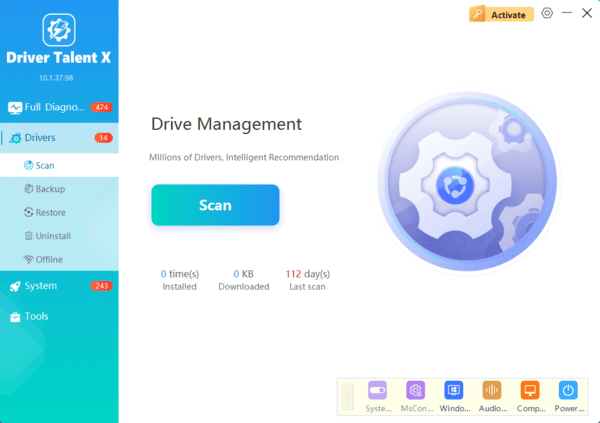
Method 3: Update Using Driver Talent X
This is the fastest method and the one least likely to result in installing the wrong driver. Intel's download center requires you to correctly identify your graphics generation, your Windows version, and the right package type. Getting any of those wrong produces either an installation error or a driver that installs but doesn't work correctly.

Driver Talent X reads your hardware ID directly and matches it to the exact correct driver version for your specific graphics chip and Windows edition
It removes the old driver before installing the new one, which prevents the file conflicts that cause black screens and resolution issues after manual updates
Method 4: Update Through Windows Update
Windows Update can deliver Intel graphics driver updates, but the version it delivers is often months behind the current release. Microsoft certifies drivers for stability before distributing them, not for the latest features.
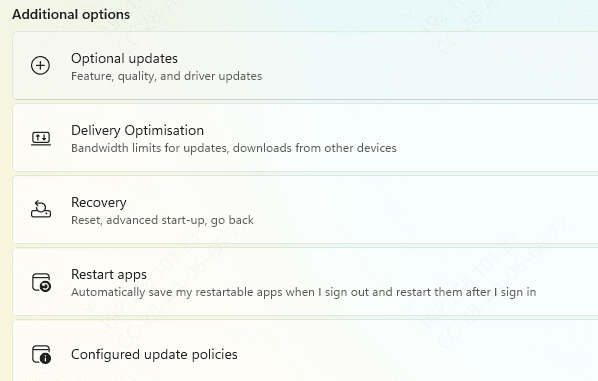
Go to Settings, then Windows Update, and click Check for Updates. After the scan completes, look for Optional updates or View optional updates. Driver updates appear in a separate section there
For users who only need a stable display and have no current issues, this is acceptable. For anyone dealing with display problems or using Intel Arc for gaming, use one of the methods above instead
If Windows Update keeps overwriting your manually installed driver with an older version, go to Windows Update settings, find Optional updates, and uncheck driver updates to stop this from happening
What to Do If the Driver Update Causes Problems
If a new driver causes a black screen, boot into Safe Mode by pressing Win + R, typing msconfig, going to the Boot tab, and checking Safe Boot. In Safe Mode, open Device Manager, right-click the Intel graphics entry, go to Properties and the Driver tab, and click Roll Back Driver. This restores the previous version
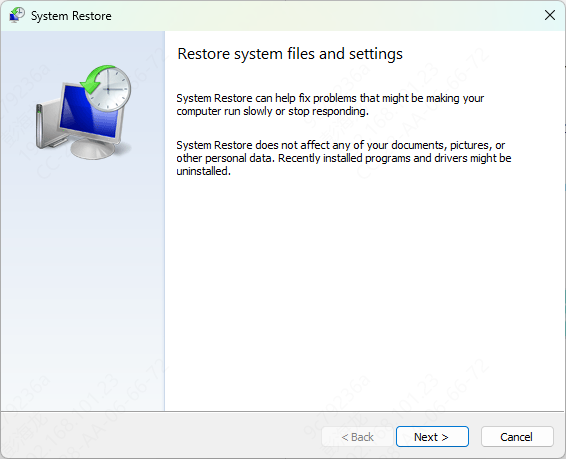
If Roll Back Driver is greyed out, use System Restore to revert to a point before the driver was installed, or download the previous version directly from Intel's download center and install it manually.
Conclusion
Driver Talent X is the fastest option for most users — it identifies your exact hardware, installs the matched driver cleanly, and requires no manual research. Intel Driver and Support Assistant is the right choice for staying within Intel's official tools. Manual download from Intel's site gives full version control. Windows Update alone is not recommended if you're dealing with display issues or need current Intel Arc game support.
