

Keeping your graphics card drivers up to date is one of the easiest ways to improve system performance, stability, and gaming experience. Outdated or corrupted drivers can lead to issues such as stuttering, crashes, black screens, low FPS, graphical artifacts, and poor compatibility with newly released games. This guide is designed for NVIDIA GeForce, AMD Radeon, and Intel Arc / integrated graphics users on Windows, helping you safely update your GPU drivers to achieve maximum performance, stability, and compatibility.
Preparation Steps (Must-Do Before Updating)
Before updating your drivers, some preparation can help prevent errors and conflicts:
Identify your GPU model and driver version
You can do this in three simple ways:
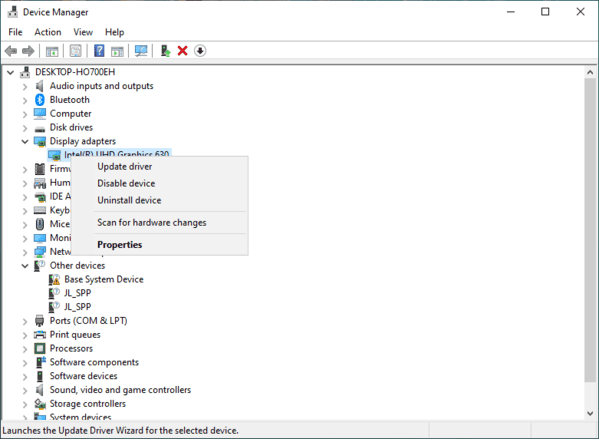
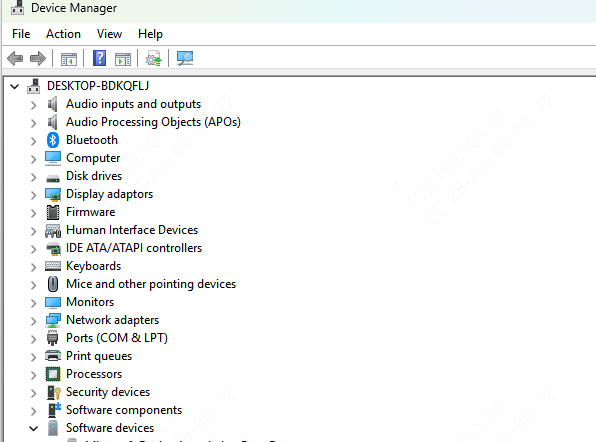
Device Manager: Windows → Device Manager → Display Adapters → Note the GPU model
Free tools like GPU-Z or HWiNFO: These provide detailed hardware and driver information
Official apps: NVIDIA App, AMD Software (Adrenalin Edition), or Intel Arc Control can show your current driver version
Backup your current driver (Optional but Recommended)
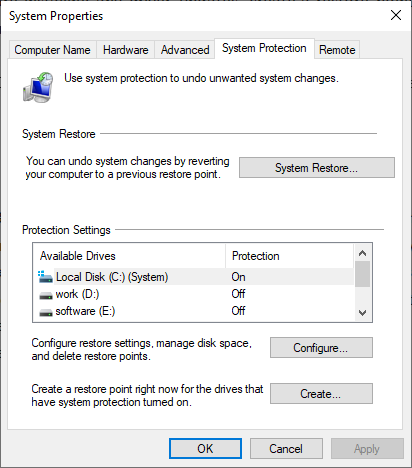
Especially if you've experienced issues with your GPU before, creating a backup ensures you can roll back to a previous stable driver if the new update causes problems
Temporarily disable antivirus or Windows Defender real-time protection
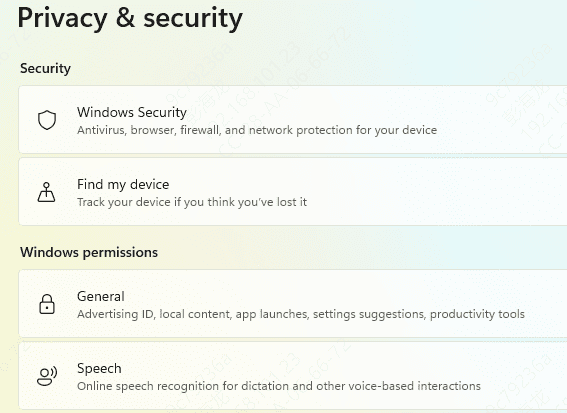
This step can prevent false blocks during driver installation and reduce the risk of installation errors
Method 1: Official Auto-Update Tools
NVIDIA Users
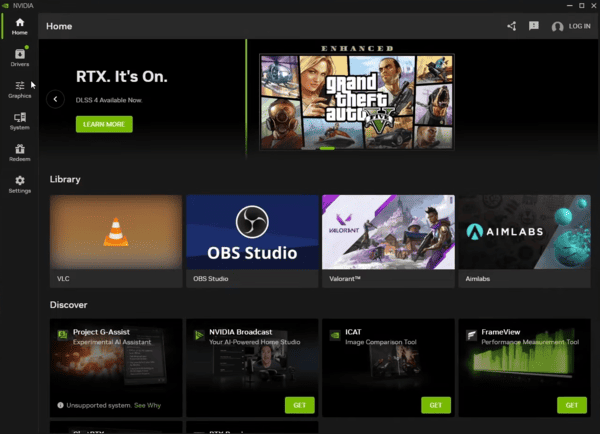
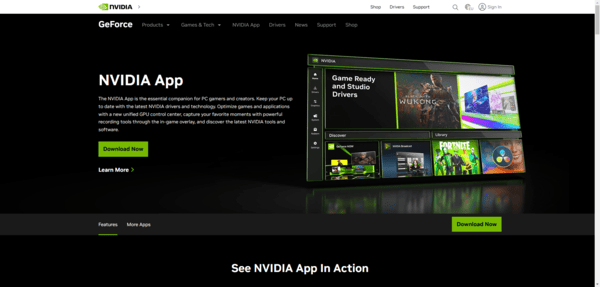
Use the NVIDIA App (which replaced GeForce Experience in late 2024/2025)
Install the app → Auto-detect your GPU → Download the latest Game Ready or Studio Driver
AMD Users
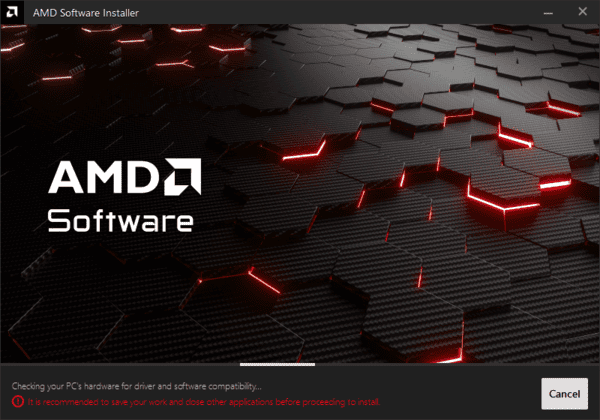
Use AMD Software: Adrenalin Edition → Auto-detect GPU → Check for updates → Install
Supports Clean Install option to remove previous driver files
Intel Users
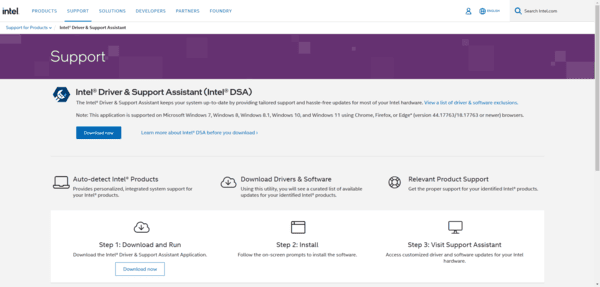
Use Intel Arc Control or Intel Driver & Support Assistant (DSA)
Automatically detects GPU and installs the correct driver
Method 2: Manual Download from Official Websites
Manual installation gives you full control over the driver version and installation process:
NVIDIA: Go to NVIDIA Support → Manual selection → choose Product Type, Series, GPU, OS → Download → Custom Install → check Perform a clean installation → Install → Restart
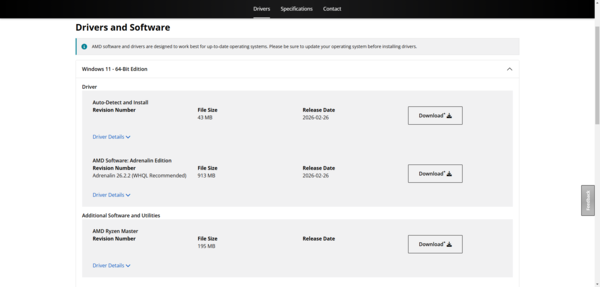
AMD: Go to AMD Support → Auto-detect or manual selection → Download the latest Adrenalin driver → Custom / Clean Installation → Install → Restart
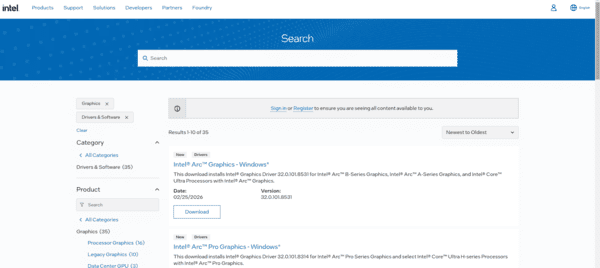
Intel: Go to Intel Support→ select Arc / UHD / Iris graphics → Download → Install → Restart
Method 3: Driver Talent X
Automatically detects outdated, missing, or corrupted GPU drivers
Updates all drivers with one click, including NVIDIA, AMD, and Intel GPUs
Creates backups and restore points to prevent installation errors
Simplifies driver management for beginners and advanced users alike
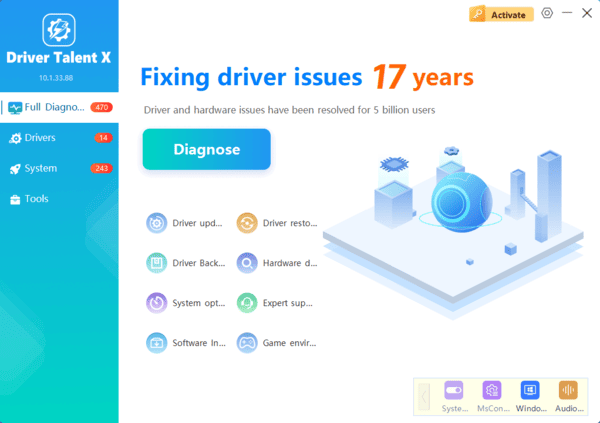
Driver Talent X is particularly useful for users who want a fast, reliable, and safe solution without manually downloading drivers from multiple websites.
Method 4: Windows Built-in Update
Windows provides a simple way to update GPU drivers, though it may not always provide the latest version:
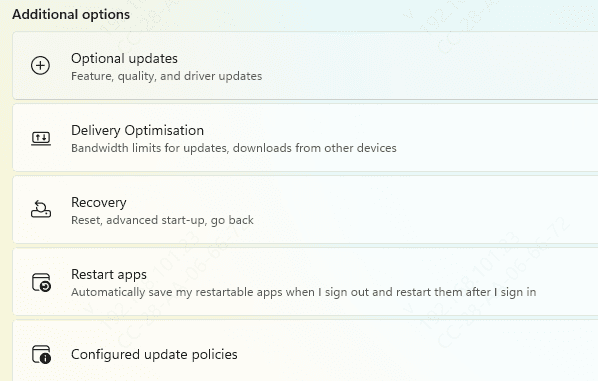
Windows Update: Settings → Windows Update → Optional updates (sometimes lists GPU drivers)
Device Manager: Device Manager → Display Adapters → Right-click GPU → Update driver → Search automatically for drivers
Conclusion
Keeping your drivers updated is one of the easiest, free, and most effective ways to unlock better GPU performance, stability, and compatibility. Whether you choose automatic tools, manual installation, or professional software like Driver Talent X, maintaining up-to-date drivers ensures your system stays optimized and ready for the latest games and applications.
