

Updating graphics drivers on Windows 11 is essential for maintaining smooth system performance, improving gaming experience, ensuring display stability, and keeping compatibility with the latest applications. When graphics drivers become outdated or corrupted, users may encounter issues such as screen flickering, low FPS, game crashes, black screens, or driver installation failures. This guide explains the safest and most effective methods to update graphics drivers on Windows 11, starting with the fastest and most recommended approach to help you quickly restore optimal GPU performance.
Why Graphics Driver Updates Fail on Windows 11
Understanding the causes helps you choose the right fix:
Incompatible drivers after Windows upgrades
Corrupted driver files
Interrupted installations
Conflicts with Windows Update
Outdated chipset or system drivers
Method 1: Update Graphics Driver via Device Manager
Device Manager can attempt to update your graphics driver automatically.
Steps Using Device Manager:
Right-click the Start button and select Device Manager.
Expand "Display adapters", right-click your graphics card and choose "Update driver".
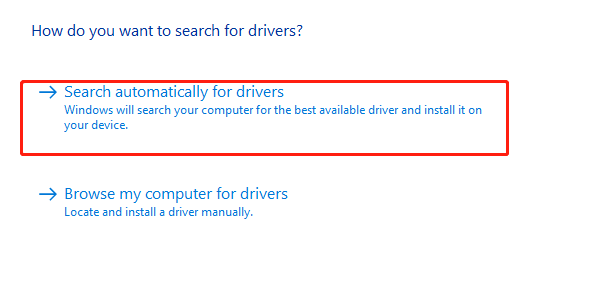
Select "Search automatically for drivers".
Restart your PC if an update is installed.
This method is simple but may not always provide the latest driver version.
Method 2: Download Graphics Drivers from Official Websites
Manual downloads are useful if you need a specific driver version.
NVIDIA Graphics Drivers:
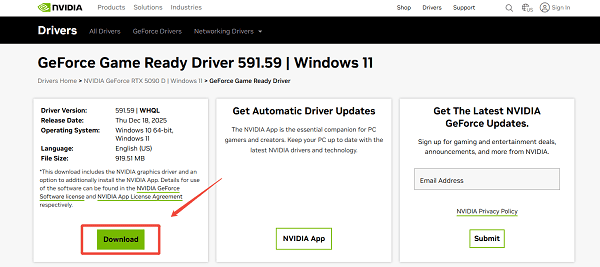
Visit the official NVIDIA driver download page.
Select your GPU model and Windows 11.
Download the latest Game Ready or Studio driver.
Run the installer as administrator.
Restart your computer.
AMD Graphics Drivers:
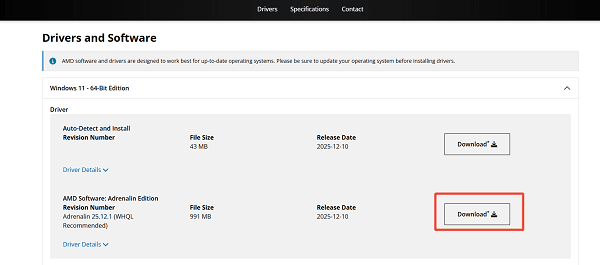
Go to the AMD driver support page.
Choose your Radeon GPU and Windows 11.
Download AMD Adrenalin software.
Install and follow on-screen instructions.
Restart your system.
Intel Graphics Drivers:
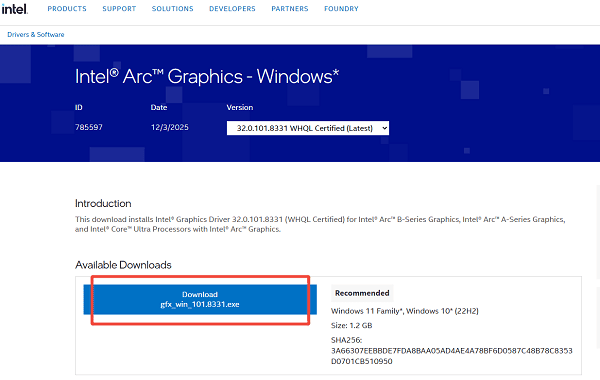
Visit Intel's driver support page.
Search for your Intel graphics model.
Download the Windows 11-compatible driver.
Install and reboot.
Method 3: Clean Reinstall Graphics Drivers
If updating fails repeatedly, a clean reinstall can fix deeper issues.
Steps for Clean Reinstallation:
Open Device Manager.
Right-click your graphics adapter and select "Uninstall device".
Check the option to delete the driver software if available.
Restart your PC.
Reinstall the driver using Driver Talent X or the official installer.
Method 4: Check for Windows Updates
Windows Update sometimes includes graphics driver updates.
Steps Using Windows Update:
Open Settings and go to Windows Update.
Click "Check for updates".
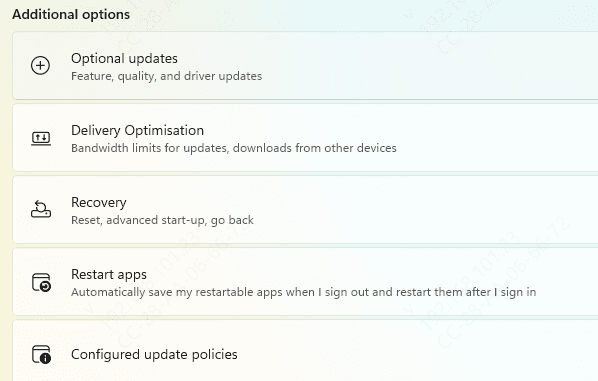
Look for optional driver updates.
Install available graphics driver updates.
Restart your system.
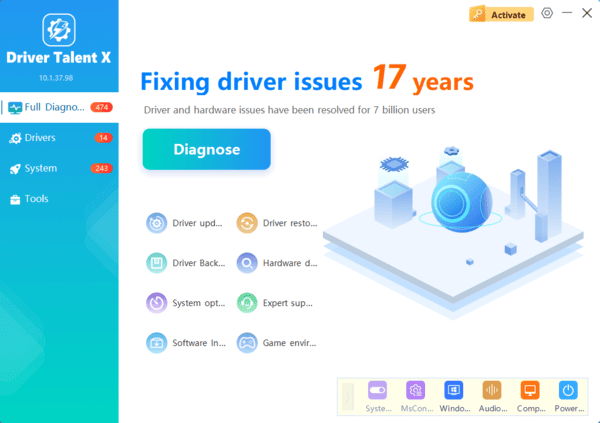
Update Graphics Driver Using Driver Talent X
Driver Talent X provides a secure and efficient way to update graphics drivers without risking wrong versions or incomplete installations. It supports NVIDIA, AMD, and Intel graphics devices and automatically matches drivers to your Windows 11 system.

Tips to Avoid Graphics Driver Issues on Windows 11
Always use drivers compatible with Windows 11
Update chipset drivers before graphics drivers
Avoid beta drivers unless necessary
Close background programs during installation
Restart your PC after every update
Conclusion
Updating graphics drivers on Windows 11 is critical for system stability and performance. Starting with Driver Talent X offers the safest and most efficient solution by automatically installing the correct graphics driver.
If needed, Device Manager, official manufacturer downloads, clean reinstalls, and Windows Update provide additional methods. By following this complete guide, you can update your graphics driver on Windows 11 confidently and without errors.
