

Intel Graphics plays an important role in delivering smooth visuals and reliable performance on Windows 11 PCs, whether you're handling everyday tasks, watching high-resolution videos, or playing games. Keeping your Intel Graphics driver updated helps ensure better compatibility, improved stability, and enhanced graphics performance. In this guide, we'll explain why updating Intel Graphics drivers is important and provide several effective methods to update your drivers, helping you achieve smoother visuals and better gaming performance on Windows 11.
Manually Download Intel Graphics Driver from Intel's Website
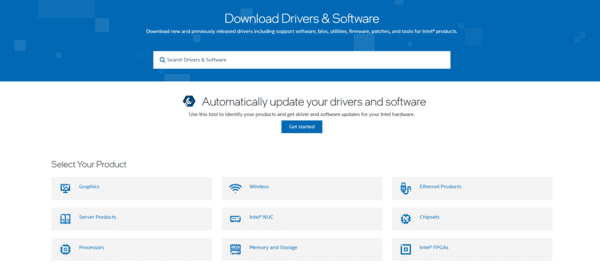
If you prefer more control over the version of the driver installed, you can manually download it from Intel's official website.
Visit Intel's Download Center: Go to the Intel Download Center
Search for Intel Graphics Drivers: Type in the specific Intel graphics model (e.g., Intel Iris Xe, Intel UHD, Intel HD Graphics) and select Windows 11 as the operating system
Download and Install: Download the latest driver and run the installer to complete the installation process
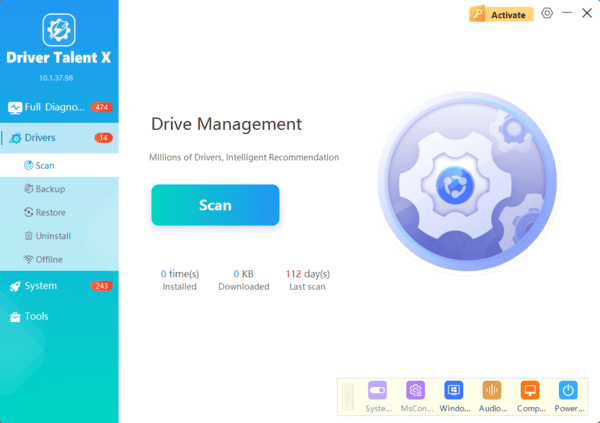
Driver Update with Driver Talent X
While updating drivers manually can be effective, it can also be time-consuming and prone to errors. If you're looking for a faster, more efficient way to ensure your Intel Graphics drivers are always up to date, Driver Talent X is the perfect tool for the job.
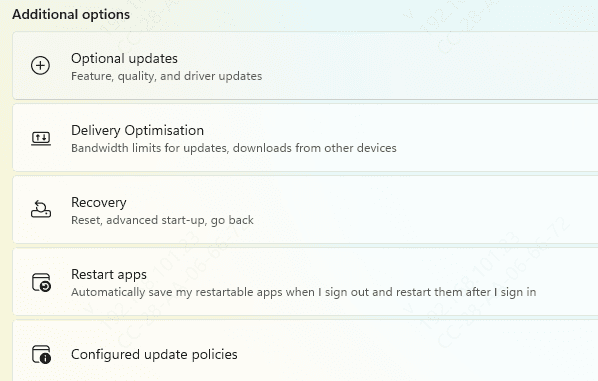
Use Windows Update for Automatic Driver Updates
Open Settings: Press Windows + I to open Settings
Go to Update & Security: Select Update & Security and then click Windows Update
Check for Updates: Click Check for updates and allow Windows to search for available updates
Install Updates: If there's an Intel graphics driver update available, Windows will automatically download and install it
Use Intel Driver & Support Assistant (DSA)
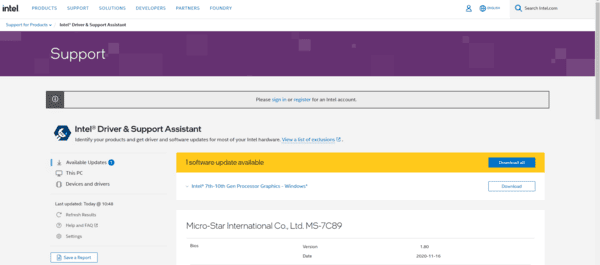
The Intel Driver & Support Assistant (DSA) is an official tool that detects outdated drivers and installs the correct, up-to-date drivers for your Intel hardware.
Download Intel DSA: Go to the Intel Download Center and download the Intel Driver & Support Assistant
Install Intel DSA: Follow the instructions to install the tool on your PC
Run DSA: Launch Intel DSA, and it will automatically detect your Intel graphics hardware and check for the latest driver updates
Install Driver Updates: If there are any updates available, Intel DSA will prompt you to download and install them
Update Intel Graphics Driver Using Device Manager
Device Manager allows you to manually update your Intel Graphics drivers directly from your system.
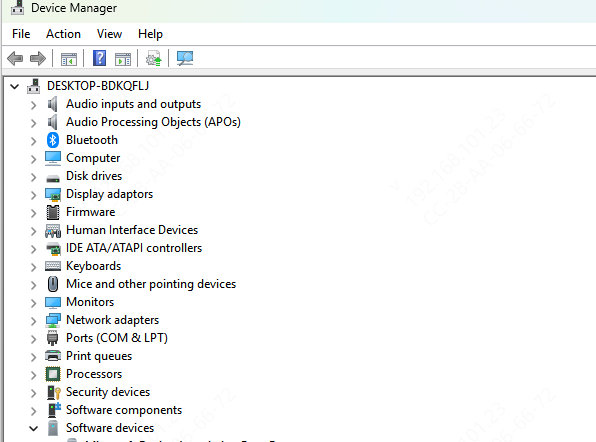
Open Device Manager: Right-click on the Start menu and select Device Manager
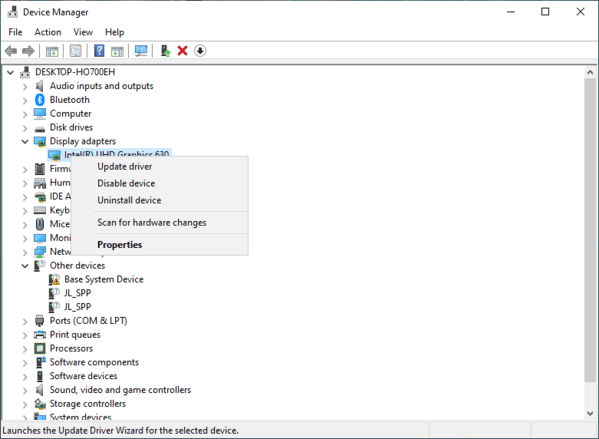
Locate Intel Graphics: Expand the Display adapters section and right-click on Intel Graphics
Update Driver: Select Update Driver from the dropdown menu
Search for Updated Driver: Choose Search automatically for updated driver software
Install Driver: If an update is found, follow the prompts to install it
How to Verify Your Intel Graphics Driver Update
After updating your driver, you'll want to verify that the update has been applied correctly.
Check the Driver Version: Open Device Manager, expand Display adapters, and right-click Intel Graphics
Go to the Properties > Driver tab to check the driver version
Test Graphics Performance: Run a graphically intensive game or video editing software to test if performance has improved. You should notice smoother gameplay and enhanced visuals after the update
Conclusion
Updating your Intel Graphics driver is an essential step to ensure that your Windows 11 PC delivers the best possible gaming and graphical performance. Whether you update via Windows Update, Device Manager, Intel DSA, or manually download the latest drivers from Intel's website, staying up-to-date with your Intel graphics drivers will provide smoother gameplay, better visuals, and fewer issues with graphics-intensive applications. By following this guide, you'll be able to enjoy a more responsive, visually stunning experience on your PC, whether you're gaming, streaming, or working on creative projects. Keep your drivers updated and maximize the potential of your Intel-powered system.
