

Encountering a black screen on your ASUS laptop while it is still running can be a frustrating experience. This issue is often caused by factors such as driver conflicts, display settings errors, power issues, or hardware malfunctions. If your laptop appears to be running but the screen remains black, there's no need to panic. In this guide, we'll walk you through a series of effective troubleshooting steps to help you diagnose the root cause and resolve the ASUS black screen issue, restoring your display to normal operation.
Immediate Solutions to Try
Check the Brightness Settings
Sometimes the simplest solution is the right one. The screen may appear black if the brightness is turned down too low
Adjust the brightness using the keyboard (typically with the Fn key and the brightness keys on the top row of the keyboard)
Check the display settings in Windows Settings (Settings > System > Display)
Restart the Laptop
If the screen goes black suddenly, it may be a temporary issue that can be resolved by restarting the laptop
Press and hold the power button for 10-15 seconds until the laptop powers off completely
Restart your laptop and check if the display returns to normal
Disconnect External Devices
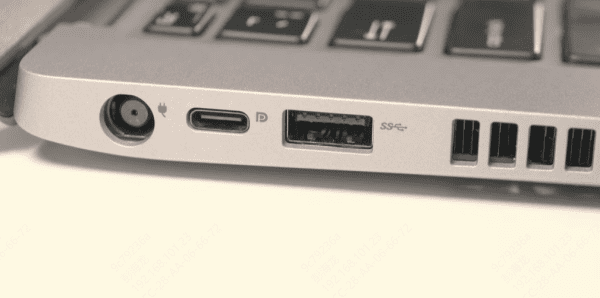
Unplugging external devices, such as external monitors or USB devices, can often resolve conflicts causing the black screen
Disconnect all USB peripherals, external displays, and other connected devices
Restart the laptop to see if the screen works
Advanced Troubleshooting Steps
Perform a Hard Reset
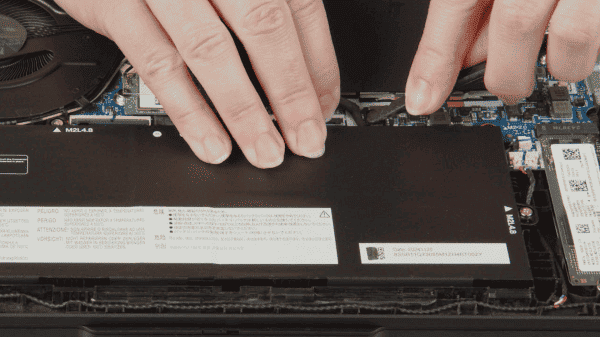
Unplug the power adapter and remove the battery (if removable)
Press and hold the power button for 30 seconds to drain any residual power
Reconnect the power adapter and restart the laptop
Boot into Safe Mode
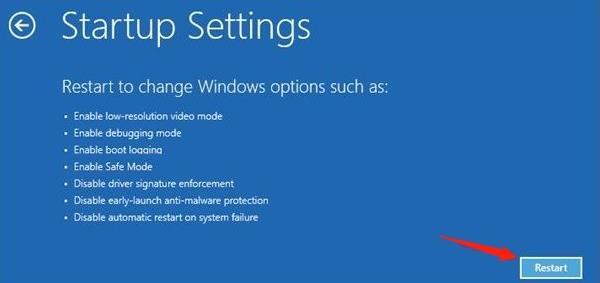
Booting into Safe Mode can help diagnose if the issue is caused by a software or driver problem
Turn off the laptop, then turn it on and immediately start pressing F8 (or Shift + F8) to access the Advanced Boot Options
Select Safe Mode and see if the screen functions in this mode. If it works in Safe Mode, the issue is likely due to a software conflict or driver issue
Update Graphics Drivers
Update Drivers First Using Driver Talent X
Driver Talent X can automatically detect and repair missing or corrupted drivers, ensuring your laptop's system components are functioning correctly. Here's how to do it:
Download and Install Driver Talent X
Download: Click the "Download" button to obtain the software package from the official website
Install: Open the downloaded file and follow the on-screen instructions to install Driver Talent X on your ASUS laptop
Scan Your System Drivers
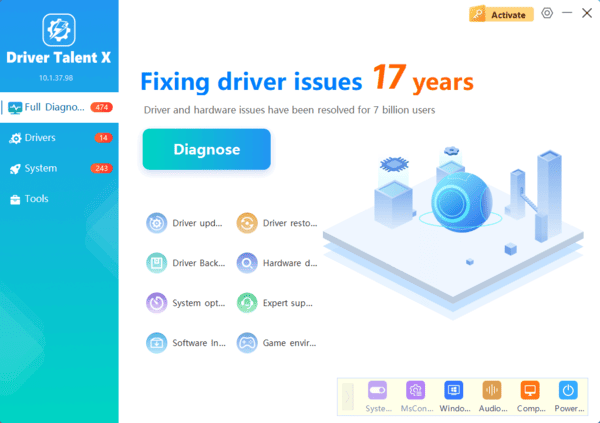
Launch Driver Talent X and go to the Drivers section
Click Scan to initiate a deep analysis of your system, particularly focusing on your graphics drivers, chipset drivers, and display-related components
Installation
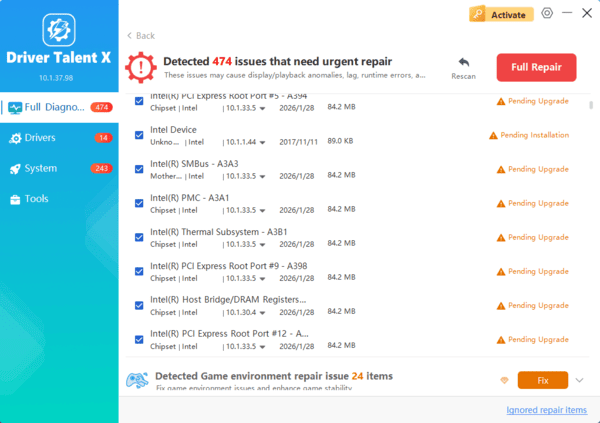
Once the scan is complete, Driver Talent X will display a list of outdated, missing, or corrupted drivers that require attention
Select the necessary drivers (e.g., graphics, chipset, and display drivers) and click the "Repair Now" or "Upgrade" button
Driver Talent X will download the latest compatible versions of these drivers and perform a clean installation, ensuring performance and stability improvements
Restart Your ASUS Laptop
After the installation is complete, restart your laptop to apply the updated drivers
Check if the screen is now functioning properly, as updating drivers can often resolve issues that cause the screen to go black
Device Manager
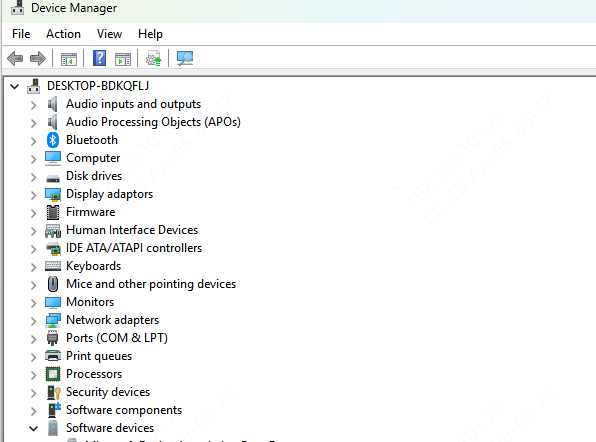
Open Device Manager by right-clicking the Start Menu and selecting Device Manager
Expand the Display Adapters section, right-click on your graphics driver, and select Update Driver
Choose Search automatically for updated driver software to let Windows install the latest driver
If the update doesn't work, right-click the driver and select Uninstall Device. Restart your laptop, and Windows will attempt to reinstall the driver automatically
Conclusion
While a black screen on your ASUS laptop can be alarming, it's usually a solvable problem. By following the troubleshooting steps outlined in this guide, you should be able to diagnose and fix the issue efficiently. Whether the problem is related to outdated drivers, power issues, or hardware failure, there are several ways to restore functionality to your laptop.
