

A black screen on an ASUS laptop after a Windows update is a common issue that can be caused by display driver failures, incompatible updates, corrupted system files, or incorrect power settings. In many cases, the laptop may power on normally, but the screen remains dark or unresponsive.
Update Drivers
Faulty or outdated graphics drivers are the most common reason an ASUS laptop shows a black screen after an update. Driver Talent X can automatically detect missing or corrupted drivers and repair them.
Download and Install:
Click the "Download" button to download the software package.
Install the software on your Windows PC.
Scan Your System Drivers:
Launch the application and go to "Drivers" > "Scan", click "Scan".
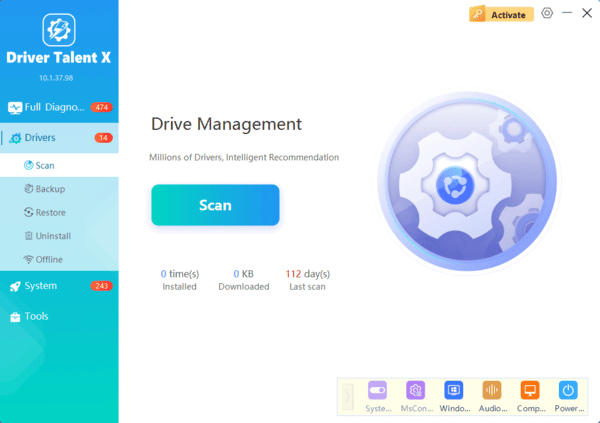
The software will perform a deep analysis of your system, focusing specifically on graphics drivers and motherboard components.
Execute Clean Installation:
After the scan is complete, the software will display a list of all drivers that need attention. Select the necessary drivers and click the "Upgrade" or "Repair Now" button.
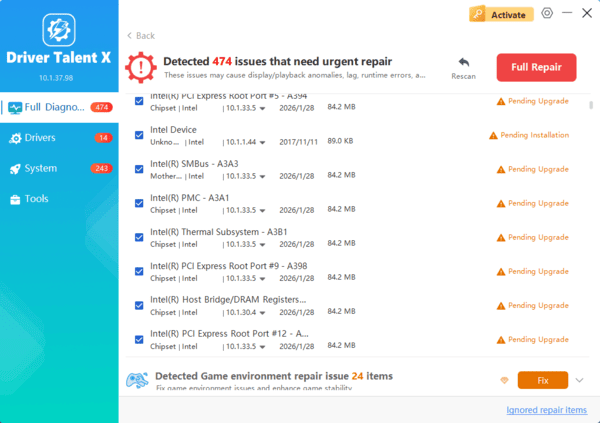
Driver Talent X will reliably download the latest driver and execute a clean installation, critical for performance enhancements and stability fixes.
Restart your computer:
Restart your laptop to apply the updated drivers.
If the black screen prevents normal booting, follow these steps:
Use Safe Mode to Run Driver Talent X:
Press the power button and immediately hold Shift while selecting "Restart".
Navigate to "Troubleshoot" > "Advanced options" > "Startup Settings" > "Restart".
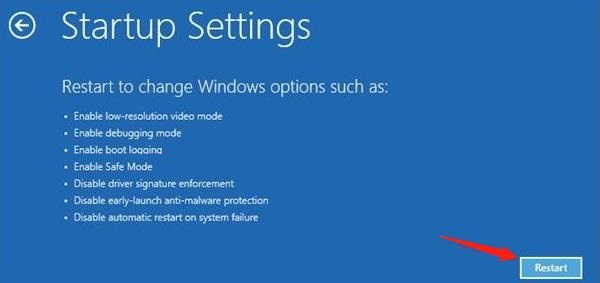
Select "Enable Safe Mode with Networking".
Install or open Driver Talent X.
Perform the scan and update process as described above.
If the problem was caused by display or chipset drivers, this method usually resolves it.
Additional Solutions to Fix ASUS Laptop Black Screen After Update
If updating drivers does not fully resolve the issue, use the following methods:
1. Hard Reset Your ASUS Laptop
Sometimes temporary power faults cause the screen to stay black.
Shut down the laptop.
Disconnect the charger.
Hold the Power button for 15 seconds.
Release it and reconnect the power adapter.
Turn on the laptop again.
This flushes residual electricity and resets internal components.
2. Check External Monitor Output
Windows updates sometimes switch the output to an external display.
Press Windows + P.
Use the arrow keys to select "PC screen only".
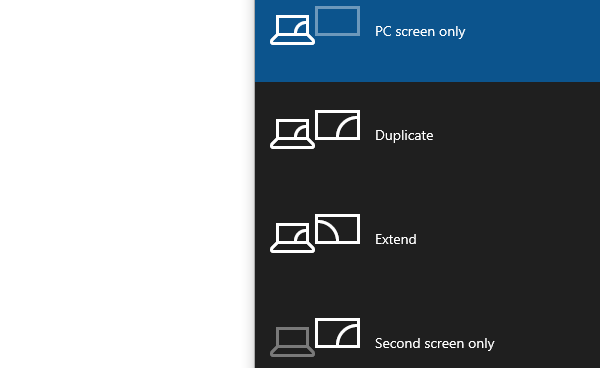
Press Enter.
If the laptop is connected to an external monitor, disconnect it and test again.
3. Disable Fast Startup
Fast Startup may conflict with new updates.
Open Control Panel > Power Options.
Select "Choose what the power buttons do".
Click "Change settings that are currently unavailable".
Uncheck "Turn on fast start-up (recommended)".
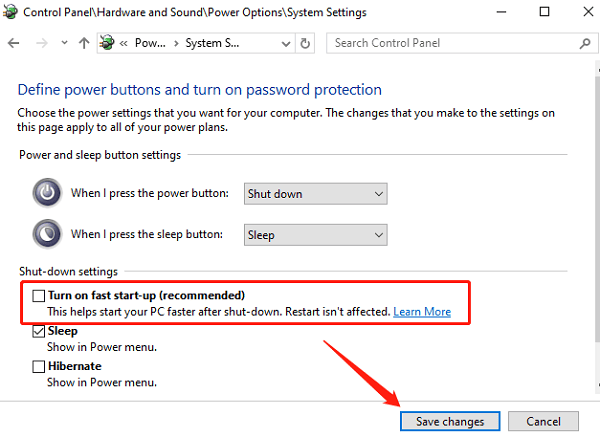
Save changes and reboot.
4. Roll Back the Display Driver
If a recent update installed a faulty GPU driver:
Press Windows + X > Device Manager.
Expand "Display adapters".
Right-click your display driver and select "Properties".
Select the Driver tab and click "Roll Back Driver".
Reboot your laptop.
5. Uninstall Recent Windows Updates
A Windows update may contain bugs affecting ASUS display modules.
Go to "Settings" > "Update & Security" > "Windows Update" > "View update history".
Choose "Uninstall updates".
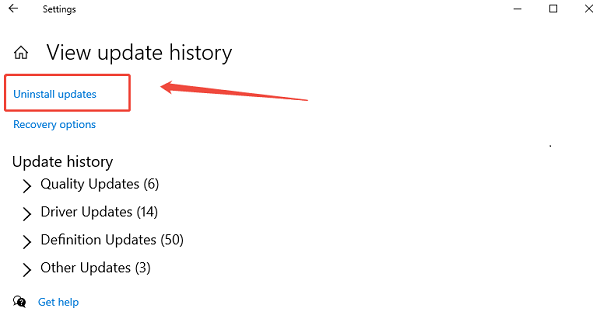
Remove the most recent cumulative or driver update.
Restart the laptop.
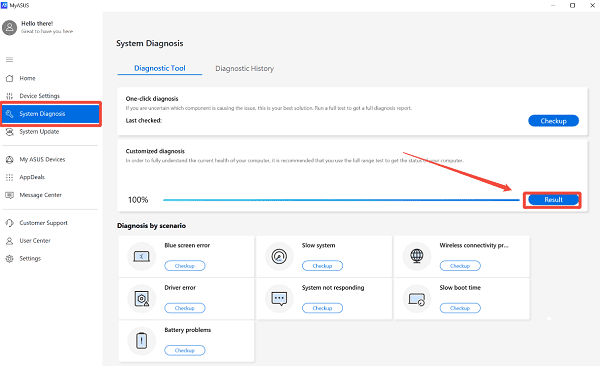
6. Run ASUS Troubleshooting Tools
ASUS offers tools such as MyASUS for device diagnostics.
Open MyASUS.
Go to "System Diagnosis", select "Display issues".
Follow the guided repair steps.
7. Reset BIOS Settings
Incorrect BIOS settings may cause boot issues.
Turn off the laptop.
Press F2 repeatedly while powering on.
In BIOS, press F9 to load default settings.
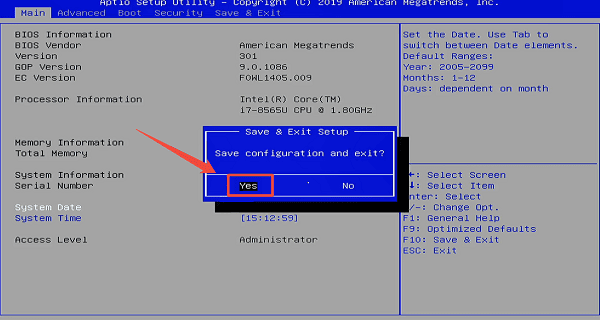
Press F10 to save and exit.
8. Perform a System Restore
If the black screen started immediately after an update, restoring the system may fix it.
Open Advanced Startup Options.
Select "Troubleshoot" > "System Restore".
Pick a restore point created before the update.
Complete the process.
Conclusion
An ASUS laptop showing a black screen after a Windows update is often caused by outdated or damaged drivers, display configuration issues, or a faulty system update. The most effective fix is to update drivers using Driver Talent X, especially the graphics and chipset drivers.
If that does not solve the issue, additional solutions such as display output resets, BIOS reset, Windows update rollback, or Safe Mode troubleshooting can help restore normal screen functionality.
