Want to update all drivers on Windows 11 at once without spending hours searching for individual downloads? Outdated, missing, or incompatible drivers can cause various computer problems, including slow performance, unstable Wi-Fi connections, audio failures, graphics glitches, and unexpected system crashes. Keeping your device drivers up to date helps maintain hardware compatibility, improve system stability, and resolve common Windows 11 issues. However, manually checking every driver can be time-consuming, especially when your PC has multiple hardware components. Fortunately, there are easier ways to manage driver updates. This guide introduces three practical methods to update drivers on Windows 11, including using Driver Talent X to scan and update multiple drivers at once, installing available updates through Windows Update, and updating specific devices manually with Device Manager.
Why Updating All Drivers at Once Is a Smart Move?
Using the correct, up-to-date drivers provides several key benefits and is especially important on a new operating system like Windows 11.
Enhanced Performance: Updated drivers can optimize hardware performance, leading to smoother gaming, faster video rendering, and more responsive applications.
Improved Stability: Driver updates often contain bug fixes that resolve conflicts, prevent system freezes, and reduce the likelihood of a Blue Screen of Death.
Time-Saving: Instead of manually checking and downloading each driver individually, a single tool can find and install all necessary updates for you in one go.
Increased Compatibility: New drivers ensure your hardware works correctly with the latest Windows 11 features and security updates.
Method 1: Update Way with Driver Talent X (Recommended)
For a quick, hassle-free solution that automatically finds and installs the correct drivers for your specific hardware, Driver Talent X is an excellent choice.
This professional driver management tool automates the entire process, making it safer and more convenient than manual updates.
Step 1: Scan for Outdated Drivers
First, ensure you have an internet connection, then install and launch Driver Talent X.
Click the "Scan" button.
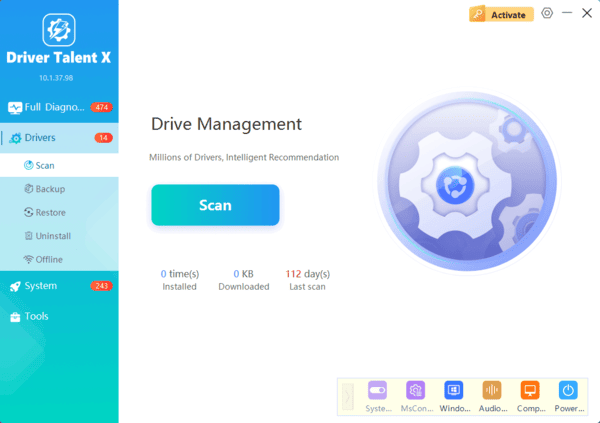
The software will perform a deep scan of your entire computer, automatically detecting all your hardware and checking the status of its drivers.
Step 2: Update All Drivers at Once
After the scan is complete, Driver Talent X will show you a clear list of all drivers that need updating, including your graphics, sound, network, and chipset drivers.
Simply click the "Repair Now" button at the top of the list.
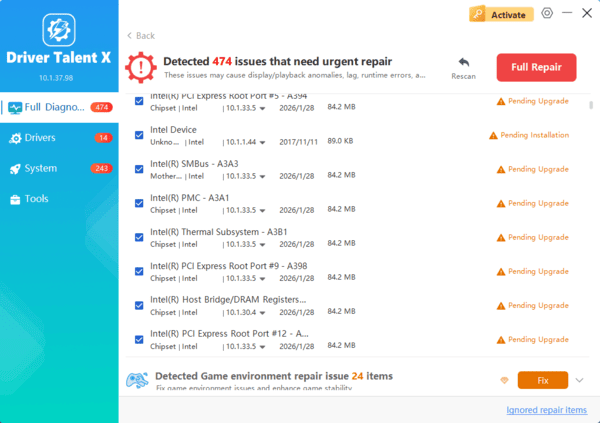
Driver Talent X will automatically download and install the latest, most compatible drivers for your hardware, ensuring your PC runs at peak performance.
Method 2: Manual Update via Windows Update (The Traditional Way)
Windows 11 has a robust built-in system for driver updates, often a great first step for general hardware. However, it may not find every single driver.
Open Settings by pressing Win + I on your keyboard.
In the left-hand menu, click on "Windows Update".
Click on "Advanced options", then select "Optional updates".
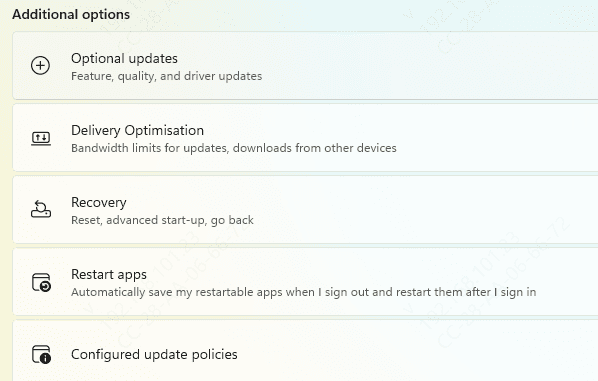
Look for a "Driver updates" section. If available, select the drivers you want to install and click "Download & install".
Method 3: Manual Update via Device Manager
This method is useful if you need to update a specific device and you know what it is, but it's not a solution for updating all drivers "at once".
Open Device Manager by pressing Win + X and selecting it from the menu.
Find the category for the device you want to update (e.g., "Display adapters", "Sound, video and game controllers").
Right-click on the device's name, then select "Update driver".
Choose "Search automatically for drivers". Windows will then search online for a newer driver and install it if one is found.

Q&A
Q: How often should I update my drivers?
A: It's a good practice to check for updates every few months, but it's especially important if you start experiencing performance issues or after a major Windows update.
Q: Will updating all drivers fix all my PC problems?
A: No, while updated drivers can fix many software-related issues, they will not fix problems caused by a faulty hardware component, a virus, or a lack of system resources like RAM.
Q: Is it safe to use other driver update websites?
A: No, you should never download drivers from unofficial, third-party websites. These files can be outdated, incompatible, or, most dangerously, infected with malware. Always stick to official manufacturer sites or reputable, verified tools.
Conclusion
Keeping your drivers updated is the best way to ensure a stable and high-performing system.
While manual methods and official manufacturer tools are effective, using Driver Talent X is the most efficient and hassle-free solution for updating all drivers at once. It simplifies the entire process and ensures your PC runs flawlessly.