

If your Windows PC suddenly becomes extremely slow and Task Manager shows disk usage stuck at 100%, the problem may be caused by background services, outdated storage drivers, incorrect virtual memory settings, Windows Search indexing, malware, or disk errors. High disk usage can lead to slow startup, application freezes, delayed file access, and overall system instability. This guide covers several practical ways to fix 100% disk usage on Windows, including disabling unnecessary services, updating disk drivers with Driver Talent X, adjusting virtual memory, checking the drive for errors, managing background processes, and scanning for malware.
1. Common Symptoms of 100% Disk Usage
Task Manager shows disk usage constantly at 100%
Extremely slow startup after booting
Long delays when opening files, websites, or applications
Fans running loudly despite no heavy programs being open
2. Practical Fixes for 100% Disk Usage
Method 1: Disable Windows Search Service
Windows Search continually indexes files, which can sometimes consume excessive disk resources.
Press Win + R, type "services.msc", and press Enter.
Find "Windows Search", double-click to open.
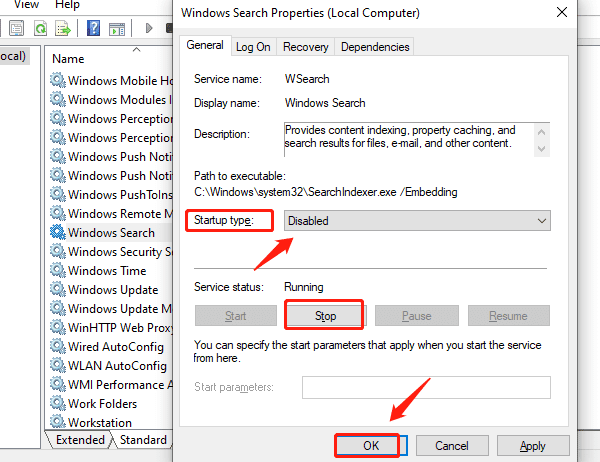
Set Startup type to "Disabled", click "Stop", and apply changes.
Restart the computer and observe disk usage.
Method 2: Disable SysMain (Superfetch) Service
This service optimizes system boot but may cause high disk usage on some devices.
Press Win + R, type "services.msc", and press Enter.
Locate the "SysMain" service and double-click.
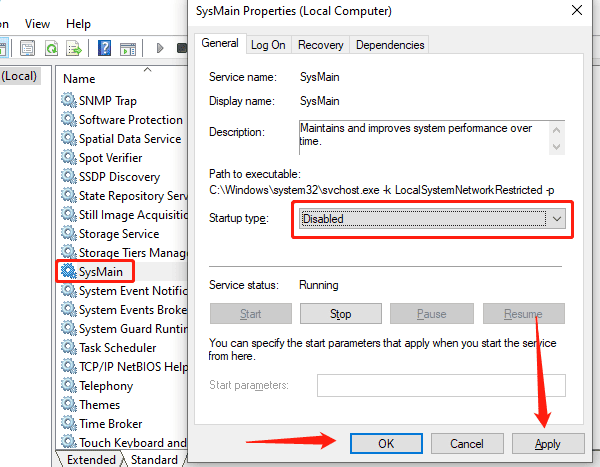
Set the Startup type to "Disabled", click "Stop", and save.
Method 3: Update Disk Drivers
Outdated, corrupted, or incompatible drivers are a common cause of high disk usage. It's recommend to use Driver Talent X for quick and safe driver updates.

Click the download button to get the latest version of Driver Talent X
Install and launch the software. Go to the Drivers section and click "Scan".
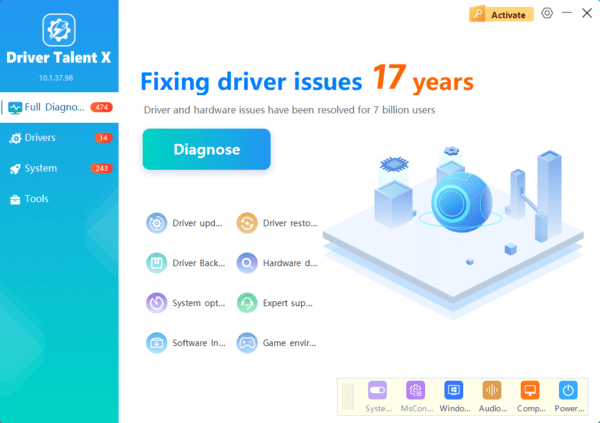
Find the disk driver in the scan results and click "Upgrade".
Restart your computer after updating to apply the changes.
Method 4: Adjust Virtual Memory Settings
Right-click "This PC" > "Properties" > "Advanced system settings".
Under Performance, click "Settings" > "go to Advanced" > "click Change".
Uncheck "Automatically manage paging file size for all drives".
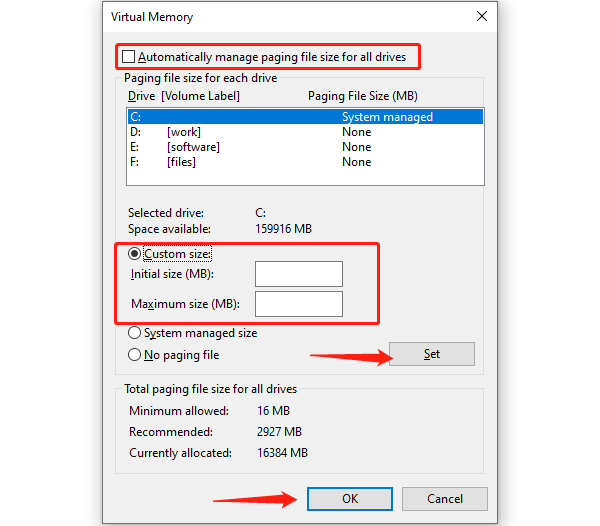
Select your system drive and manually set the initial and maximum size. (Recommended: 1.5 to 3 times the size of your physical RAM)
Click "Set", save changes, and reboot your PC.
Method 5: Run Disk Check Command
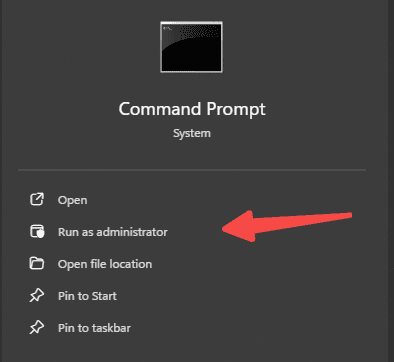
Open Command Prompt as Administrator.
Enter the following command: chkdsk C: /f /r /x
Restart your computer; the system will automatically perform the scan and repair.
Method 6: Clean Up Background Tasks Using Task Manager
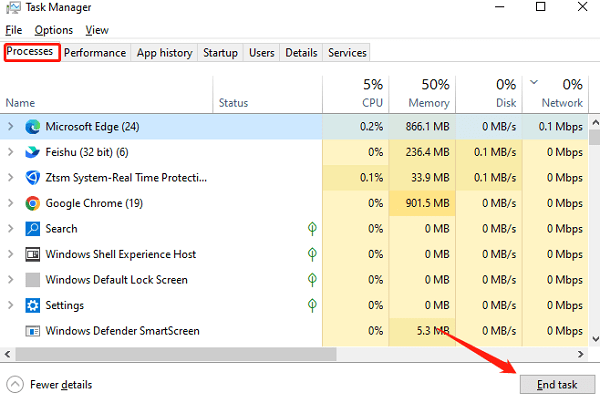
Press Ctrl + Shift + Esc to open Task Manager.
Go to the "Processes" tab and identify any processes with high disk usage.
If unnecessary, right-click and choose "End Task".
Disable startup programs to improve performance.
3. Additional Tips
Upgrade to an SSD: This fundamentally resolves disk bottlenecks common with traditional HDDs
Keep Windows Updated: New updates often fix performance-related issues
Avoid running multiple heavy applications simultaneously
Frequently Asked Questions
Why is my disk usage at 100% when no applications are running?
Windows Search, SysMain, antivirus scans, updates, or other background processes may still access the drive. Open Task Manager and sort the processes by the Disk column to identify the cause.
Can an outdated storage driver cause 100% disk usage?
Yes. A corrupted or incompatible SATA, AHCI, NVMe, or chipset driver can cause repeated disk activity and poor performance. Updating or reinstalling the appropriate driver may resolve the issue.
Does 100% disk usage mean my hard drive is failing?
Not necessarily. Software conflicts and background services commonly cause high disk usage. However, unusual noises, corrupted files, frequent freezes, or disk-check errors may indicate drive failure, so back up important data immediately.
100% disk usage doesn't always indicate a hardware failure. In most cases, it can be resolved with system optimization and configuration changes. If you're facing this issue, try the solutions listed above one by one to restore your PC's performance. If the problem persists, consider backing up your data and reinstalling Windows, or seek assistance from a professional technician.
